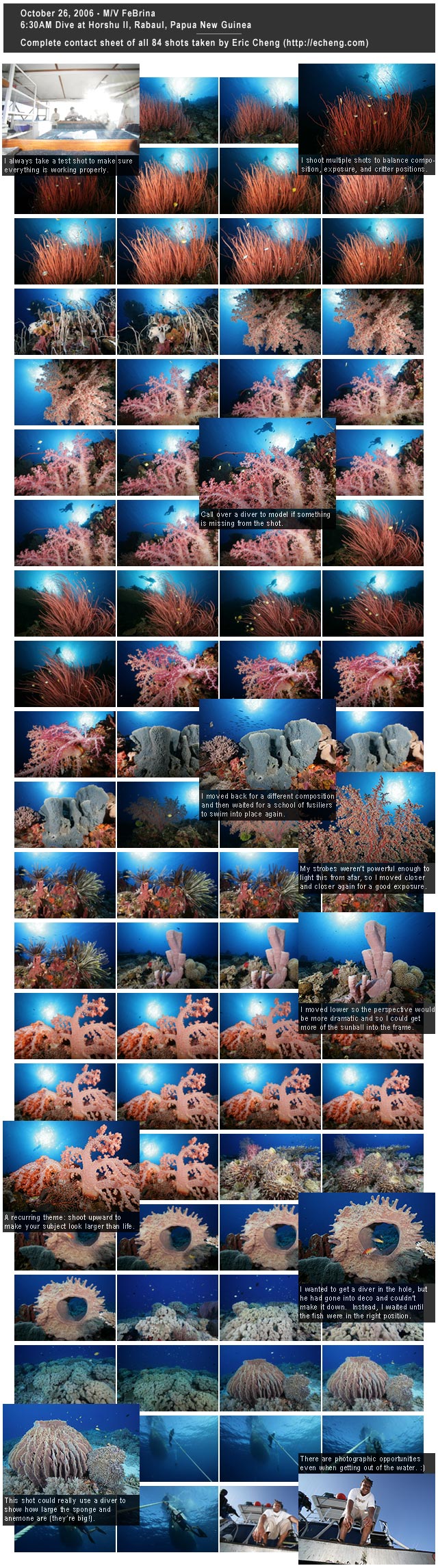
I often get asked how many shots I take during a single dive. Instead of fumbling around with words, I decided to thumbnail and present every image I captured during a dive last week at a site called Horshu II near Rabaul, Papua New Guinea. On this particular dive, I snapped off 84 frames while using a Tokina 17mm lens on my Seacam-housed Canon 1Ds Mk II.
All thumbnails are extracted JPG thumbnails from RAW files (not converted -- they're the thumbnails that get embedded along with the RAW data), and have not been manipulated in any way.
That's very informative Eric, thanks for sharing! I have to go out more on those dive operations where they just let you stay in one place and click away! Most places where I dive there will be somebody pushing me to move... Also, where do you find such cooperative models?
Interesting concept, especially with the added comments... Which software did you use to create the contact sheet?
aha... i like it when people listen to the words bracket bracket bracket...
Very interesting Eric - thanks for sharing.
84 clicks. 17 pictures. Not bad. For a real sense of how click happy you are, how long were you down?
It was probably a 60-65 minute dive (seemed to be the average for the trip). I used photoshop to make a contact sheet, pasted larger thumbs where appropriate, and added 80% opaque black rects and white text on top.
Addendum: I used breezebrowser's "extract thumbnails" feature to yank the jpg thumb from the raw files.
Guys -- if any of you are interested in doing this as well, whip one up (640 pixels wide max) and I'll post it on the front page!




 Also, where do you find such cooperative models?

