Skip to content

Shooting Technique, Workflow and Editing / Archived topic

DxO optics Pro ver 5.3

Started by MatthewAddison ·

  • 2Posts
  • 2Replies

Read-only discussion

DxO optics Pro ver 5.3

2 posts
  1. I just downloaded a 14 day trial copy of DxO Optics Pro from the following website:

    DxO website

    Here are 2 samples of NEF files:


    post-9136-1225852185.jpg


    ACR raw conversion


    post-9136-1225852271.jpg


    DxO optics conversion (converts to TIF in lightroom)


    The latter file was processed using the programs' defaults (I made no manual adjustments). The program seems to look at the exif data to make it's best adjustments. Interestingly, it is camera AND LENS specific (it has driver profiles for many lenses) and correctly identified my 17-35 Nikkor. More interestingly, the program seemed to have picked up and automatically corrected the chromatic aberations from the dome port!? (Whiskey Tango Foxtrot, over?)


    I literally downloaded this trial 1/2 hour ago so this IS NOT a recommendation (yet). I would love to hear from others what they think about this converter. It works in Windows, Mac and has PS & lightroom drivers. Now I just have to find out what it costs if I get hooked.


    DID I MENTION IT IS FREE FOR 14 DAYS? (I don't own stock in the company or know anyone who works there either).

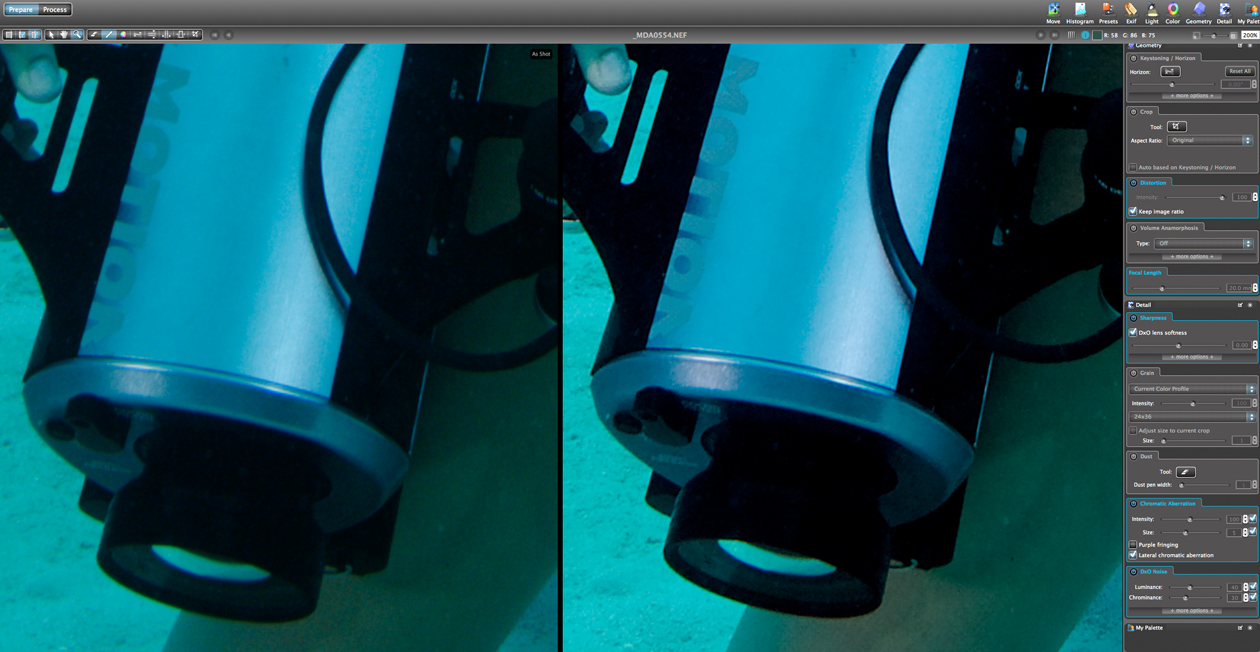
    post-9136-1225852275.jpg

  2. Here is a screen grab I took from DxO optics pro showing the before & after conversion process. I don't know if you can see it in the screen capture, but the details & color saturation, and overall sharpness of the image seem to be much improved over ACR conversion. Interesting thus far.

    However, the program runs about as fast as NX. I haven't yet compared this program to the output from NX. I'll post whatever i find then.

    Anybody else downloaded the 14 day trial version yet?


    post-9136-1225991143.jpg

Kraken Sports

Account

Navigation

Search

Search

Configure browser push notifications

Chrome (Android)
  1. Tap the lock icon next to the address bar.
  2. Tap Permissions → Notifications.
  3. Adjust your preference.
Chrome (Desktop)
  1. Click the padlock icon in the address bar.
  2. Select Site settings.
  3. Find Notifications and adjust your preference.