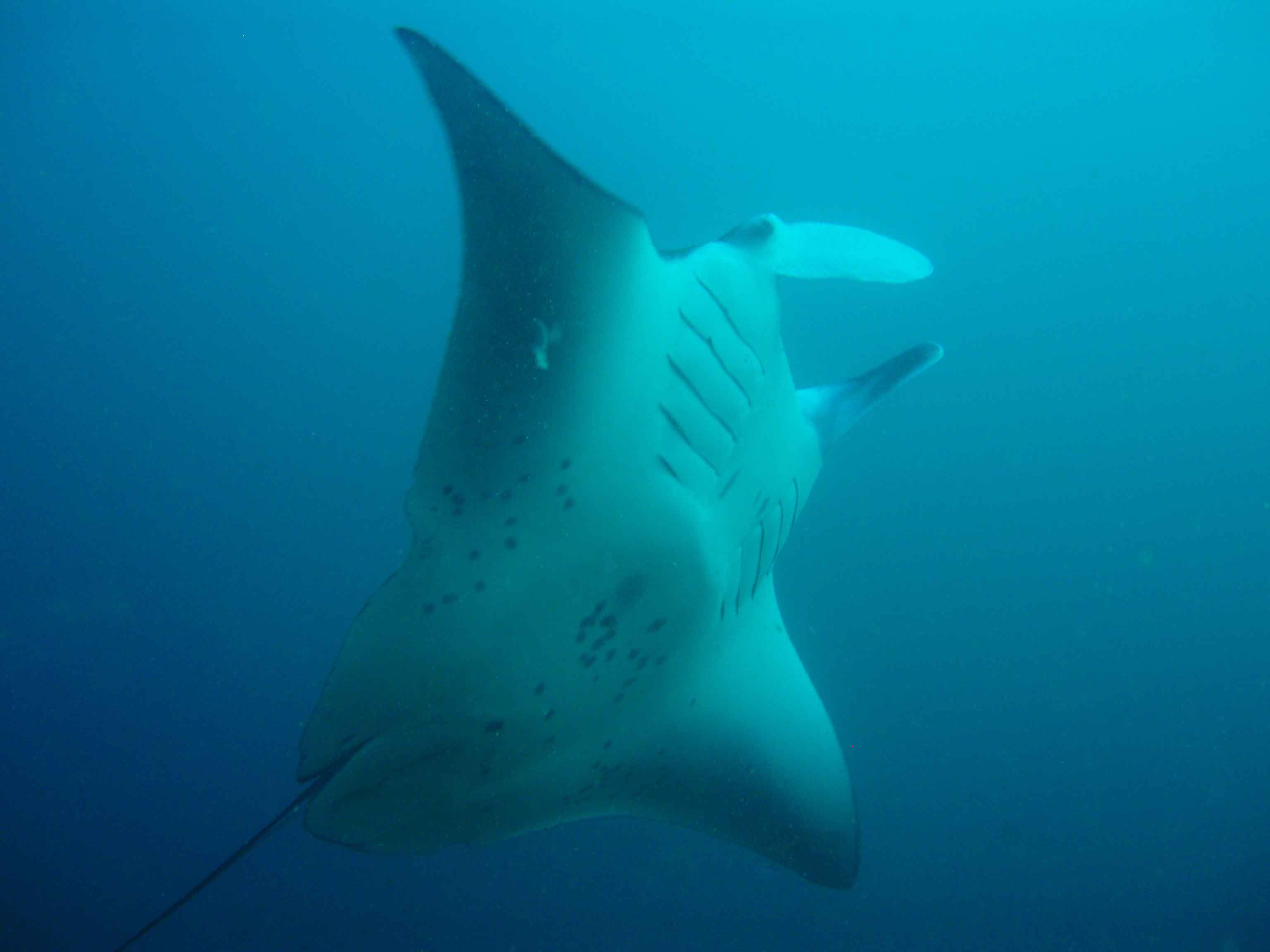
I went to Mozambique (Tofo) last october and saw some awesome Manta's passing by. This is one of my shots. Made by a simple olympus camera without external flash.
Now I would like to improve the image a bit to get the manta more out of the back. Any help is appriciated !
Regards,
Olof
Olof,
There is a pretty good tutorial on removing blue casts and getting the most out of this type of shot using Photoshop here on Wetpixel.
What software are You using for picture improvement?
Cheers
Scubamoose
Hi Scubamoose,
I'm using photoshop. I've been playing with the "Getting Rid of the Underwater Blues " tutorial. But can't get it really as I would like to see it.
So any help is appriciated !
cheers
Olof
Hi Olof!
What software are You using for picture improvement?
Cheers
Scubamoose
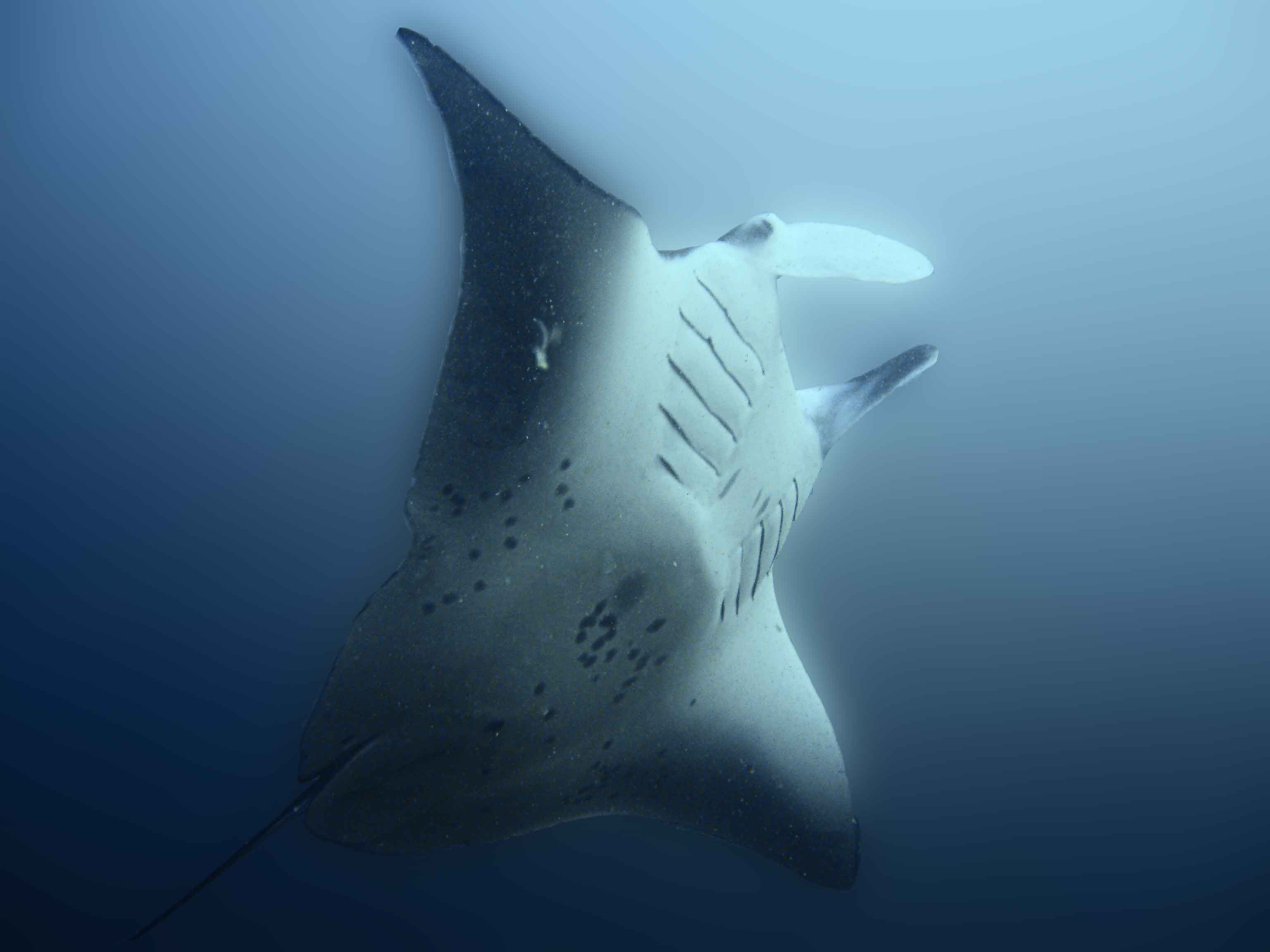
Just to show you, This is what I got out of the picture using the "Getting Rid of the Underwater Blues" Tutorial.
So that's why I hope someone has a better idea. !
Cheers
Played with the pic a bit, but can't say I would get something better out of it as You'r improved version.
And to my eye it's actually quite good and seems natural. There are some limits for improvement from the original material, so...
Let's wayt and see if we will get a third oppinion on this one.
Regards
Scubamoose
Olaf,
I think you will have to accept a limited improvement in your image, as unfortunately it is a very flat image with almost no information in the red channel. However I think you can see the manta color balance is much improved in the above image, though your background color has lost saturation.
Depending on how hard you want to work on this image, you could duplicate your original image and get the background to where you want it to be, then merge that image with the one above and use a mask so that you can see the manta you want and the background you want. You can also do some sharpening. I don't think you will get much more out of it.
Yes I think i have to live with it... I got some more nice manta pictures and will check if they have some more red to improve the quality.
I'll let you guys know. And if someone has some ideas please let me know !
Cheers
Hi Olof,
Try to convert to black and white-somtimes the lack of a colour channel doesn't seem to make quite as much of a difference!
Adam
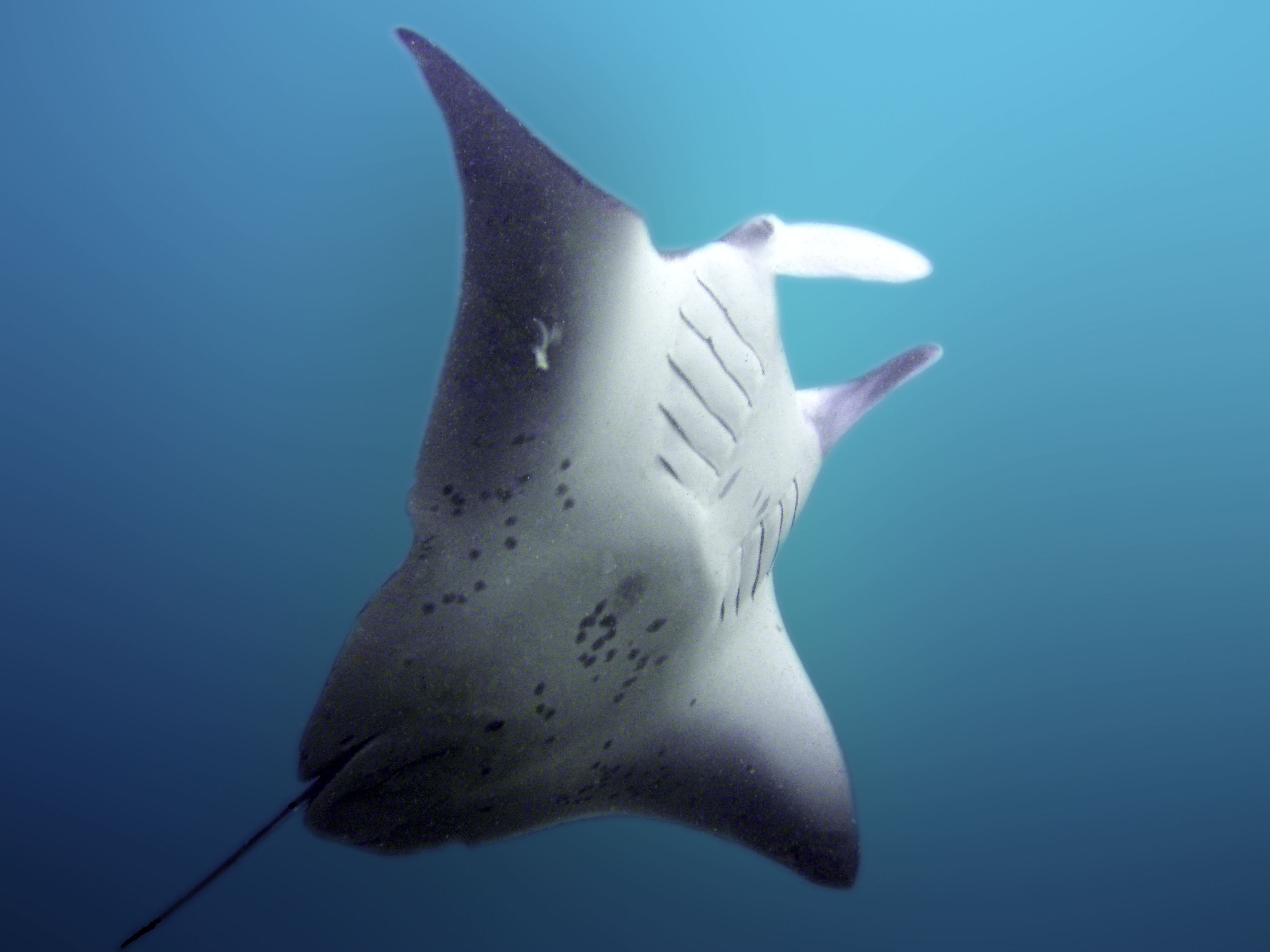
The background has not been blurred, but I had a quick go.....
Hi cpix,
Yours looks a bit better then mine. Especially the edges of the manta. What did you do?
Cheers.
The background has not been blurred, but I had a quick go.....
Even though you applied a mask to the Manta, when you did the blur, the background near the edges of the Manta took image information from the Manta and your blur got tainted by the Manta. The image I have shown previously does not have the background blurred and so the edges are still OK.
This image does have the background blurred, but the Manta is OK
This can be done by applying the blur without the manta there (for example cloning it away), then going back to the original image and selectively applying the background using the history tool.
Rather a lot of Photoshopping !
cpix,
Thanx for your reply. Unfortunatly I do not exactly understand what you mean.
You want me to make an duplicate layer, erase on one the manta, do the blur and then merge the layers to get the manta back?
Thanks !!
Even though you applied a mask to the Manta, when you did the blur, the background near the edges of the Manta took image information from the Manta and your blur got tainted by the Manta. The image I have shown previously does not have the background blurred and so the edges are still OK.
This image does have the background blurred, but the Manta is OK
This can be done by applying the blur without the manta there (for example cloning it away), then going back to the original image and selectively applying the background using the history tool.
Rather a lot of Photoshopping !
I guess there are a number of ways to do it - create a duplicate layer, use the clone tool to remove the Manta from the duplicate layer (does not have to be too neat), then blur the duplicate layer. Reduce the opacity temporarily to see what you are doing) and create a layer mask on the duplicate layer, do a reveal all, now paint in the Manta using the brush tool (black on the mask) taking care at the edges and finally put the opacity back to 100%. There are probably better ways to do it....but you work with what you know !
Hmmm, not that easy. But I'll go and play with it. Stays a nice animal so why not
This is another result by playing a bit with curves.
Cheers
I guess there are a number of ways to do it - create a duplicate layer, use the clone tool to remove the Manta from the duplicate layer (does not have to be too neat), then blur the duplicate layer. Reduce the opacity temporarily to see what you are doing) and create a layer mask on the duplicate layer, do a reveal all, now paint in the Manta using the brush tool (black on the mask) taking care at the edges and finally put the opacity back to 100%. There are probably better ways to do it....but you work with what you know !