Skip to content

Shooting Technique, Workflow and Editing / Archived topic

Lightroom

Started by KirkD ·

  • 3Posts
  • 3Replies

Read-only discussion

Lightroom

3 posts
  1. I was wanting to know how you can move photos from on catalog to another?


    Specifically, when I'm on a dive trip and I import photos to my laptop and make some adjustments, add some key words, etc, how do I merge those photos with my current catalog (Desktop PC) and keep all of the adjutment and stuff.


    thanks


    kirk

  2. Fist I save all metadata to file in the old laptop catalog (right click on folder in LR) or select all and "Control + S".

    Exit LR and move/copy the files.

    Now import files files in the new desktop catalog.

    Be careful, you will lose the flag information (marked/rejected). If you want to keep this use a keyword for it.

    Cheers

    Michael

  3. Hi Kirk,


    To transfer one catalog into another catalog within lightroom:


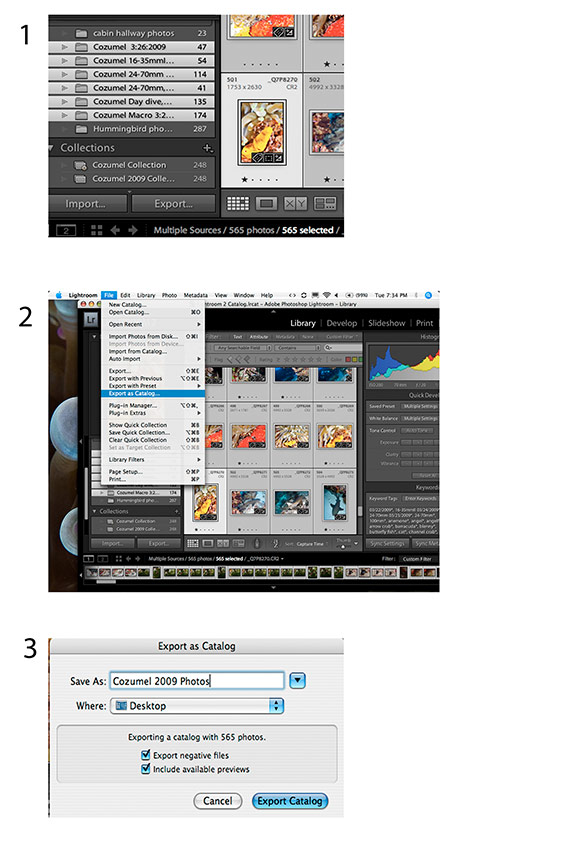
    1. Select the folders and photos within these folders that you wish to transfer. (see #1 below)

    2. Select the "export catalog" command from the "File" table. (see #2 below)

    3. In the Export as Catalog dialog box, name the folder and direct lightroom where to place the folder. Make sure the "export negative files" and "include available previews" boxes are checked if you wish to include the raw files in your transfer. (see #3 below)


    4. Attach your laptop to your desktop either directly with firewire, USB, or via network.

    5. From your desktop PC, open lightroom and access the "import from catalog" command in the "File" table. Lightroom will ask you to locate the catalog file you created on your laptop (remember where you put it ;-)!) which is denoted by a ".Ircat" suffix.

    6. In the "import" dialog box specify where you want the raw files to be placed and lightroom will transfer the raw files including any adjustments, keywording, etc that you made to your photos.


    Imasleeperpost-5041-1238548320.jpg
    Edited by imasleeper
Kraken Sports

Account

Navigation

Search

Search

Configure browser push notifications

Chrome (Android)
  1. Tap the lock icon next to the address bar.
  2. Tap Permissions → Notifications.
  3. Adjust your preference.
Chrome (Desktop)
  1. Click the padlock icon in the address bar.
  2. Select Site settings.
  3. Find Notifications and adjust your preference.




