Skip to content

Photography Gear and Technique / Archived topic

How to obtain a "Perfect histogram"

Started by danielstassen ·

  • 11Posts
  • 11Replies

Read-only discussion

How to obtain a "Perfect histogram"

11 posts
  1. Hi guys,


    I have read a few things about the use of a histogram. Please correct me if I am wrong, but the perfect histogram "should" contain details from shadows to highlights.


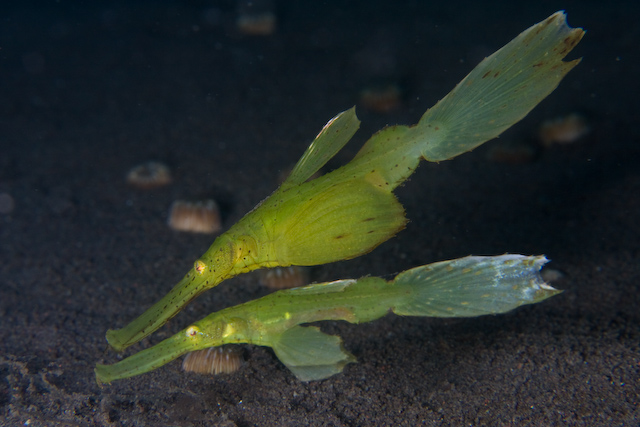
    Well, last week end I wend shooting some ghostpipe fish, and came back with pictures that I am not too much happy with. When I look at the histogram, it shows no details from the midtones to highlights. Most of the detail is in the shadows to one quarte tone. I remember using full power on my strobe (single one - Y110 alpha) and an aperture of 16 with my 60 mm canon lens.


    Here is the photo:


    post-21493-1237890005.jpg


    Am I on the right track in thinking that if I had more even details from shadows to highlight that the picture would be more pleasing?


    If yes, then what do you think I should do? Get the strobe closer, open the aperture, get closer, ... I dunno...


    Cheers


    Daniel

  2. A histogram is a graphic representation of the distribution of luminance in the frame. There is no idea shape - because the shape of a histogram depends on what is in the photo. A correctly exposed picture might have a even distribution of data, or it might be biased towards one end and the other. Ideally you do not want it piled up against one end and the other, clipping data.


    But chasing a perfect histogram is not a good idea. Chasing a correctly exposed image is. The histogram is a tool to help you get there. I have seen too many photographers take poorly composed, badly exposed images in search of a perfect histogram.


    This picture is underexposed slightly on the main subjects.


    Alex

  3. FWIW I aim for a histogram which clips as little highlight detail as possible - but this depends on the subject matter and the end result you want to achieve - as Alex says, there is no ideal shape. Your image gives the impression of being somewhat underexposed but have a look at the highlight detail around the eye area - this is where clipping tends to occur on fish pix. How much you are prepared to put up with depends on what the effect on the final output (print?) is. Photoshop CS4 (and 3?) offer a recovery slider which can help with marginal clipping.

  4. I agree with Alex and Paul, and will add a little more that may help. As Alex said, there's no such thing as a perfect shaped histogram as it depends on the distribution of the highlights and shadows in any given image, so high key images will have very different shapes from low key and high contrast very different from low contrast etc. For example, in the image you post, if the animals comprised a larger part of the image, the histogram would change. You can check this by cropping the image and looking at the histogram again. The main object is to obtain as much information in the image as possible. Looking at your image I suspect that the peak of your histogram was somewhere in the middle, with very little info on either side of it, meaning that to me the image looks underexposed.

    A general rule of thumb is 'expose to the right' so you want your histogram pushed as far over to the right as possible without blowing the highlights. By the nature of digital sensors this will mean that you have much more information to work with than if you have the same shaped histogram shifted all the way to the left.

    Another way to do this underwater which is easier and I think works well is to use the blinking highlights screen on your LCD. On the Nikon this can be done with the full screen image or the small screen image with the different color histograms on the same screen.

    When you take a photograph look for blinking highlights; you would like to see possibly some small areas of blinking highlights - these are 'blown' highlights' and you would want these to be specular highlights in the image only (like the glint in the eye or the central part of the sunball) This will usually give you a histogram that is shifted safely over to the right. If you have large areas of blinking highlights you are over exposed and the histogram is too far over to the right. If you have zero blinking highlights in an image that should have some specular highlights, you are probably underexposed and not as far to the right as you could be.


    Edited by loftus
  5. I agree with loftus. First of all check the blinking highlights. If you can stand with the blown over part, then the exposure is as good as it gets. I mean, some shots will always have over exposure parts (e.g. sun ball) and in some shots there is a trade of, i.e. in order to get the main subject perfectly exposured some other parts may have to be over exposured.

    You only have to check the histogram when you don't have any blinking hightlights.

    The reason for why you should have it all as far to the right as possible is that there is less information in the parts to the left. So, if you need to brighten up the image (or just brighten up the darker parts) you will get more noise and banding issues in the darker parts.


    Hope this was of some help for someone!


    /Peter Segerdahl

  6. I agree with loftus. First of all check the blinking highlights. If you can stand with the blown over part, then the exposure is as good as it gets. I mean, some shots will always have over exposure parts (e.g. sun ball) and in some shots there is a trade of, i.e. in order to get the main subject perfectly exposured some other parts may have to be over exposured.

    You only have to check the histogram when you don't have any blinking hightlights.

    The reason for why you should have it all as far to the right as possible is that there is less information in the parts to the left. So, if you need to brighten up the image (or just brighten up the darker parts) you will get more noise and banding issues in the darker parts.


    Hope this was of some help for someone!


    /Peter Segerdahl


    Good tip on the blinking highlights.


    Jeff

  7. Everyone's comments here are on the money. I'd add a couple more...


    Imagine if you were shooting a white piece of paper. Ideally, the histogram would be a peak near the bright end with nothing else. Clearly, what's in the frame will determine the histogram shape. It also determines what correct exposure should be.


    You should understand that the histogram is not a display of what the camera sensor sees but rather what the resultant JPG image is after the camera has processed it. The histogram includes white balance, color space, contrast, etc. If you wish to use the histogram as a tool to help get precise exposure then you should consider camera settings that process the raw data as little as possible. Otherwise, what appears to be clipped highlights could be off dramatically. The downside is that your in-camera JPG reviews may not look good. Look for information on uni-white balance (uniWB, near-uniWB) on DPReview where they discuss how to accomplish that.

  8. Get the strobe closer, open the aperture, get closer, ... I dunno...


    Cheers


    Daniel


    hey Daniel


    If you wanted the pipefish a little brighter, I wouldn't get closer, I really like your composition the way it is. You could probably have opened up your aperture a little bit more to F13 or F14. I'm sure others will chime in on this.


    Scott

  9. Thank you for all your useful comments.


    I will go back next week and try the tip with the blinking highlights. I will try to put increase a bit the aperture.


    Cheers


    Daniel

  10. It also looks like the corners of the photo are suffering from some Chromatic Aberration (blue line at the end of the upper GPF's tail).

    This should be fairly simple to correct, and may help with the sharpness of the image at the edges once corrected.


    If you shot RAW then the Adobe RAW converter contains corrections for CA fringing, if it was JPG then the correction is also available in the standard Photoshop filters. Corrections need to be done before cropping.

    Edited by BigJeff
  11. I will go back next week and try the tip with the blinking highlights.


    Not too many bl****** highlights!


    It's easier to push the curve to the right in post-processing than to pul it back to the left, the recovery slider notwithstanding.


    If I bracket exposure it's the shot one ev underexposed from the blinking highlights that I like to work with.


    Tim


    :D

    Edited by tdpriest
AOI

Account

Navigation

Search

Search

Configure browser push notifications

Chrome (Android)
  1. Tap the lock icon next to the address bar.
  2. Tap Permissions → Notifications.
  3. Adjust your preference.
Chrome (Desktop)
  1. Click the padlock icon in the address bar.
  2. Select Site settings.
  3. Find Notifications and adjust your preference.