Skip to content

Shooting Technique, Workflow and Editing / Archived topic

White balance tool in Photoshop

Started by tobbe ·

  • 5Posts
  • 5Replies

Read-only discussion

White balance tool in Photoshop

5 posts
  1. Hi!

    When i open raw files using Camera Raw 6.0 in Photoshop CS5 and use the picker for setting the white balance, the Temperature slider is often set to its maximum and the image is not well balanced.

    For this image i have used the led on the weight belt as reference.


    PS1.png


    How dou you people set the White balance in those cases, manually or using this tool?


    Thanks!

    Edited by tobbe
  2. Hi :)


    Using this tool you can do for most of the shots. If there is still some colors that you don't like, you should try playing around in the 4th "chapter" on the top (HLS / Grayscale) and the 3 sub-chapters !


    But, how do you see it's not "well balanced" on your shot? because the fin is still a bit blue?

  3. The picker is a starting point. When it goes to the extreme I end up either: 1) scale back temp and tint or 2) "can't get there from here"


    In the case of #2, I will toss the image or do the best I can (blueish tint) or go to black and white.


    Also, you will notice that this radical adjustment will add noise. I then smooth/blur or de-noise the blue water portion of the image.

  4. Try sampling on the tank and see what you get. We esu, galvanized tanks, our Subal housings and certain buttons on ScubaPro B/c foe balance

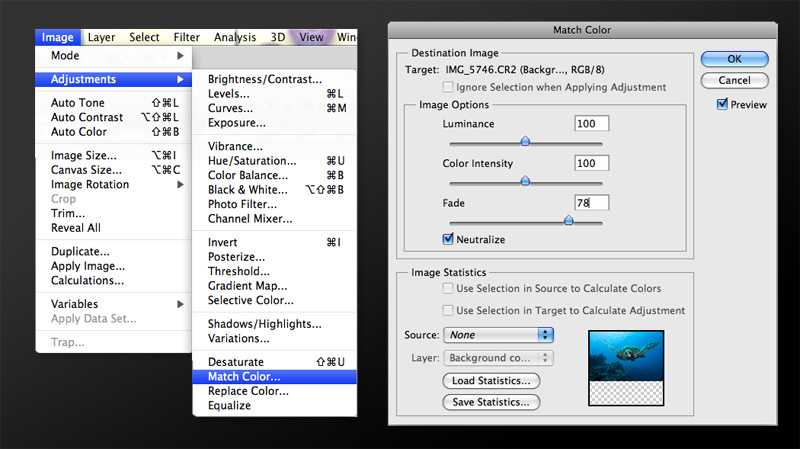
  5. Another thing you can try once you've got your image to a good as you think you're gonna get it with the RAW Converter is to use 'Match Color'.


    Open your image up in Photoshop and duplicate the layer.


    With your duplicated layer selected in the menu go Image > Adjustments > Match Color to open the Match Color dialogue box. In the bottom section of the dialogue box, under Image Statistics make sure the Source Menu is set to None. (This tells Photoshop that the source and target files are the same image). In the upper section check the box beside “Neutralize”.


    The result will be quite drastic but, play with the Fade control slider to tone down the adjustment.


    If you play around with it enough you can get some pretty good results, especially if you use it in conjunction with layer masks. That way you can target specific areas of your image and still keep the blues blue.

     

    MatchColor1.jpg

Sea & Sea

Account

Navigation

Search

Search

Configure browser push notifications

Chrome (Android)
  1. Tap the lock icon next to the address bar.
  2. Tap Permissions → Notifications.
  3. Adjust your preference.
Chrome (Desktop)
  1. Click the padlock icon in the address bar.
  2. Select Site settings.
  3. Find Notifications and adjust your preference.




