



Skip to content

Shooting Technique, Workflow and Editing / Archived topic

Printer Issue

Started by esetterf ·

  • 4Posts
  • 4Replies

Read-only discussion

Printer Issue

4 posts
  1. Having not actually printed off any of my underwater photographs until now, I did not have any idea how different they would come out on the printer compared to on the screen. And I must say, I was really disappointed.


    The print seemed to come out quite dark, but lost the feeling that it was underwater. I have calibrated my monitor with a Huey, however I believe I should be looking at ICC files. I have an HP Photosmart C8100, and having looked does't seem to have anywhere that the ICC file can be changed. I am still looking into what these files are meant to do and how to use them, but in the meantime if anybody can advise how to improve the printing to be more in line with what's on the monitor, or suggest a better printer it would be appreciated.


    I have attached the photo to give you an idea of what I am trying to print.


    Thanks.
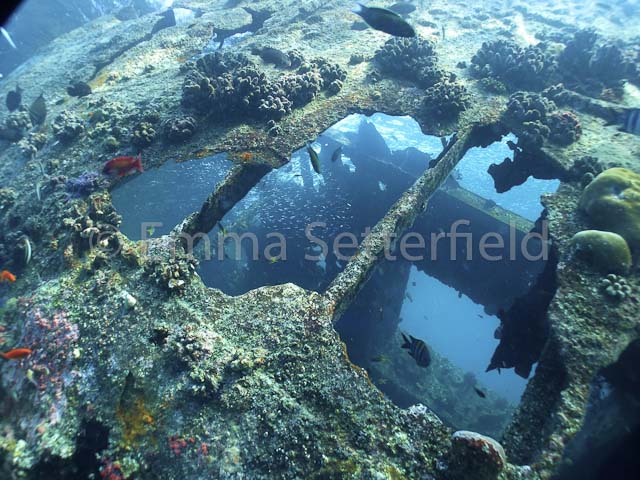
    post-34584-1314047755.jpg

  2. Do a white balance and then look at your histogram.

    The image probably does not have a lot of color in it.

    If you are close to water, take some colorful plastic toys to your printed image.in and then comapre

  3. Hi Emma,


    Printing your digital images is likely the most frustrating part of photography...after getting the image you want of course. Getting your monitor calibrated is great, but you do need to use a colour aware software such as PS or LR, there are others out there of course. I believe another program is Qimage, it's more of a printing package. What software are you using to print? Photoshop & Lightroom both have printer dialog boxes that allow you to have PS or LR control the printer and there let you select the paper profile. If you're using HP paper then there should be HP Profiles installed when you installed the printer drivers. If you are using 3rd party papers, depending on which manufacturer, they may or may not have ICC profiles for download on their websites.


    Your image does look a bit washed out, identify an area on your photo that you know should be a neutral grey and click on that to adjust your white balance. You also mentioned that your prints are dark, what was the brightness level that you used when you used the Huey? You should try to keep it in the 100cdms range, no more than 125.


    Good luck, and keep us updated on any progress


    cheers


    Stewart

  4. HI Stewart,


    I have both Photoshop and Lightroom, but have only just got them so still learning. I have just finished putting my photos into Lightroom so will take a look at the printing options.


    Will let you know how it goes :)


    From M


    Hi Emma,


    Printing your digital images is likely the most frustrating part of photography...after getting the image you want of course. Getting your monitor calibrated is great, but you do need to use a colour aware software such as PS or LR, there are others out there of course. I believe another program is Qimage, it's more of a printing package. What software are you using to print? Photoshop & Lightroom both have printer dialog boxes that allow you to have PS or LR control the printer and there let you select the paper profile. If you're using HP paper then there should be HP Profiles installed when you installed the printer drivers. If you are using 3rd party papers, depending on which manufacturer, they may or may not have ICC profiles for download on their websites.


    Your image does look a bit washed out, identify an area on your photo that you know should be a neutral grey and click on that to adjust your white balance. You also mentioned that your prints are dark, what was the brightness level that you used when you used the Huey? You should try to keep it in the 100cdms range, no more than 125.


    Good luck, and keep us updated on any progress


    cheers


    Stewart

Nauticam

Account

Navigation

Search

Search

Configure browser push notifications

Chrome (Android)
  1. Tap the lock icon next to the address bar.
  2. Tap Permissions → Notifications.
  3. Adjust your preference.
Chrome (Desktop)
  1. Click the padlock icon in the address bar.
  2. Select Site settings.
  3. Find Notifications and adjust your preference.

