Skip to content

Lights, Strobes, and Lighting Technique / Archived topic

Nikon D700 + 2 x Inon Z-240 + HW TTL converter

Started by iDimka ·

  • 3Posts
  • 3Replies

Read-only discussion

Nikon D700 + 2 x Inon Z-240 + HW TTL converter

3 posts
  1. Hello everyone.


    I have some problems with my Heinrichs Weikamp's TTL converter.

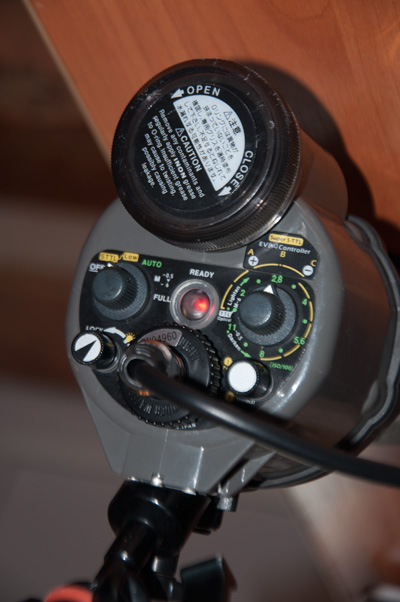
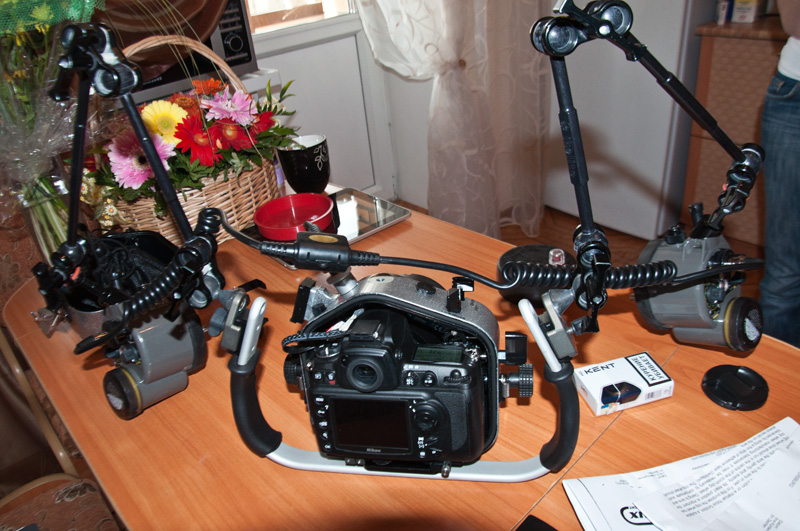
    What I have : Sealux housing for Nikon D700 with installed ITTL converter board, one Nikonos V connector, two Inon Z-240 strobes and sea&sea Y cable.

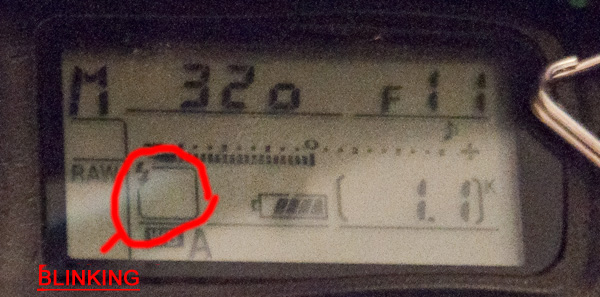
    Strobes set to STTL, EV control switch set to TTL (9 o'clock). When strobes switched on, flash icon on camera display is blinking, TTL not working and I got overexposed picture. I was tryed to change settings on my strobes : set EV control to A and B and to another positions, set preflash but TTL still not working.

    One more thing what I found, if I am switching strobe to M mode I cant chenge power of flash. Than I set strobe to FULL mode its also not works well. But when I was connected strobes without TTL converter M and FULL modes works nice.

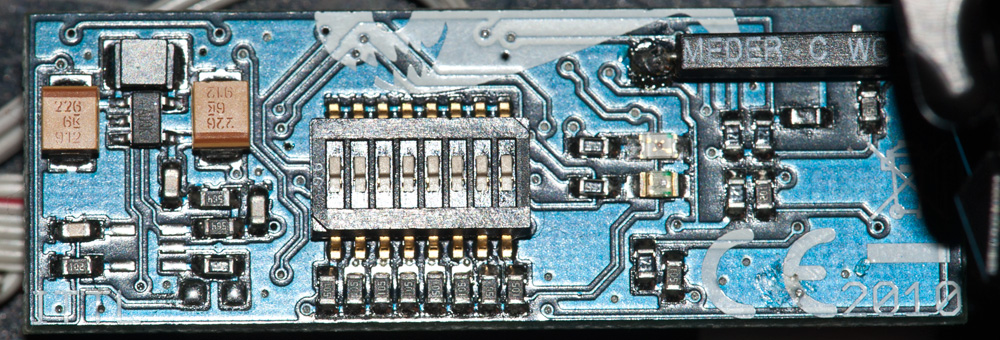
    Maybe I need to switch any of 8 switchers on TTL board ? But I dont know how to switch them coz I have no manual and I cant find it on heinrichsweikamp.net.

    I was already sent this question to HW support and waiting aswer from them, but may be somebody from this forum knows how to fix my problem.
     

    post-36205-1336156464.jpg


    post-36205-1336156474.jpg


    post-36205-1336156482.jpg


    post-36205-1336156493.jpg

  2. hi

    Im actually also having problems with my hw converter and would love an explanation about how to set them to work and also about the switches on the board.


    I would give you one suggestion:I read somewhere that the ttl converter doesn't work with an y sync cable. try to connect only one strobe to the sync cable and see if that irks for you.


    Good luck

  3. Hello,

    I'm very interested in the HW TTL converter for InonZ240...

    Where did you buy it?

    Thank

Retra

Account

Navigation

Search

Search

Configure browser push notifications

Chrome (Android)
  1. Tap the lock icon next to the address bar.
  2. Tap Permissions → Notifications.
  3. Adjust your preference.
Chrome (Desktop)
  1. Click the padlock icon in the address bar.
  2. Select Site settings.
  3. Find Notifications and adjust your preference.