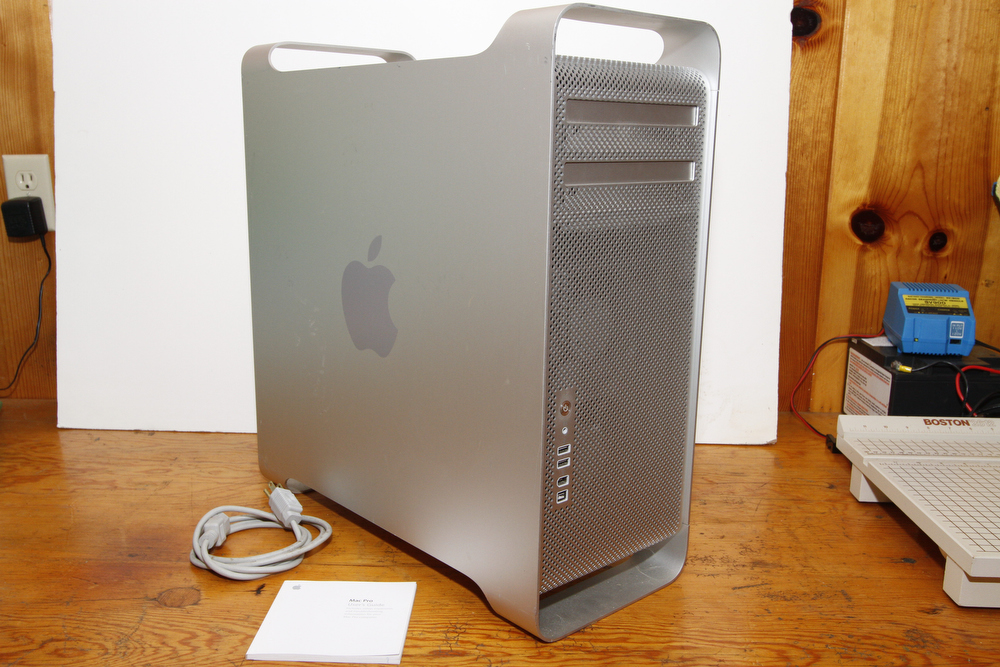
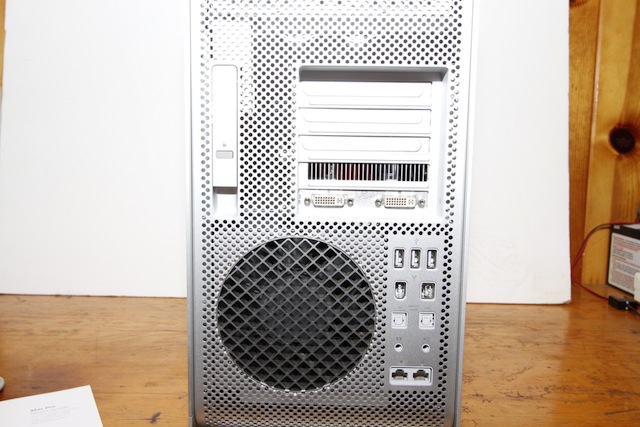
Mac Pro - Quad Core 2.66 GHz (4 cores total), upgraded to 5GB RAM, 1.5TB Hard Drive, SuperDrive, Apple Part #MA356LL/A; both OS 10.6 and OS 10.7 Snow Leopard and Lion operating systems installed!
Because this Mac can run both Snow Leopard and newer operating systems, you can can run older Power PC Programs through the Rosetta software that is available on Snow Leopard. Therefore you can choose to run either OS 10.6 or 10.7, and run all your old PowerPC programs using Snow Leopard. Or you can start up your machine in OS 10.7 Lion.
This is a very lightly used Mac Pro tower. I used this Mac Pro in our summer home, and it probably has less than 100 hours of use on it. I had two of these machines along with a MacBook Pro laptop.
The best thing about these Mac Pro machines is that they can run OS10.6 Snow Leopard which is the last OS that runs older Rosetta, Power-PC-based applications. These machines can also run the newer OS’s such as 10.7 and 10.8, Mountain Lion and Lion. A new Mac will ONLY run the OS that it comes with and newer – so the only way to run older applications is to buy Parallels and a copy of the very hard-to-find Snow Leopard Sever – which is a pain to install and a pain to use, since Parallels Tools won’t work (transferring files is therefore a hassle). I have two of these Mac Pro machines and I am keeping one of them. These are indestructible, heavy duty, professional machines that just keep on chugging along. They are loaded with all kinds of connectivity that you need such as front and back Firewire 400 and 800 ports, several USB 2.0 ports, and the list goes on.
This model came standard with 1Gb of RAM and a 250Gb hard drive. I upgraded this Mac and put in a total of 5Gb of RAM and have put in a newly tested, partitioned, and loaded-with-software Seagate 1.5 Tb hard drive. For a more accurate description of this Mac, google "MacPro1,1 model " and find the results at everymac. This is the Apple Mac Pro "Quad Core" 2.66 (Original), Order No: MA356LL/A, Model ID: MacPro1,1.
I am including the Lion OS as an extra, as this Mac Pro came standard with Snow Leopard.
I’ve completely reinstalled the software, tested the network connection, and everything works perfectly.
Here's some software that comes with this machine:
Disk Warrior versions 4.0 to 4.4. Works on Snow Leopard through Mountain Lion.
Photoshop CS
Carbon Copy Cloner
Extensis Portfolio
Filemaker Pro 9 Advanced and Filemaker Pro 10
Microsoft Office X and Office 2004 (these versions of Office work only in Snow Leopard)
MS Office 2004 (Microsoft Word, Excel, Powerpoint, Entourage)
Microsoft Office 2008 (does not include Word 2008)
Quicken 2006
Toast 8 and Toast Titanium
Asking $749 plus the cost of shipping via Fedex Ground to your address.
If you are interested, please contact Norbert Wu at temp2_at_norbertwu.com. Please no phone calls. I am happy to entertain reasonable offers. I can accept credit cards, Paypal, money orders, and personal checks. Money orders and personal checks will have to clear my bank before the product is shipped; which can take up to three weeks. Shipping will be at buyer's expense (at actual cost) and will be UPS Ground, Fedex Ground, or USPS Priority Mail (all of which give tracking of packages). If we conclude a deal, I'll give you a quote for shipping via one of the above methods.
Thanks!
Norbert Wu