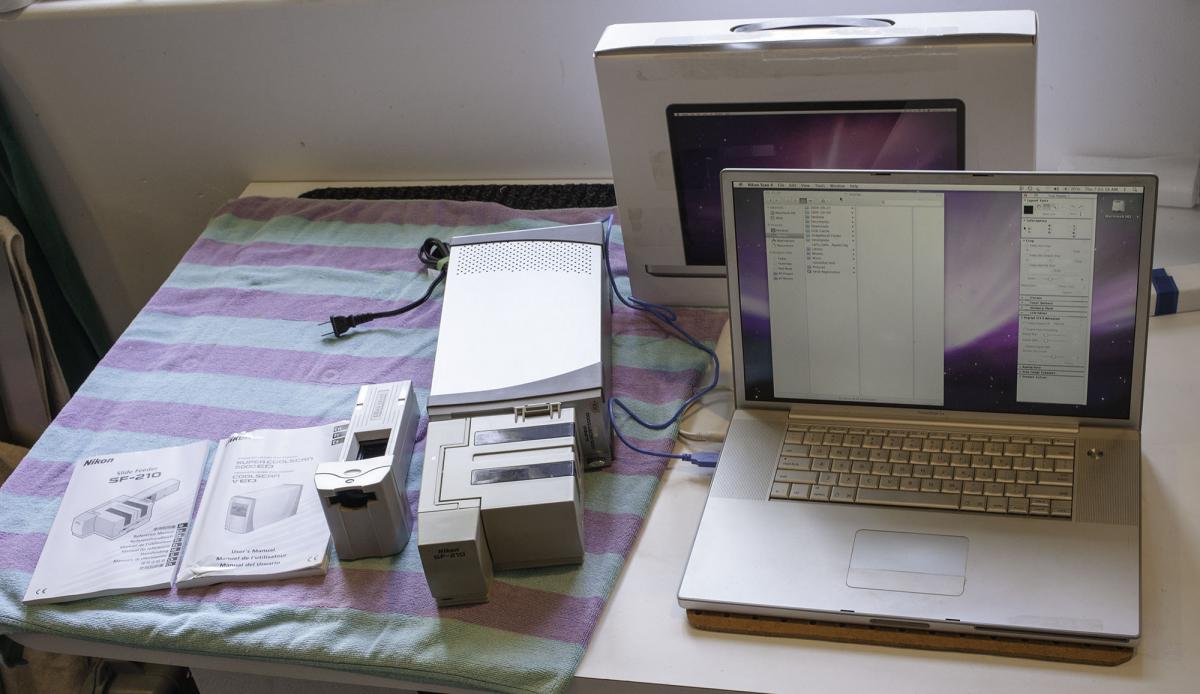
The following is likely only of interest to us old divers who once shot film. This auction is currently on Ebay and ends this Sunday.......Nikon Super CoolScan 5000 ED Film Scanner with SA-21 single slide mount and SF-210 Multiple Slide Feeder, and a “same era” G4 Macbook with Nikon software loaded. I am the original owner.
I have scanned hundreds of slides with this unit. It is in perfect working condition. When I was not using it, the scanner was sealed in plastic and stored in a dehumidified office where I have my computers and original transparencies. The scanner is in perfect working order and comes with the following (as pictured)….:
Nikon Super CoolScan 5000 ED scanner
Original Manuals (still available as a PDF download too)
SF-210 Slide Feeder
MA-21 single slide feed
SA-21 Film Strip feeder
AC cord
G4 Macbook with charger.
Note: the computer needs to be plugged in. The battery is well beyond its life expectancy (although replacements are still available). Once you get this system, do NOT upgrade the software. This is the last Mac/Apple operating system that the Nikon software will work on. The only thing not included is a hard drive to store the scans on. That USB or firewire hard drive needs to be a self powered desktop model. Not a portable USB powered hard drive.
This Nikon scanner will also work with current versions of the latest Mac or PC computers, but you will need to purchase new non-Nikon software such as VueScan or SilverFast scanning software
The buyer pays insurance and shipping ($90.00 airmail from Hawaii) and I will accept Paypal. Payment due within 2 days of close of auction. Thanks for looking and good luck bidding. Feel free to contact me if you have any questions.