



Having used a magic-filter on the rear filter holder with the 7-14mm lens, I want to use a magic filter with my modified setup of the 14-42mm and WWL
I was hoping to be able to use an externally mounted 67mm filter in-between the port and the WWL (so I could remove while diving) - but there isn't any space. So I went hunting for a internally mounted solution.
The 14-42mm mk2 sits super close to the back (or is it the front?  ) of the 35mm port - so close a Auto-Magic or URPRO filter (at 5mm thick) won't fit.
So I went back to the original Gel Magic-Filters...
The first solution would be to just use tape and stick one on, but these Gel and fingers don't mix and I was forever getting finger prints over mine so wanted a more easy / permanent solution, so I could install / remove as required.
I looked for ultra thin UV filters (some only 2.75mm thick) perhaps to use as a frame- but these are still too thick.
I then remembered back to my old EPL-3 - and the Olympus shading rings they sold - so £30 later I have a Olympus POSR-EP08.
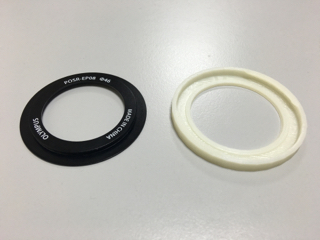
Alas the inner ring is too wide for the 14-42mm MK2 - and although would of been the ideal solution - it doesn't screw down all the way and within a hair is still too thick (pushing in the camera, makes the lens barrel go to 14.5mm)
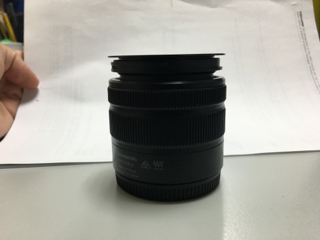
So after a few trial and errors, I've now printed a filter holder, which is only 0.5mm thick and fits the lens using the lens hood bayonet fitting. I can now glue/fix the magic-filer to this and not worry and fingers etc
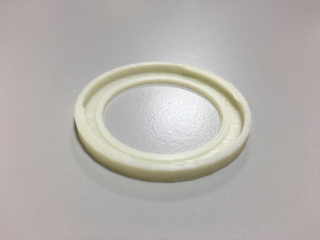
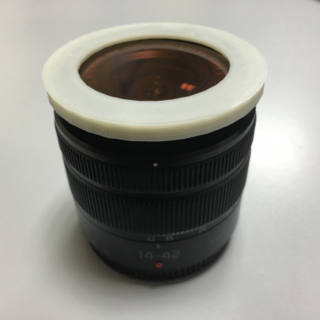
If anyone is in a similar situation - here is a link to the 3D file - https://tinkercad.com/things/2dlEK40xkKQ


