Skip to content

Photography Gear and Technique / Archived topic

Sigma 20mm F-1.4 prime on 5Ds/SEACAM/Superdome

Started by StephenFrink ·

  • 4Posts
  • 4Replies

Read-only discussion

Sigma 20mm F-1.4 prime on 5Ds/SEACAM/Superdome

4 posts
  1. I taught my annual Digital Master class in Key Largo last week, and having six days of local diving provided a bit of time to test new gear. One item of significance was the new Sigma 20mm F-1.4 prime wide angle. I shot it on a Canon 5Ds, SEACAM housing, Superdome, and 57.5mm port extension. This is the same one I use for my 16-35mm lens. I did not obsess over what port extension would put me in exact nodal point of the lens. Rather, this is simply plug and play with gear I had easily at hand. Here are the results:
     

    post-630-0-93106600-1466357367_thumb.jpg

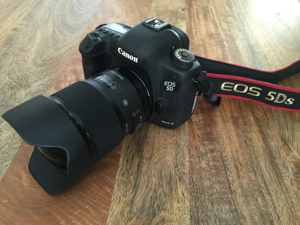
    Sigma 20mm lens on Canon 5D3 for scale
     

    post-630-0-97132900-1466357425_thumb.jpg

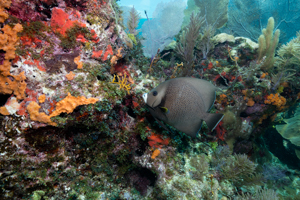
    Normal perspective of 20mm lens underwater, chosen to illustrate primary subject on same plane of focus as background
     

    post-630-0-65667000-1466357476_thumb.jpg

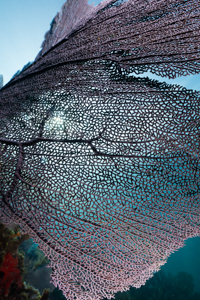
    Test of near focus, with seafan lower left actually touching the Superdome and zone of AF on this portion of seafan
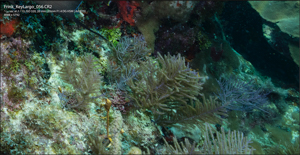
     

    post-630-0-96973700-1466357625_thumb.jpg

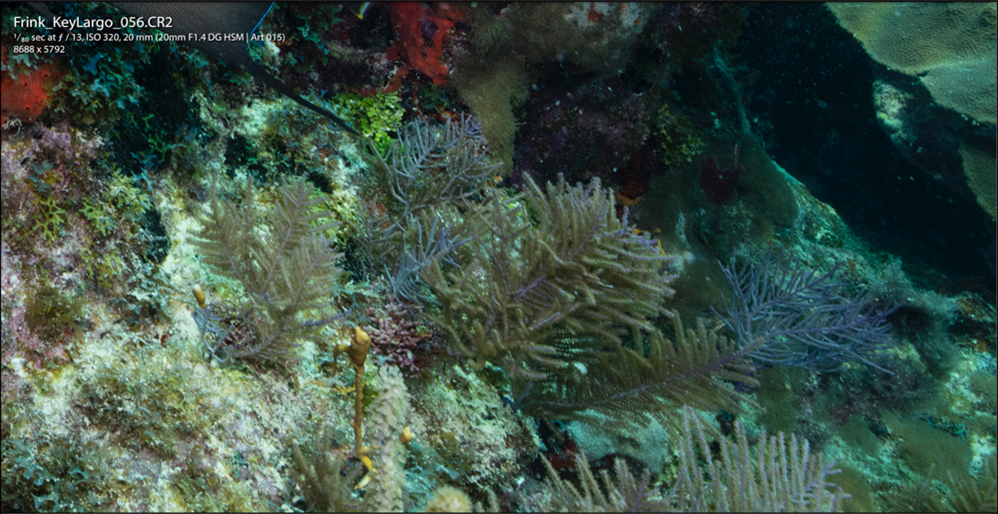
    screenshot at 100%, corner detail lower right
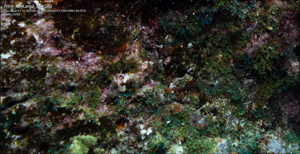
     

    post-630-0-69944400-1466357736_thumb.jpg

    screenshot at 100%, corner detail lower left
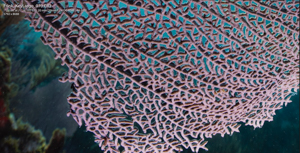
     

    post-630-0-42980200-1466357657_thumb.jpg

    screenshot at 100%, detail close focus on seafan lower left


    In that this lens is Sigma, it can work either Nikon or Canon. I find great potential here and bring it to your collective attention due to collective angst over poor corner resolution in many wide angle optics used UW.
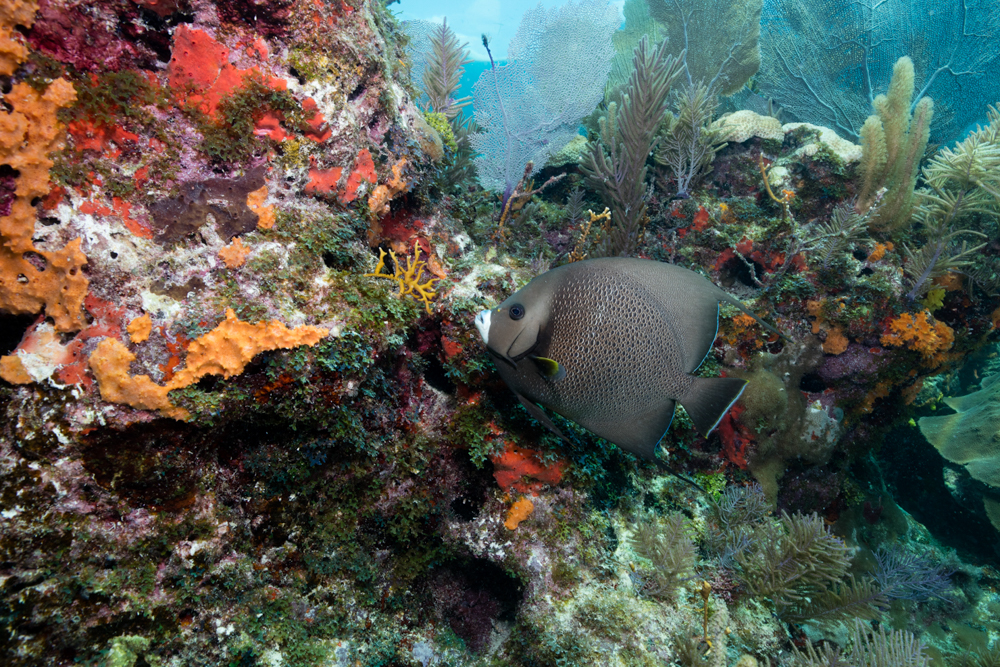
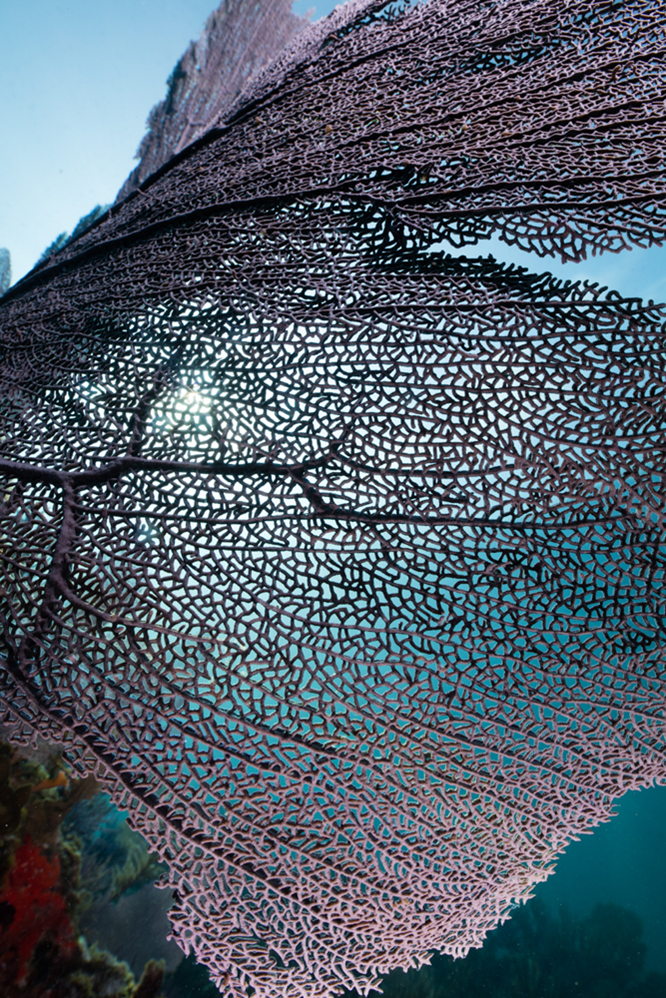


  2. post-630-0-82777600-1466358053_thumb.jpg

    Higher resolution view of reef scenic

  3. post-630-0-00190200-1466358195_thumb.jpg

    Higher resolution file of close focus test

  4. post-630-0-53588100-1466358436_thumb.jpg

    Higher resolution file of screenshot revealing lower right corner detail


    In all of above, no sharpening applied.

    Edited by StephenFrink
AOI

Account

Navigation

Search

Search

Configure browser push notifications

Chrome (Android)
  1. Tap the lock icon next to the address bar.
  2. Tap Permissions → Notifications.
  3. Adjust your preference.
Chrome (Desktop)
  1. Click the padlock icon in the address bar.
  2. Select Site settings.
  3. Find Notifications and adjust your preference.