



Just a quick note for anyone interested that I just got my first dive in on a new Nauticam housing for an Olympus E-M1II. I used a 60mm macro lens on a dive in Puget sound. I'm transitioning from a Canon 7dII and an original E-M5 (also nauticam). Only one dive, but I'm impressed so far.
Ergonomics on the housing feel a little more refined than my E-M5 housing (but generally similar). I do miss the tilted screen on the E-M5 but the new mechanism doesn't really allow that within a housing. The settings available on the E-M1II are rather daunting so it'll take me a while to figure out the best settings for various uses..
So far I've experimented with Continuous AF/tracking mode. Previously I'd found any form of C-AF pretty useless on the E-M5, but very nice on the 7D-II for macro. It seems to be quite useable on the E-M1II. In particular, with tracking enabled I found i could skip having to move focus points around in most cases. I just used center point, start focus on the eye, reframe while still half pressed (the tracking would keep the focus point on the eye) and just use a focus/recompose style while getting the macro focus correct. These was a huge time saving when quickly coming on a subject.
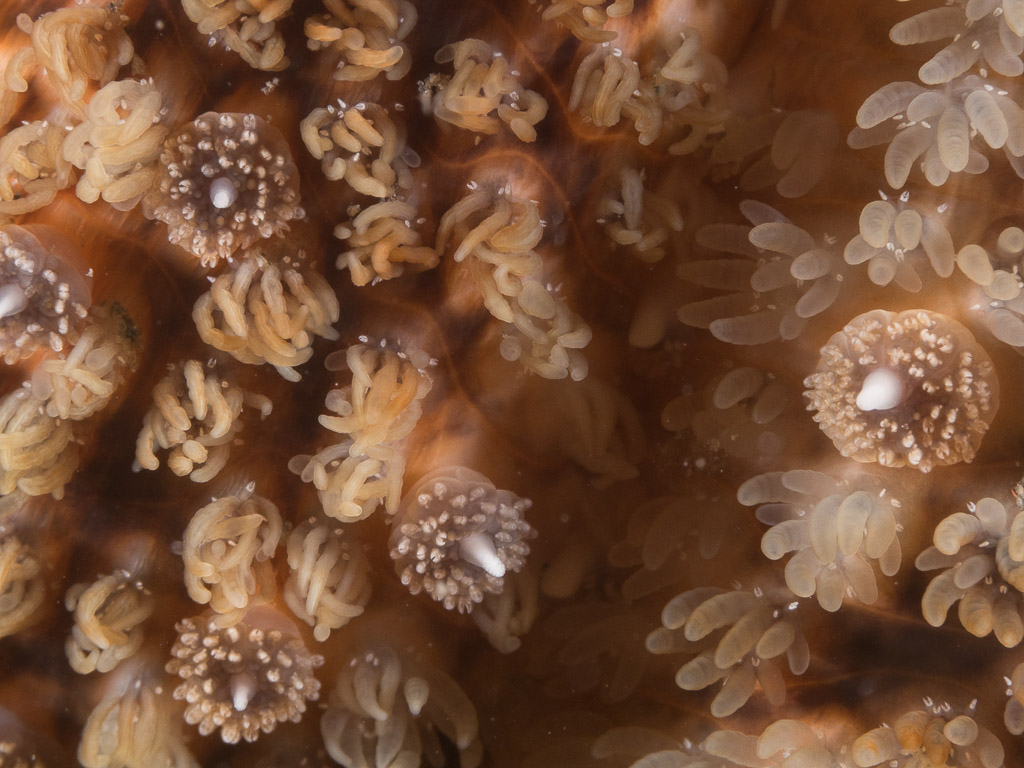
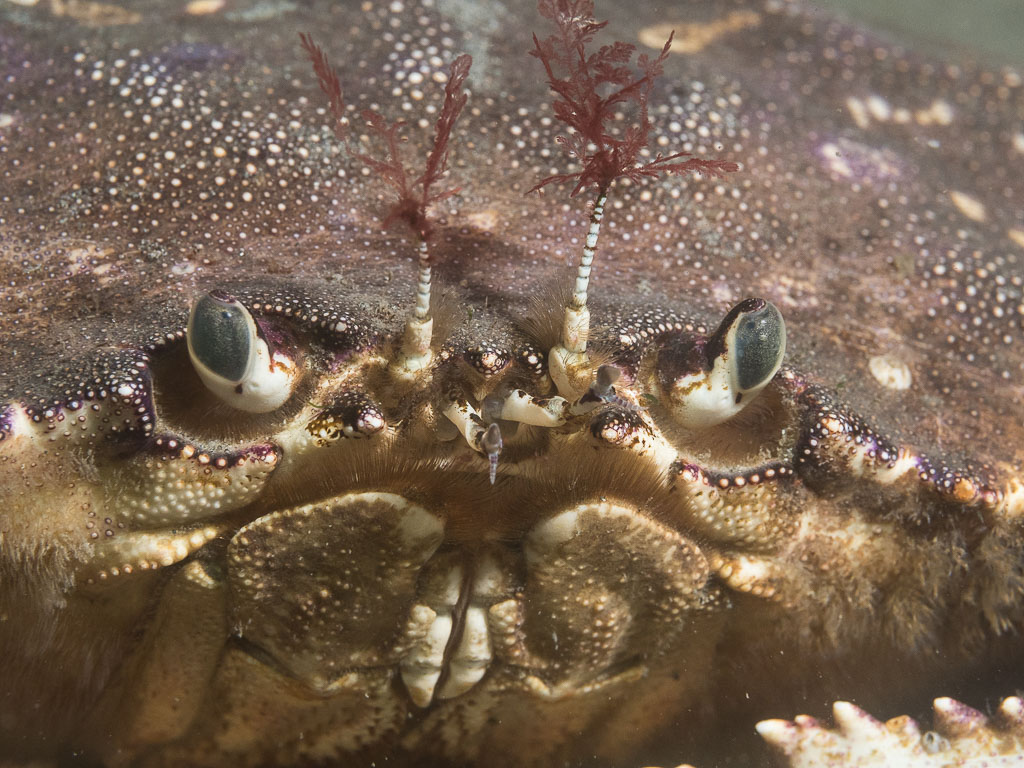
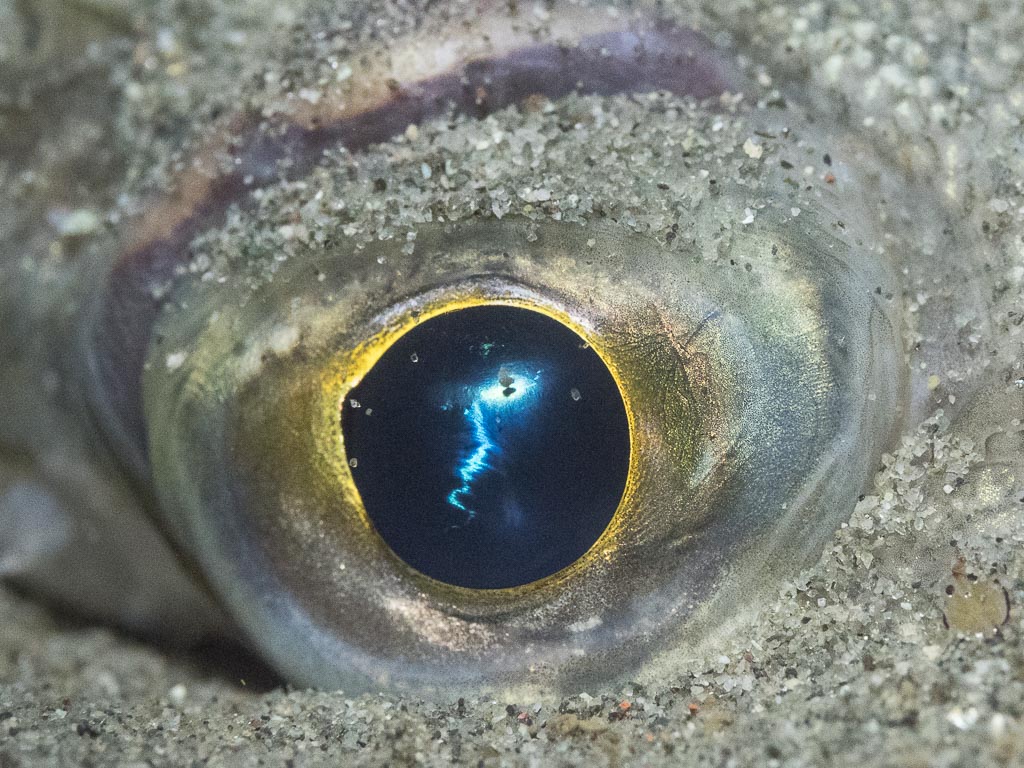
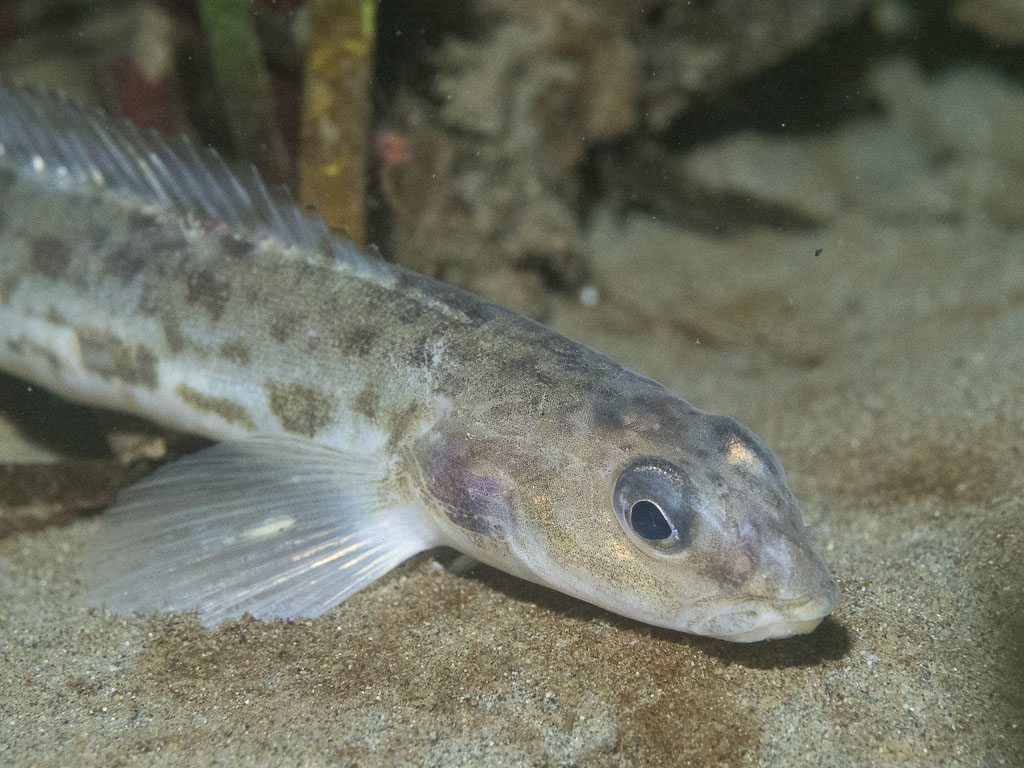
I experimented with some photos using strobes (dual YS-01) and some photos just using higher ISO and a single SOLA 1200. Both came out well (surprisingly so for the YS-01). The Eye photo was ISO 6400 with the focus light, and the Prickleback was ISO 5000. For a small sensor camera i was very happy with the output.
Somewhat higher res versions on google photos:
https://goo.gl/photos/eXXd3wga4GpF5Dcz7
Eric
.jpg.857dbbfbdc4d79d9c6ebf7b4ba96ed1b.jpg)

