



Anybody can show me some pictures with this lens. I m thinking to buy one but I would like to see some examples before. Many thanks.
Enviado desde mi ONEPLUS A3003 mediante Tapatalk
Read-only discussion
Anybody can show me some pictures with this lens. I m thinking to buy one but I would like to see some examples before. Many thanks.
Enviado desde mi ONEPLUS A3003 mediante Tapatalk
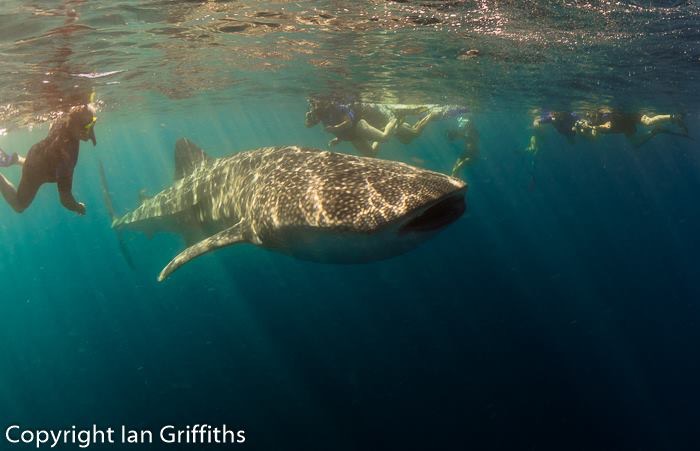
Here are some low res (for Online viewing) of my trip to Ningaloo WA taken with OMD EM1 with Olympus 8mm f1.8 in Nauticam housing. No flash as you are not allowed to use them photographing the whale sharks.
Also some astrophotography pics as this lens has very low coma distortion.


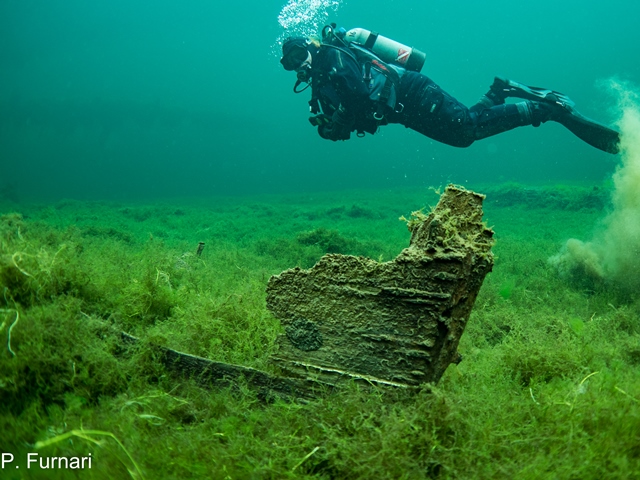
Not the best environment to test this lens, but some of mine (view on flickr for a better view):
 Sepia by Arie de Gier, on Flickr
 Lobster by Arie de Gier, on Flickr
 Reefscape Zeelandbrug by Arie de Gier, on Flickr
Interesting fotos...
@Griff & @Diver4Fun:
What domports have you been using?
Wolfgang
I'm using the 4.33 inch domeport + 20mm extension ring.
Same here
These are examples shot with the Olympus 8mm F/1.8 Fisheye, E-M1 II, Nauticam NA-EM1II housing, Nauticam N85 140mm optical glass dome port and N85 extension 17. One close focus and one at about 18 inches.


Here's a couple shot through the Inon 170mm dome with my E-M1 and Oly housing. I use the same dome for the 12-40 and 7-14 Pro lenses- just add a 2" extension ring and you're in business. Remove it, and you can use the 8mm. Corner sharpness is lousy in the first one because I was shooting at f2 for some reason. I have others taken at a reasonable f-stop that had better corner performance.


Terms of Use Privacy Policy Guidelines We have placed cookies on your device to help make this website better. You can adjust your cookie settings, otherwise we'll assume you're okay to continue.

A worldwide community for underwater imaging.
