Skip to content

Classifieds / Archived topic

Nauticam NA-502 SDI monitor and housing package

Started by Birdman ·

  • 5Posts
  • 5Replies

Read-only discussion

Nauticam NA-502 SDI monitor and housing package

5 posts
  1. Nauticam NA-502 monitor kit for sale


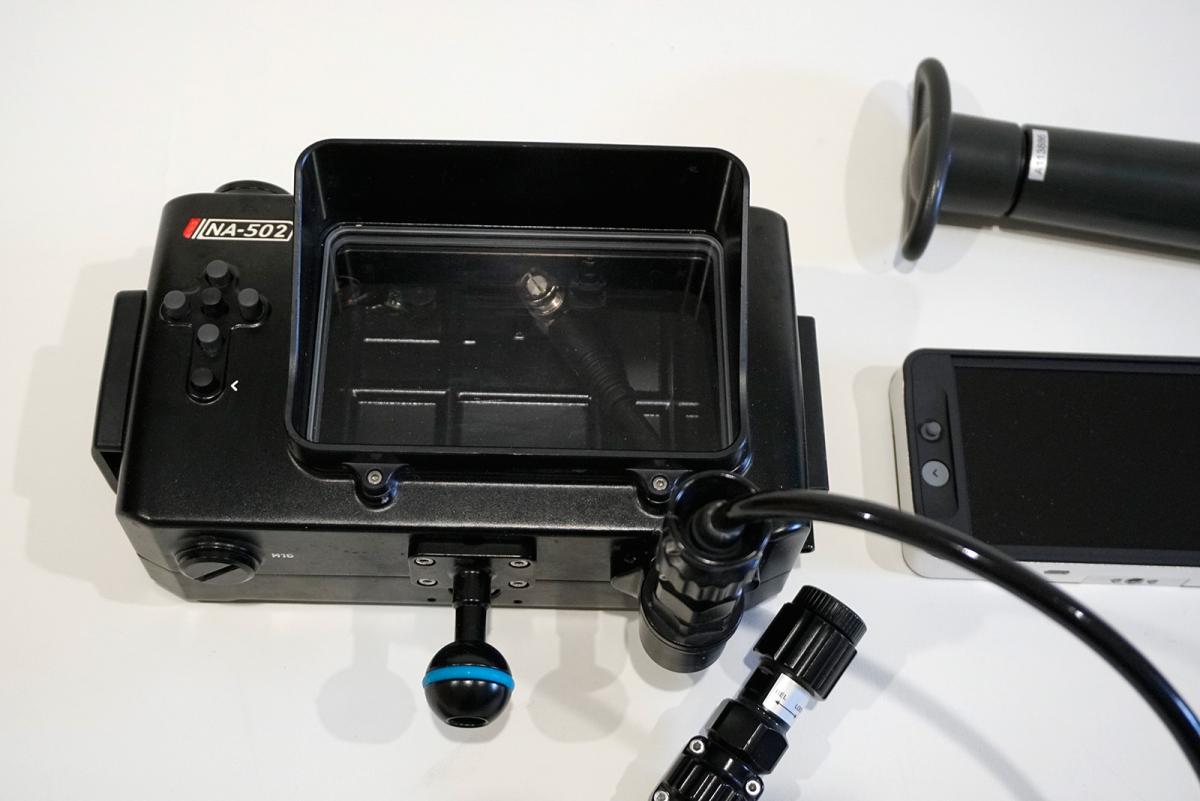
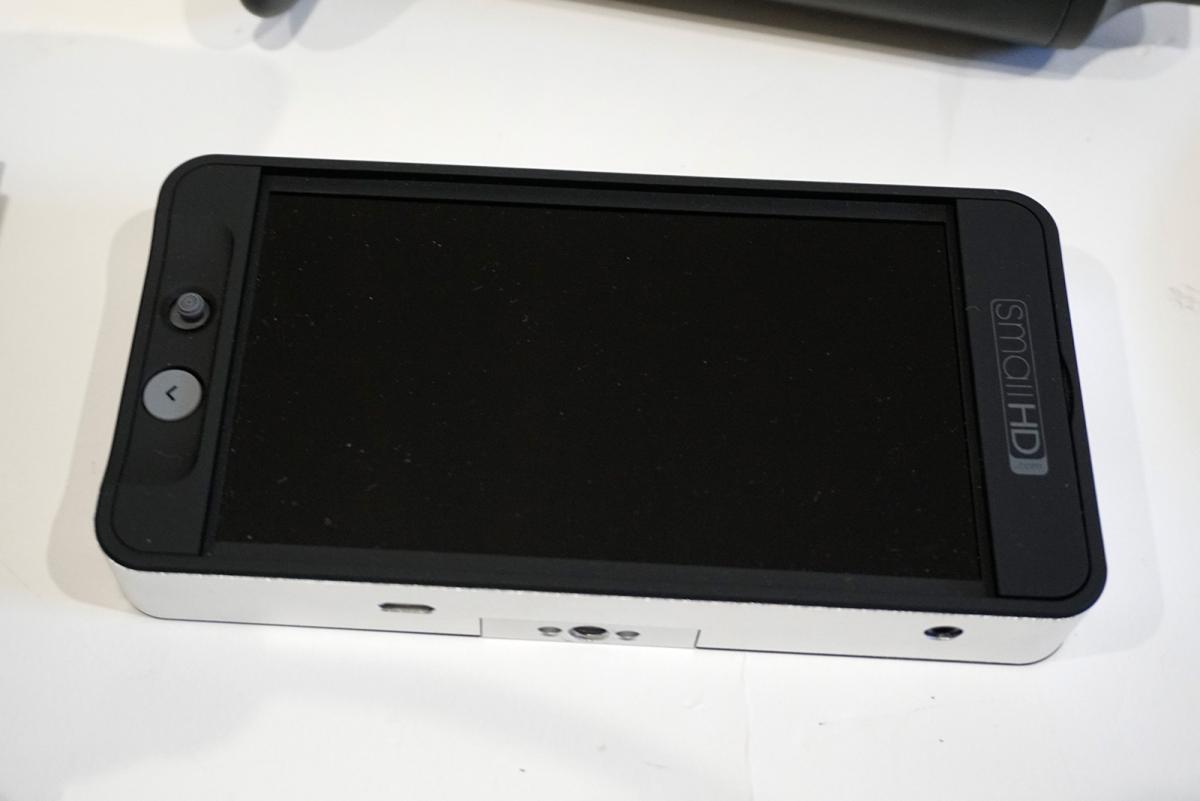
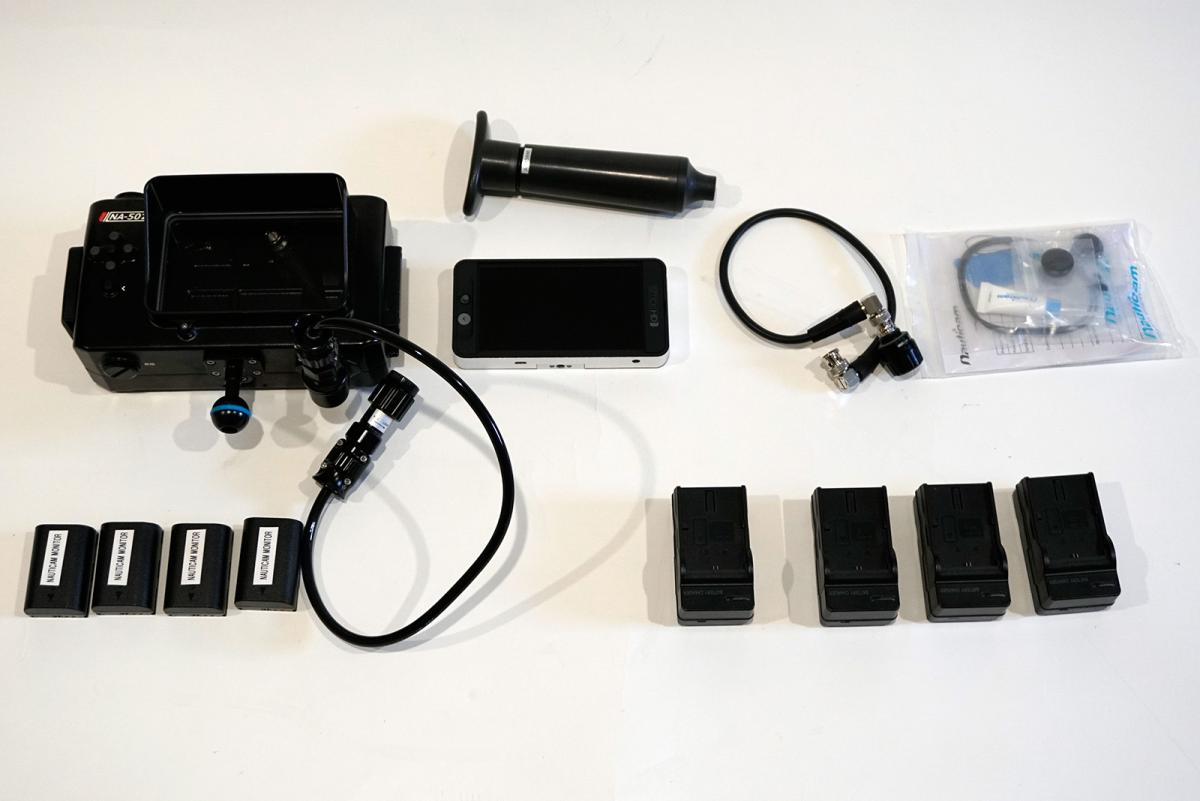
    I am selling a very low use Nauticam NA-502 SDI monitor system. It comes with everything you need to connect it to a Nauticam housing.


    • Nauticam NA-502 housing (new $1600)

    • SmallHD 502 SDI/HDMI monitor (new $1049)

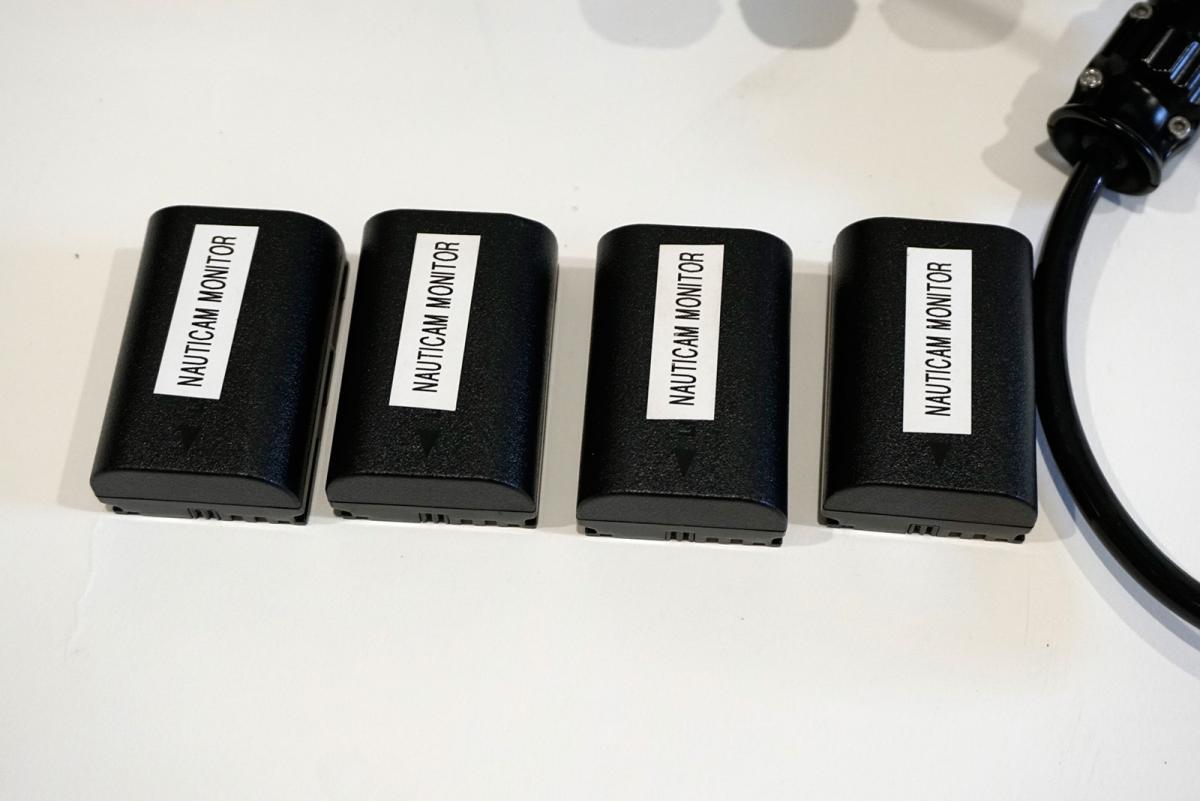
    • (4) LP-E6 batteries (monitor uses a pair at a time, so this is 2 pairs)

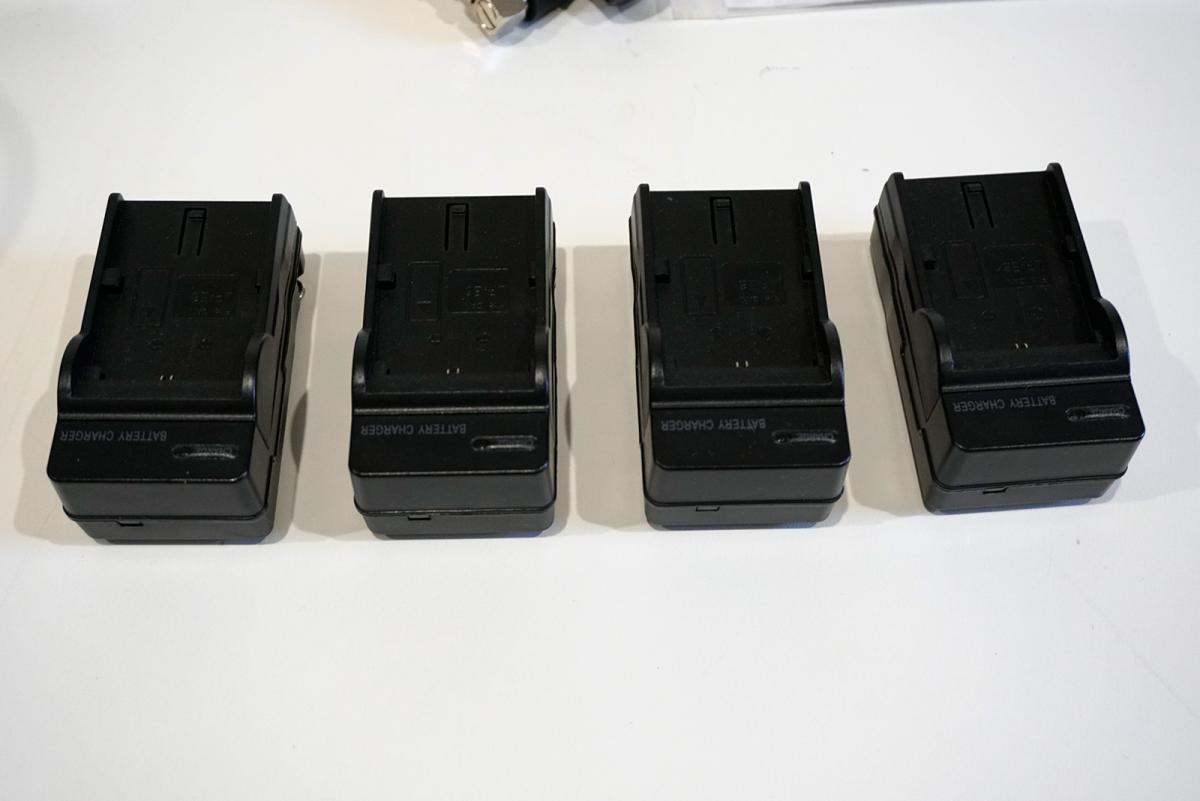
    • (4) battery chargers

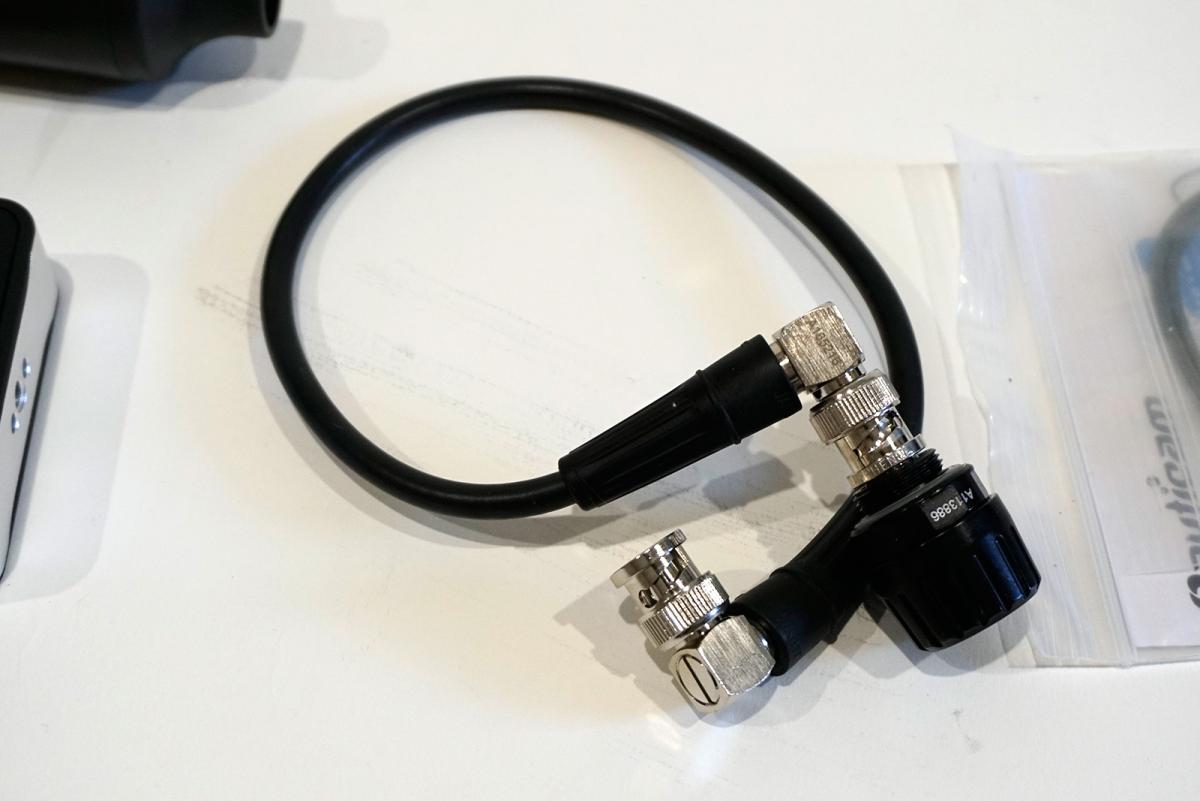
    • SDI cable with Nauticam bulkhead which screws into any Nauticam bulkhead.

    • Nauticam vacuum/water alarm system installed

    • 1” mounting ball

    • Vacuum pump

    • Spares kit


    Basically, EVERYTHING you need. Never had any trouble with it or water in it. I am selling because I’m moving to a Nauticam housing for the RED monitor.


    This monitor is set up for SDI, but can be converted to HDMI with a kit from Nauticam if you re going to use it with an DSLR that does not have SDI video output.


    Asking $1500 for everything, will ship in the USA for freepost-812-0-59845800-1543876610_thumb.jpgpost-812-0-40002600-1543876611_thumb.jpgpost-812-0-16762000-1543876612_thumb.jpgpost-812-0-83820600-1543876612_thumb.jpgpost-812-0-56863200-1543876613_thumb.jpgpost-812-0-31712600-1543876614_thumb.jpg
  2. Is this still for sale? How would I convert this to a HDMI monitor?

  3. Reef Photo can sell you the HDMI kit for this. I'm not sure what that costs. Most people buy it configured one way or another, but certainly the HDMI option is more popular because of the DSLR market. You need the HDMI cable/bulkheads. If you can work a screwdriver you can change the bulkheads yourself and fortunately with the vacuum system you can test to make sure you still have everything water tight.

  4. PM sent.

  5. Sold

Ultralight Control Systems

Account

Navigation

Search

Search

Configure browser push notifications

Chrome (Android)
  1. Tap the lock icon next to the address bar.
  2. Tap Permissions → Notifications.
  3. Adjust your preference.
Chrome (Desktop)
  1. Click the padlock icon in the address bar.
  2. Select Site settings.
  3. Find Notifications and adjust your preference.