Skip to content

Lights, Strobes, and Lighting Technique / Archived topic

A way to use TTL through optic converter

Started by dan.ivanov ·

  • 3Posts
  • 3Replies

Read-only discussion

A way to use TTL through optic converter

3 posts
  1. Hello,

    I’m about to order 2 Retra strobes and connect them to my Ikelite housing for the Sony A7RIII. The thing is that the housing has a 5 pin output and the Retra only accepts an optical cable. My question is, if there’s any way for me to convert the 5 pin signal coming out of the camera into an fiber optical cable and still be able to use TTL. Thank you

  2. I'm not aware of any external electrical to optical converters with TTL capability on the market - Retra's e-opto converter is manual-only. If you want to run TTL with that housing and camera, you will need either Ikelite strobes (DS-160/161) and Ikelite's own TTL converter, or an optical bulkhead in place of the electrical one that's included with the housing, plus a TTL-capable optical trigger such as the one recently released by UW-Technics. @Pavel Kolpakov - the person behind UW-Technics - should be able to give you more details.

  3. Hello Dan,

    UW Technics produces Optical and Nikonos bulkheads for Ikelite housings (for usage with UWTechnics TTL-Converters). Optical Bulkhead is here:
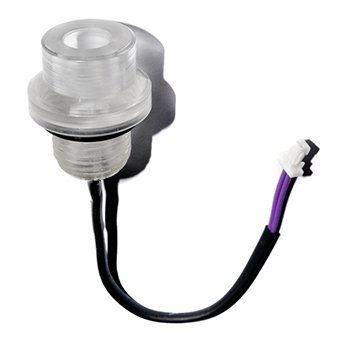
    Optical-Bulkhead-Ike-s.jpg

    Your housing has 2 holes on the top. So, you can install 1 or 2 optical bulkheads, dependently on preferences.

    TTL-Converter supports maximum: 2 optical + 2 electric bulkheads, simultaneously. On this housing you even can use 1 optical + 1 electric bulkhead, both in TTL, if you want to use different strobes.
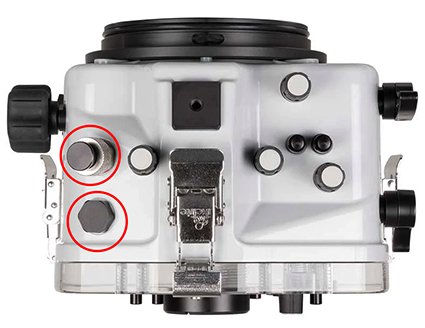
    Ikelite-A7III-housing-s.jpg

    TTL-Converter board shape for this housing model is in development yet, but will be announced soon. Firmware as usual includes ttl-profiles for Inon, Sea&Sea, Ikelite and Subtronic strobes. Retra ttl-profile will be included too, when new strobe appears on the market.


    Edited by Pavel Kolpakov
Marelux

Account

Navigation

Search

Search

Configure browser push notifications

Chrome (Android)
  1. Tap the lock icon next to the address bar.
  2. Tap Permissions → Notifications.
  3. Adjust your preference.
Chrome (Desktop)
  1. Click the padlock icon in the address bar.
  2. Select Site settings.
  3. Find Notifications and adjust your preference.



