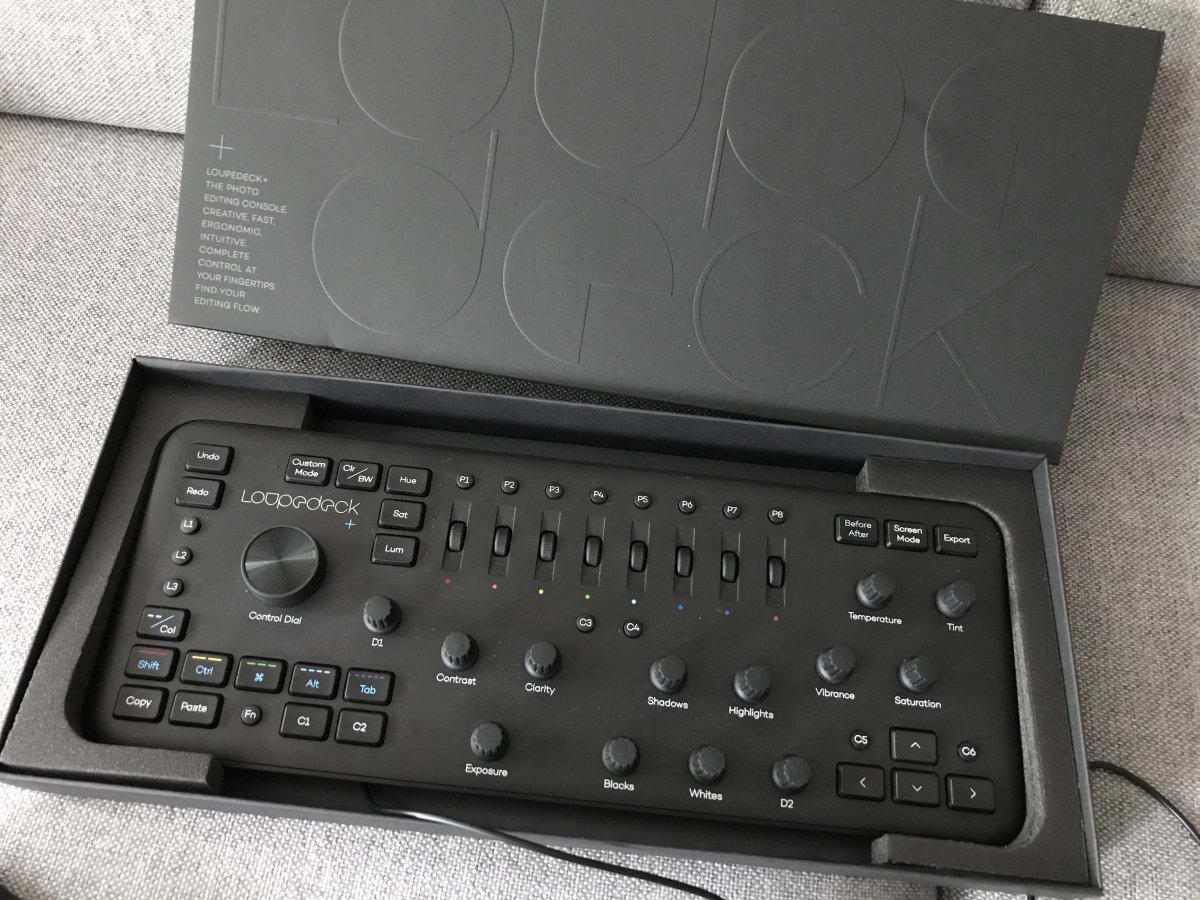
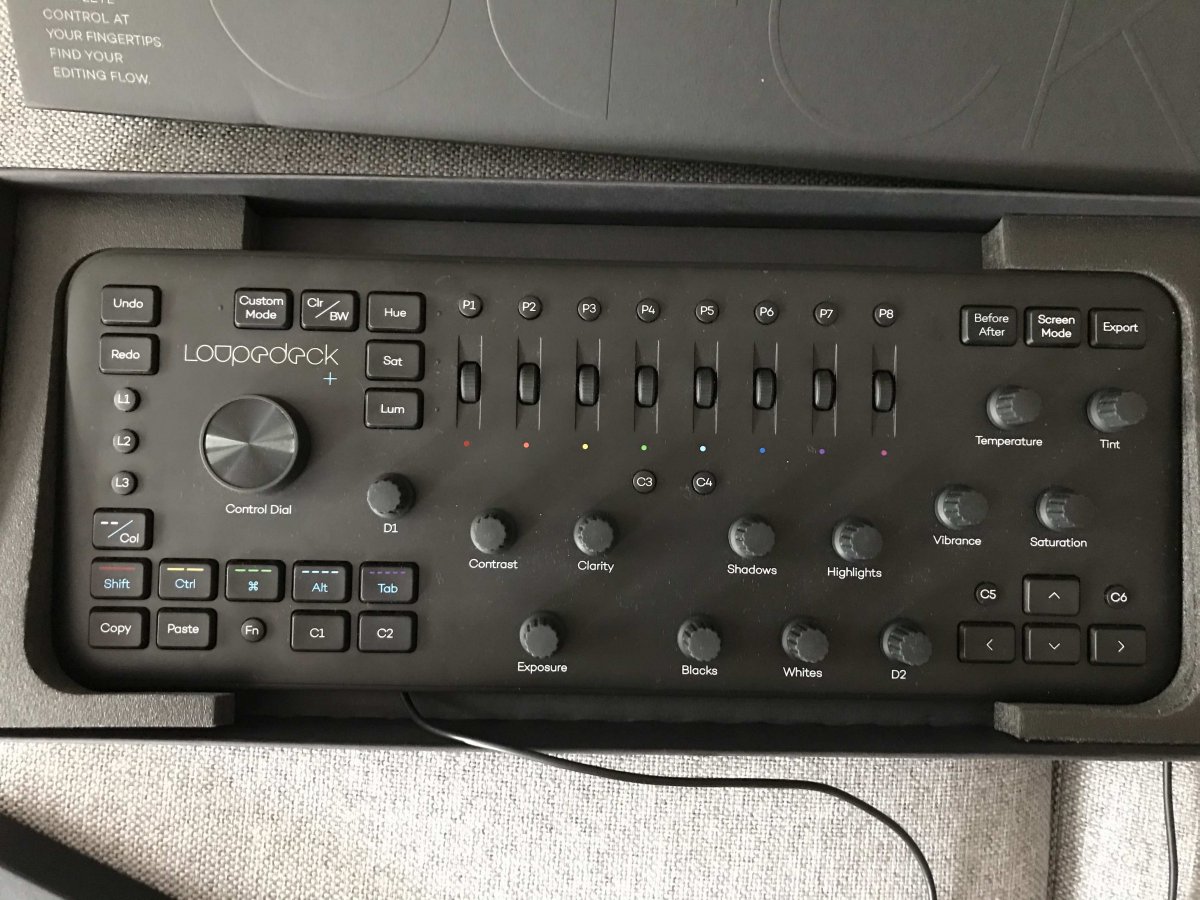
I've been using a Loupedeck+ editing system for around 18 months. They are superb. If you edit LR or Photoshop photos - or with a bunch of other photo editing software, these devices are fantastic. Highly intuitive with a short learning curve, they make editing quick and easy and really speed up your workflow. It sits alongside your keyboard/mouse and has physical dials and sliders which make subtle editing tweaks a breeze. You can see from the two photos just how easy to use it is!
Prior to getting into the edit, they are also tremendous for reviewing newly uploaded pics: flag for selection by Pick/Delete, colour or star-rating, quick auto edits and then select by batches. Many of the keys can be reprogrammed to suit particular workflow styles. Full information is here:
https://loupedeck.com/en/products/loupedeck-plus?skip=true
I've been so impressed with the Loupedeck+ that I have "invested" in the even more fancy model, the Loupedeck CT. So I am now selling my Loupedeck+.
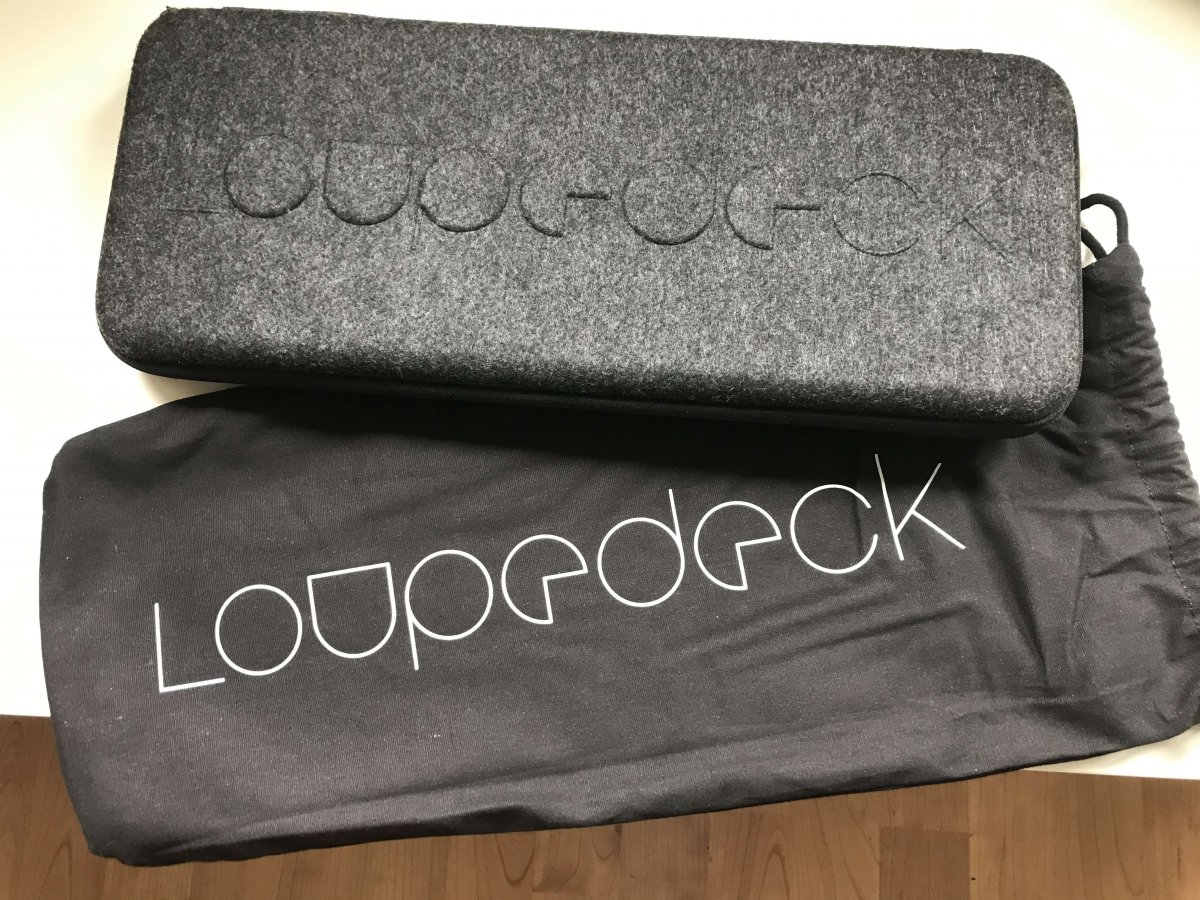
It's in perfect condition and comes with the original box, simple instructions (they are all available online) and newly acquired travel case. They are very well built and rather stylish!
New from Loupedeck the keyboard and case is €269. I'm looking for €195 and this would include postage in the EU/UK.
PM me if you have questions
Thanks for reading
Tim