Skip to content

Photography Gear and Technique / Archived topic

Nikonos RS 13 rear filter

Started by g3cko ·

  • 4Posts
  • 4Replies

Read-only discussion

Nikonos RS 13 rear filter

4 posts
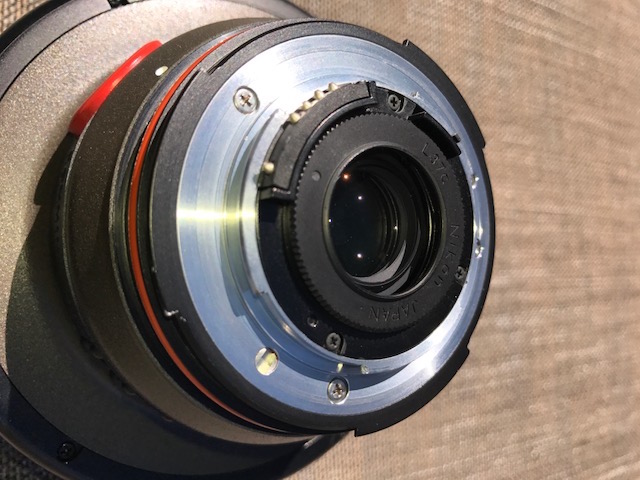
  1. I get there are probably not too many people shooting the 13, but I wanted to ask - does anyone have the rear filter piece that they could measure the pitch/size of the threads?  

    I'm betting I could 3D print a small insert for attaching gels/filters, but I don't see much threads to measure.   It might even be that this filter is standard across other lenses? Like the 16mm fisheye??  Does anyone know on that?


    (Pic from another post off here as I'm missing that filter) 

    IMG_1933.JPG

  2. This is a bayonet filter that Nikon used with several other lenses such as the 16mm fisheye:

    https://www.nikonusa.com/en/nikon-products/product/lens-filters/39mm-bayonet-l37c-uv-haze-filter.html

    Probably easier to find the filter for sale than to make one. Keep in mind that it needs to be aligned perpendicular to the optical axis.


  3. Agree with Tom, it's the same filter that came in a set with the 16mm fisheye.

    They are readily available on Ebay if you search under the 16mm Fisheye.

    https://www.ebay.com/itm/Nikon-L37C-Bayonet-Filter-AI-AF-Fisheye-Nikkor-16mm-f-2-8D-AI-Nikkor-15mm-F3-5S/273515796417?epid=1840600782&hash=item3faecfd7c1:g:ytgAAOSwB9Fbyf1y

    One of the ones (L37c) in the set is clear glass, and you can cut a small circle of Alex's Magic Filter  and place it on the back of the glass. I attached mine with a TINY drop of lacquer at the 12 and 6 o'clock position and it works like, well, Magic:)

    s-l1600.jpg

  4. Awesome - thank you both!! I had a small hunch they looked similar, but had no idea if they actually were the same filter setup.


     

Sea & Sea

Account

Navigation

Search

Search

Configure browser push notifications

Chrome (Android)
  1. Tap the lock icon next to the address bar.
  2. Tap Permissions → Notifications.
  3. Adjust your preference.
Chrome (Desktop)
  1. Click the padlock icon in the address bar.
  2. Select Site settings.
  3. Find Notifications and adjust your preference.