Skip to content

Shooting Technique, Workflow and Editing / Archived topic

How to remove haze in post processing?

Started by Pomacentridae ·

  • 8Posts
  • 8Replies

Read-only discussion

How to remove haze in post processing?

8 posts
  1. Hi there,


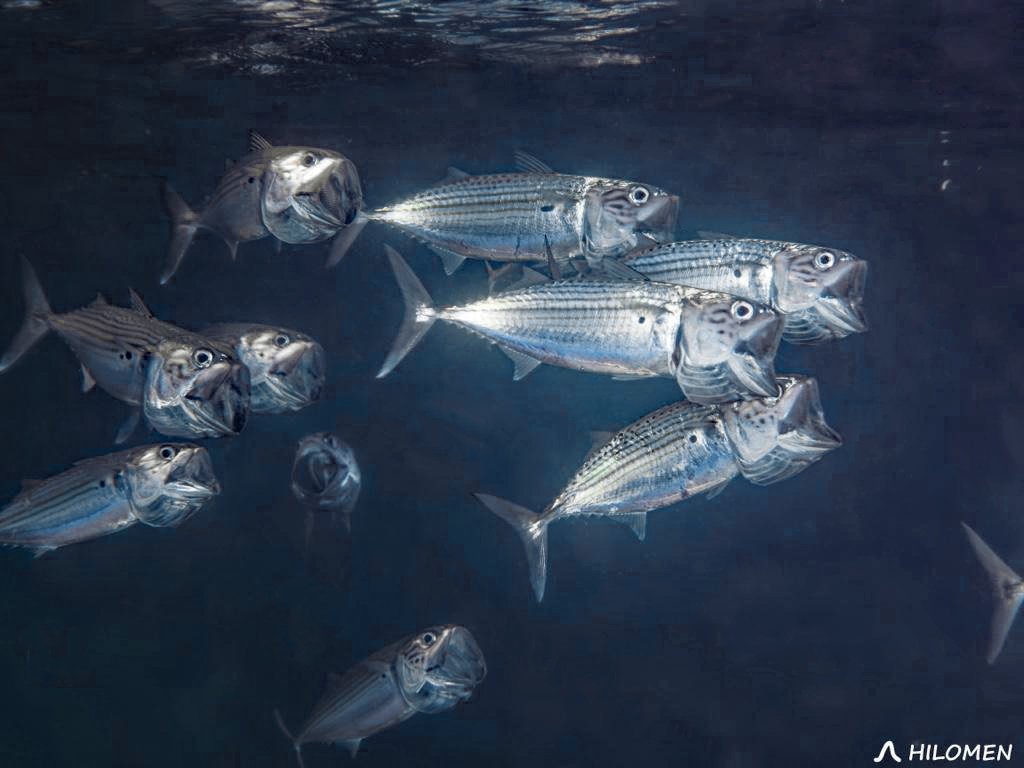
    I did some surface shots of striped mackerel and crocodile needlefish feeding. I am shooting in RAW and using a single Z330 strobe. Images are still greenish after but the strobe gives good light to make it sharp. Then I mainly correct for white balance only.


    The main issue I have is that there is a reddish haze on my images. I have attempted to remove it by darkening the shadows. Any way of editing that out in post?


    White balance corrected below:

    485dea0c613610b40e398b50ce87be3c.jpg


    Shadows darkened to minimize haze below:

    a5b91c0f2cb5b37c7839aee41d31d3b2.jpg


    White balance corrected below:

    163e86b0379d982cbad5a7361592dd6a.jpg


    Shadows darkened to minimize haze below:

    08577ccdaba191cc75660167fecf54fb.jpg


    Sent from my iPhone using Tapatalk

  2. I had a little look at the images, there's something funky in the colours as it isn't correcting out as I expect it should, they have too much magenta and red in them.  When you say you WB them, what steps did you use?

    The haze is correctable with a black point tweak, just open levels and run the black point slider over till it just touches the histogram. 

    The colour balance is odd you can see out of focus blobs and on one side of the image they are red/magenta and the other they are blue/cyan.  it looks to me like the RHS of the image is closer to the strobe than the LHS - perhaps the strobe was on the RHS of camera  more so   If you clip the blacks the LHS of image goes black but there's still colour on the RHS.  To me it looks like the images could benefit from re-positiioning the strobe?  With a gradient like you have on these shots it's difficult to do a global adjustment to get all the image looking right..

    When you say WB I guess you mean tweak the colour aperture and Tint.  The colour temperature corrects the WB temperature and basically shifts from yellow to blue.  The tint adjusts green - magenta balance - as you add tint it removes green and adds magenta.  It is possible you were a little heavy on tint?

  3. Hi @ChrisRoss,

    I think your analysis is spot on. I sort of understand the issue would be me using a single strobe to shoot this scene -- it is on the right hand side. And is giving one side more color than the other. So when I correct the WB or Black Point globally it does not even out with one side either too much or the other side too little. 

    Yes I am trying to balance the tint, if I use heavy tint the RHS would be reddish (like what you see here), if I use low tint the LHS would be greenish.

    I am using DXO Photolab 5. 

    Thanks


  4. 5 hours ago, Pomacentridae said:

    Hi @ChrisRoss,

    I think your analysis is spot on. I sort of understand the issue would be me using a single strobe to shoot this scene -- it is on the right hand side. And is giving one side more color than the other. So when I correct the WB or Black Point globally it does not even out with one side either too much or the other side too little. 

    Yes I am trying to balance the tint, if I use heavy tint the RHS would be reddish (like what you see here), if I use low tint the LHS would be greenish.

    I am using DXO Photolab 5. 

    Thanks


    With the uneven BG there's difficulty dealing with that globally.  You could try to get one side or the other right and try a few different tools - in Photoshop you have selective colour tool which isolates adjustments to certain colours only.  You could process it so one side was showing red/magenta and then increase blacks in those colours and/or increase their complimentary colours so to remove magenta add green and to reduce red add cyan.  You could also use a tool like hue/saturation which allows you to adjust saturation of certain colours only In PS, you can drop saturation and increase blacks for that colour.  I'm not sure what the equivalent tools if any would be in DXO Photolab.


  5. With the uneven BG there's difficulty dealing with that globally.  You could try to get one side or the other right and try a few different tools - in Photoshop you have selective colour tool which isolates adjustments to certain colours only.  You could process it so one side was showing red/magenta and then increase blacks in those colours and/or increase their complimentary colours so to remove magenta add green and to reduce red add cyan.  You could also use a tool like hue/saturation which allows you to adjust saturation of certain colours only In PS, you can drop saturation and increase blacks for that colour.  I'm not sure what the equivalent tools if any would be in DXO Photolab.
     

    I did this and used the gradient tool in doing the WB. Here is the final result. Some haze left but I feel like it is better now. Thoughts?

    1b39cc23402ef4005d29a5740bf58352.jpg


    Sent from my iPhone using Tapatalk
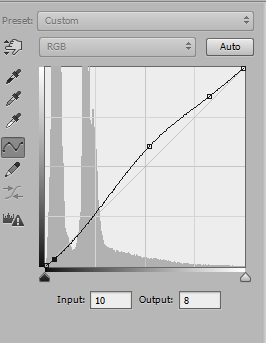
  6. Yes an improvement, try a light S curve, pin the bottom point of the S down very low you are just trying to keep the deep shadows dark, then lift the highlights to taste.

    image.png.53fe6b54eaeaa7cc4e38324095d33760.png

  7. Not a lot of pixels to work with here but here is my effort on one of your pictures. Note I use Photoshop Elements which is somewhat different from what most people of this site use. Anyway, this is what I did:

    1. I used Adjust Hue and Saturation and moved the red and magneta saturation and lightness sliders to -100. Note this only effected a few of the fish in the shadows and not the background. I also made the cyan more blue and lightened it somewhat which changed the color of the cyan on the fish a little.
    2. The only thing that would effect the background purple color in the Adjust Hue and Saturation was blue which seemed strange but nothing else had any effect. So I slid the blue hue a little towards green and it made the purple background somewhat more blue. I then slid the blue lightness somewhat negative to make the background darker which appeared to make it look less purple.
    3. I tried to use the Levels colors sliders but got no useful results.
    4. I used the haze removal tool to remove a little haze but much less than what the auto haze removal wanted to do.
    5. I did a little spot healing on the more purple backscatter spots in the background and reduced brightness a little and added a little contrast.

    Anyway, maybe not a lot of improvements but it is below for your info.

    Rick

    163e86b0379d982cbad5a7361592dd6arwe.jpg

  8. As a general rule, haze looks like low contrast, and you are mostly trying to increase the contrast on the dark end of the histogram.  I use an iterative process in Lightroom where I first drag the black slider down until the histogram edge just touches or almost touches the left side.  Then I adjust other things to deal with the consequences, which usually means boosting exposure a bit and then pulling highlights down as well.  But the key is playing with the black slider.  It will indeed darken things up, so re-brighten them.

Retra

Account

Navigation

Search

Search

Configure browser push notifications

Chrome (Android)
  1. Tap the lock icon next to the address bar.
  2. Tap Permissions → Notifications.
  3. Adjust your preference.
Chrome (Desktop)
  1. Click the padlock icon in the address bar.
  2. Select Site settings.
  3. Find Notifications and adjust your preference.