There is very little information about snoots for Sea & Sea YS-01 strobes, so I thought I'd share my recent experience with the Flip Snoot Pro (https://www.uwcamerastore.com/flip-snoot-pro-for-sea-sea-ys-01-ys-02-ys-03).
I took a chance by buying it without much info or reviews. In a nutshell, it works! I was pretty concerned about the YS-01's target light being off-center, resulting in aiming difficulties. The target light isn't very bright, so it's impossible to see at depths shallower than ~30 ft (~10m) on clear days, but it worked just fine otherwise and especially at night. Apparently, the YS-01 Solis target light is notably brighter, so the issue likely wouldn't be as significant for that later model.
Also, I read a scubaboard forum topic where the poster stated that the hinged snoot would float in front of the strobe at undesirable times, but I had the opposite experience - the hinge was very tight and kept it out of the way. In preparation for this issue, I placed a zip tie around the circumference of the strobe that contained a rubber band and looped the rubber band around the snoot "nose" for the first dive. However, I didn't do it on later dives for the reason stated.
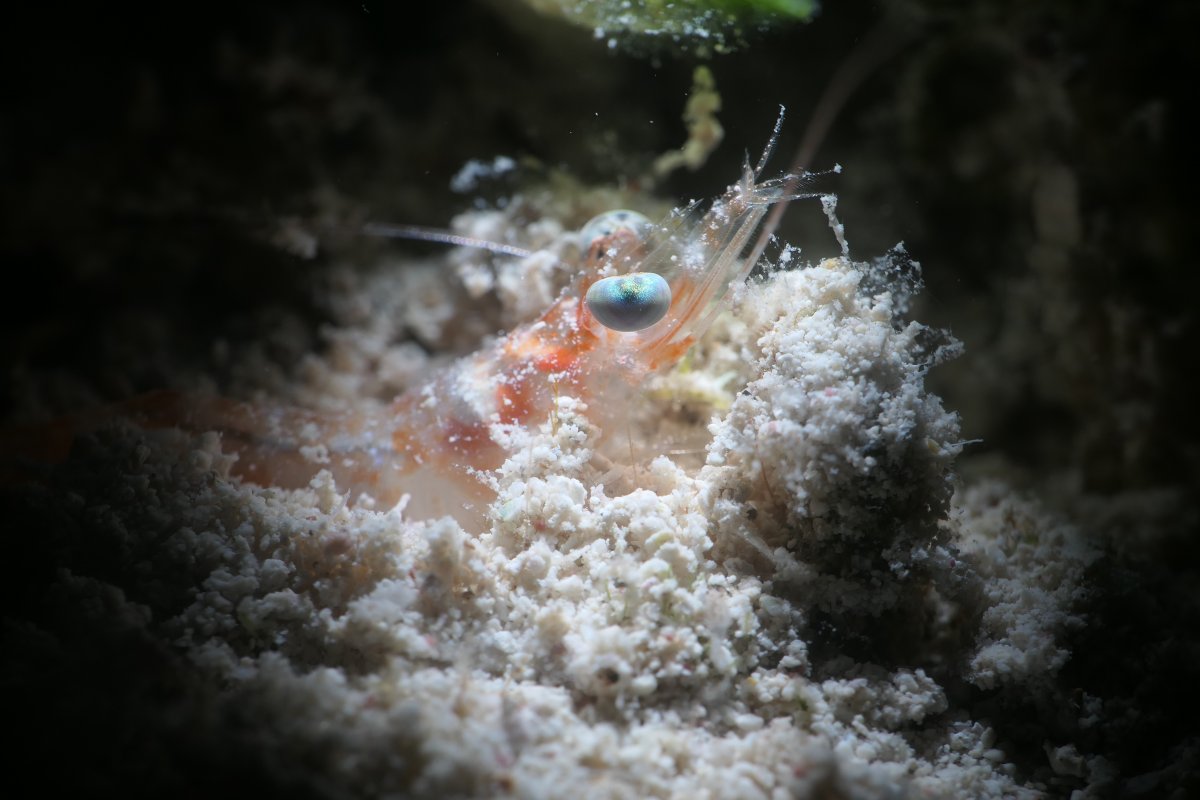
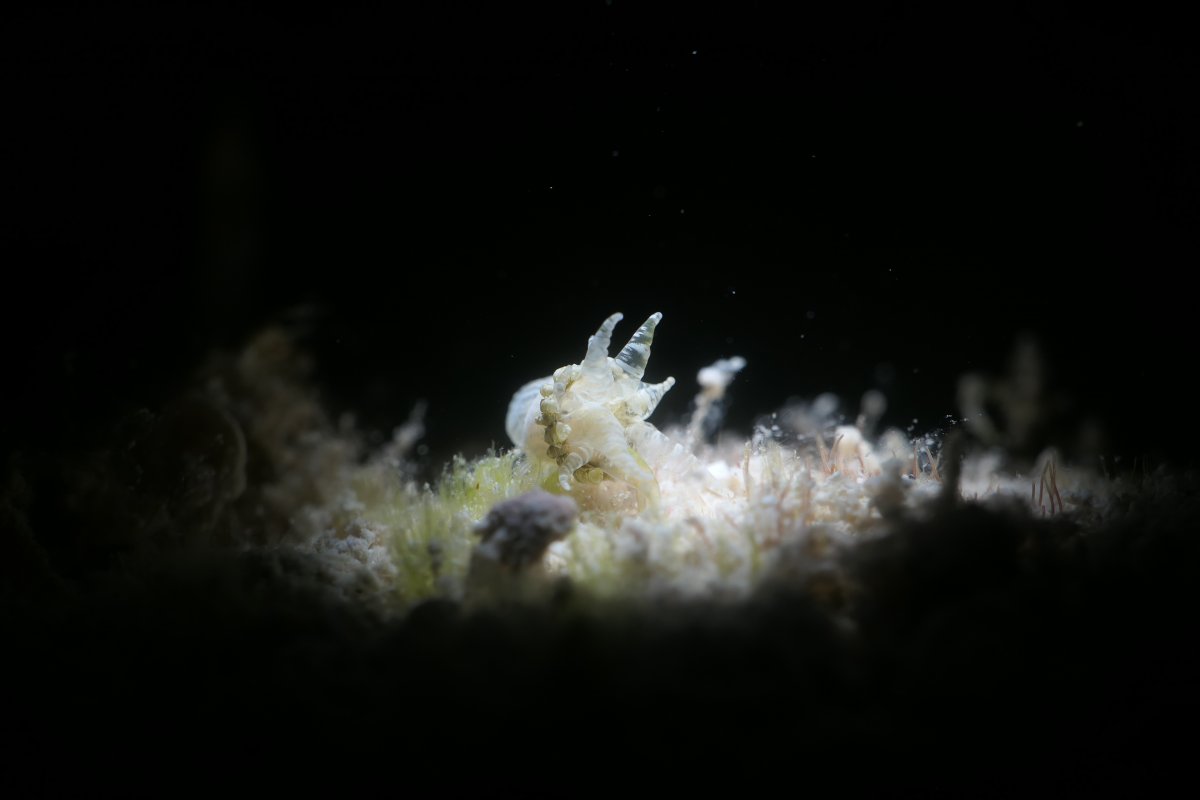
The snoot comes with small and medium light beam size attachments, and I also bought the large beam size attachment just in case. I use an LX-10 with CMC-1 and CMC-2 lenses. The medium beam was a wider than I would like for the CMC-2's field of view, but the small beam was good for the CMC-1 (see photos). I didn't try using the large beam size on the trip.
I'm quite happy with my first experience with a snoot and am definitely looking forward to using it on future trips.