Skip to content

Photography Gear and Technique / Archived topic

Diopter and Flip Holder compatibility

Started by hedonist222 ·

  • 4Posts
  • 4Replies

Read-only discussion

Diopter and Flip Holder compatibility

4 posts
  1. Hello everyone,

    I tried using a Weefine WFL03 diopter with my Aquatica flip holder (19355) with a Canon 100mm macro L lens.

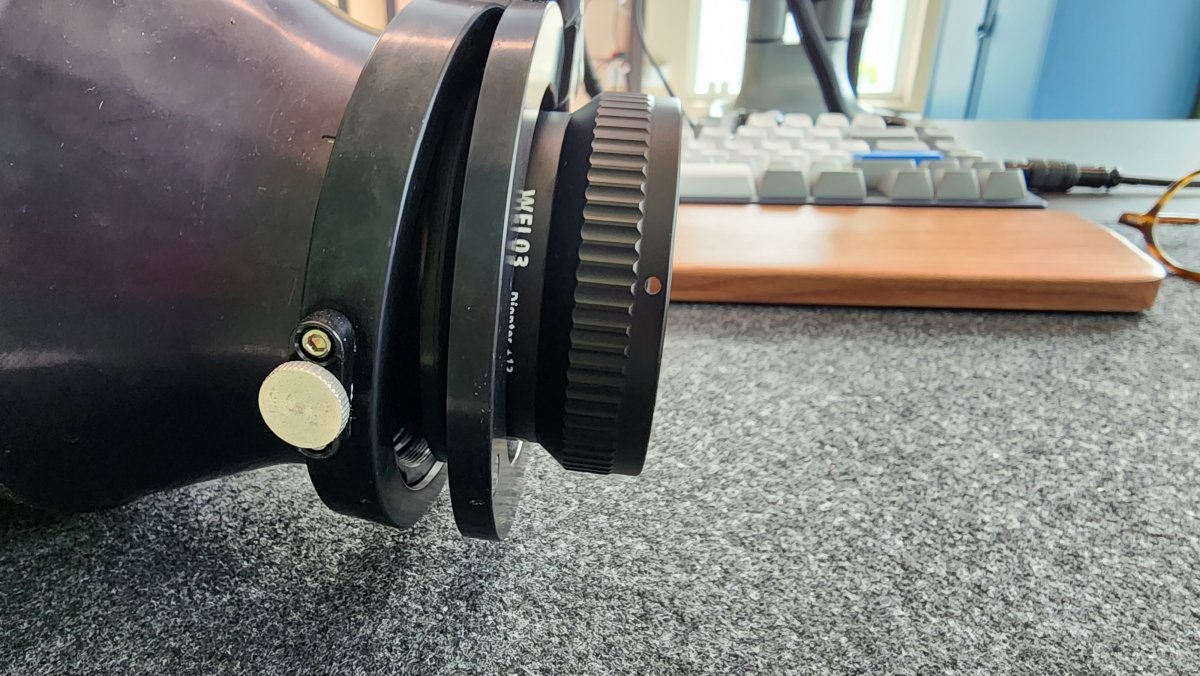
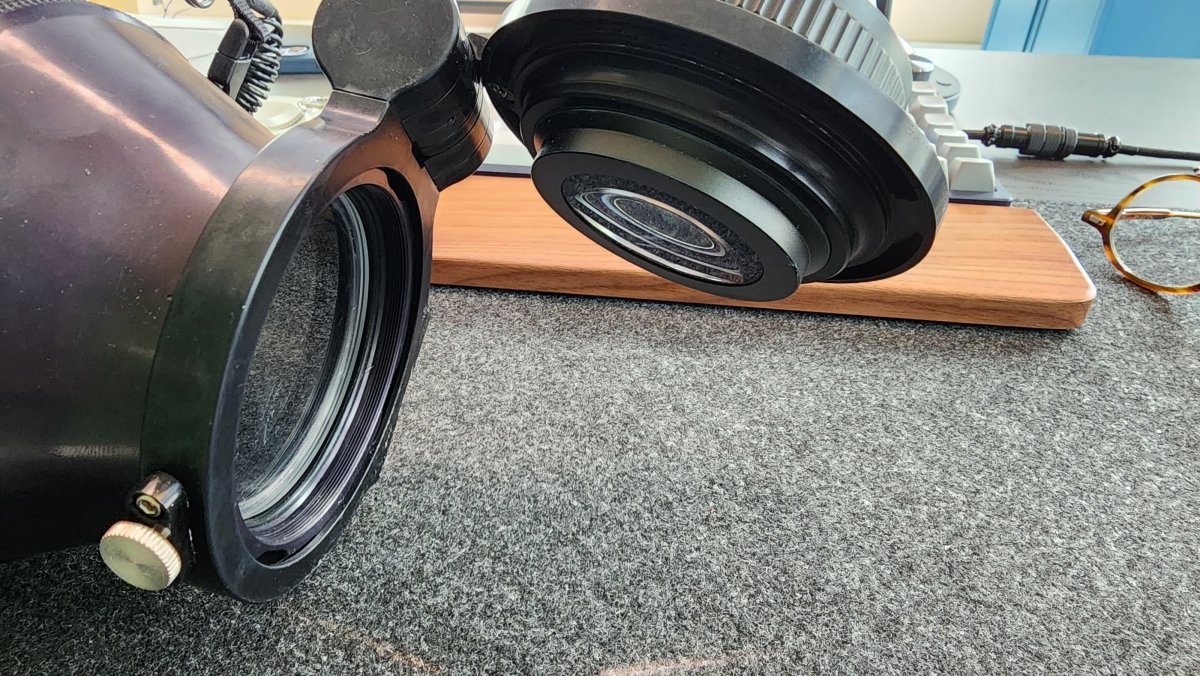
    It appears that the diopter is too long for the flip holder - because when I screw it all the way in, it protrudes too deep and does not sit flush.

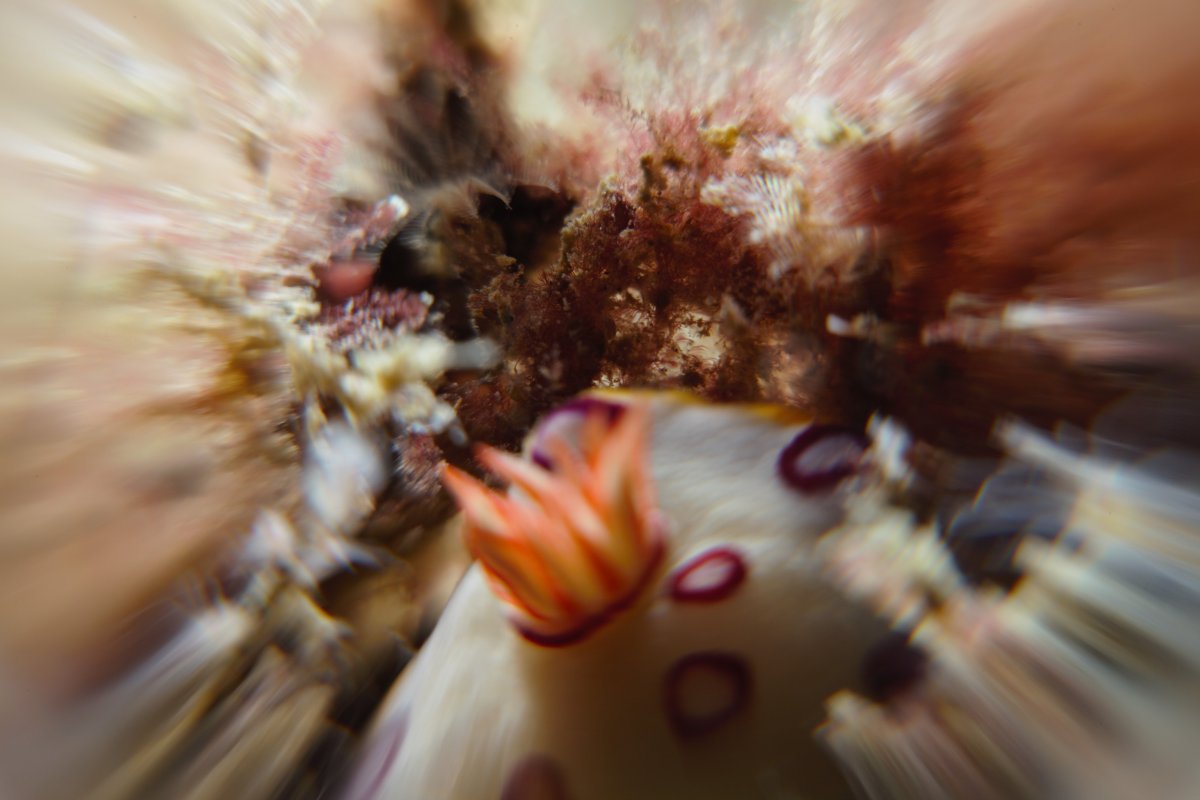
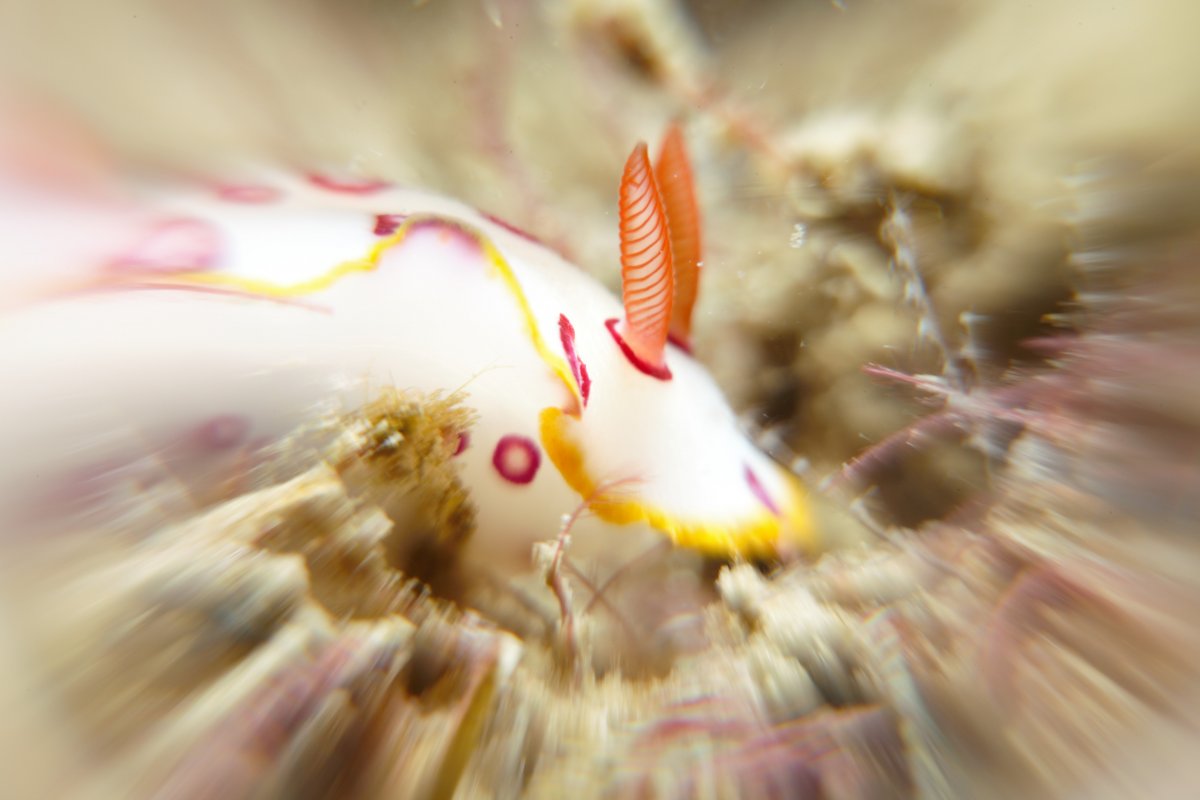
    I backed out the diopter a little, so the flip holder sits flush with the port, but the photographs turned out strange. It has this zoomed in exploded feature.

    I thought all 67mm diopters are standard.

    Video:

    Photographs:


    20230716_091944.jpg

    20230716_091937.jpg

    IMG_9353.jpg

    IMG_9360.jpg

    Edited by hedonist222
  2. WFL03 is made for small-sensor cameras, up to 1" - see the specs page: https://www.weefine.com/product/204.html

    For a larger sensor camera, you need WFL05S.

    Regarding rear element protrusion, my WFL05S came with an additional ring that acts as a spacer.

  3. 1 hour ago, Barmaglot said:

    WFL03 is made for small-sensor cameras, up to 1" - see the specs page: https://www.weefine.com/product/204.html

    For a larger sensor camera, you need WFL05S.

    Regarding rear element protrusion, my WFL05S came with an additional ring that acts as a spacer.

    Hello Barmaglot

    A friend just pointed that out to me - as I browsing the 5 or 6 weefine lenses, most were for full frame sensors. I somehow overlooked this when selecting the wfl03.

    The wfl03 did come with a blue aluminum adaptor, but that does not fit in my aquatica flip up holder.

    So if I were to get the WFL05S, I think the same issue would happen again.

  4. I can't speak for the Aquatica flip holder, but I use a WFL05S in a magnetic ring adapter and it works without issues. Sample shot with a Sony A6300 camera and 90mm lens: https://i.imgur.com/eojeAK1.jpg


Turtle

Account

Navigation

Search

Search

Configure browser push notifications

Chrome (Android)
  1. Tap the lock icon next to the address bar.
  2. Tap Permissions → Notifications.
  3. Adjust your preference.
Chrome (Desktop)
  1. Click the padlock icon in the address bar.
  2. Select Site settings.
  3. Find Notifications and adjust your preference.