Skip to content

Shooting Technique, Workflow and Editing / Archived topic

Exporting sequences in FCP 7.0.1 - driving me crazy

Started by echeng ·

  • 24Posts
  • 24Replies

Read-only discussion

Exporting sequences in FCP 7.0.1 - driving me crazy

24 posts
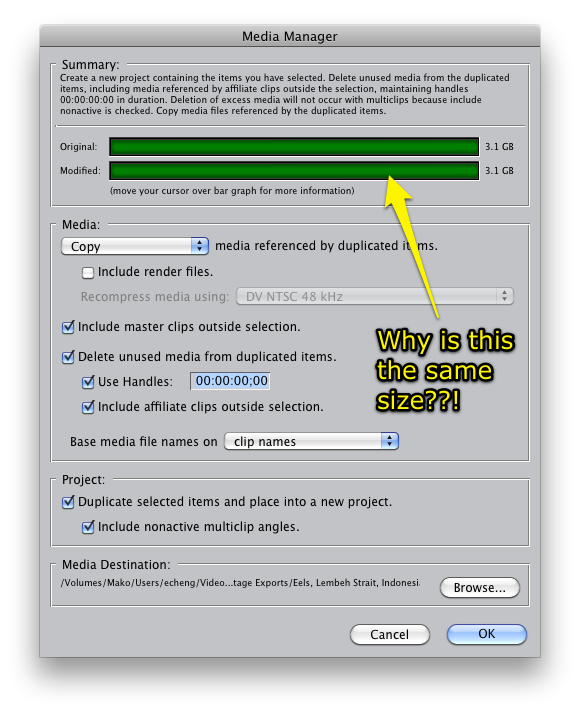
  1. OK, video experts. I need your help here. I'm told that if I open a sequence in Media Manager, I can "Copy" media files into a new project and automatically save trimmed clips. My problem is that doing this *always* copies the full source media files whole instead of copying trimmed versions.


    fcp7_mm.png


    This forum post suggests that if I add timecode to my Canon 5D2 video files (which have no timecode), it will fix my problems. I tried this (added timecode starting from 00:00:00;00, source 0, to each video file), but this doesn't have any effect. There's another interesting article on Ken Stone, but moving my sequence to a new project (as suggested) also doesn't fix the problem. The new media is always the same size as the source media (untrimmed).


    So the question is -- if I have a sequence with a bunch of trimmed Canon 5D2 clips in it, how do I export the sequence and its associated, trimmed clips?


    Thank you!

    Edited by echeng
  2. OK, Shawn says that I'm missing Reel data (timecode data) and need to set this. Is there a way to batch set Reel data? I have selected multiple clips in my media library, but cannot find a way to batch set things.

  3. Shawn was right. If I just set the Reel to "0" (for example), all of the clips export as trimmed.

    I did try using Sebsky Tools to do this as well, but it had no effect.


    Now I just have to find a way to set the Reel in ALL of my media clips in the Browser instead of doing it one by one.


    I don't like this, though. I'm nervous about having my master files changed, even if it is as simple as adding timecode.

  4. Eric, my immediate reaction is that you should trust your concerns about trimming your original master clips until you learn more about how FCP is handling this format "under the hood."


    I assume you are trying to trim your clips and retain the original Canon proprietary H.264 in its original resolution unaffected by the trimming process in FCP (and not transcode to ProRes) for purposes of keeping only the usable/sellable portions of the clips for archiving and stock footage?


    When I first started poking and prodding the 5D's variant of H.264 to learn more about it at The Digital Shootout last year, it quickly became apparent that FCP handled it oddly. Jim Decker of Backscatter and I tried a number of ways to work with the original format in simple FCP Sequences in order to show off the original source resolution quality, and soon discovered that FCP doesn't play nice with it. In fact it was Jim who first noticed that even though we could get FCP to conform Sequences to the Canon 5D's variant of H.264 (at least it appeared that FCP was conforming Sequences!), the minute we dropped *any* text or transition into the Sequence, the data rate and quality would begin to fall off drastically. A couple of transitions and the data rate and resulting quality could drop into the single digits.


    Bottom line is that FCP doesn't handle this proprietary variant of H.264 well, and I don't know whether it has to do with the lack of B frames in this variant of H.264 that Canon is using for the 5D/7D/1D, or some other aspect of how FCP is handling the original format "under the hood," but my concern would be that FCP may not be able to trim this variant of long GOP H.264 and retain the original format and quality using the Media Manager. (An interesting discussion of this long GOP IPP format, here.)


    So you might want to try some test trims and use good monitoring equipment to determine whether the quality is truly retained before proceeding.


    My two cents...


    - Mary Lynn

    Edited by Mary Lynn
  5. Thank you, Mary Lynn. I'll definitely do some quality checks, now that I know that FCP is able to trim clips when I set Reel data on (copies of) clips from the 5D2.


    If I see issues, I'll likely create offline versions of clipped files and transcode to ProRes during the process (again, using Media Manager). I wonder if FCP does the right thing in that scenario (as opposed to doing ProRes transcode first before trimming).

  6. Eric

    Batch mod in FCP is kinda easy if you need to do 1 time repetitive stuff.

    You just have to first create a shortcut by selecting 1 clip in your browser and give it a reel number (01 etc). Then select the clips you want transferred or in your sequence then go to the browser item column (Reel in your case) and right click. The menu will give you the shortcut values to select. Now if you want to have different reel numbers, just put in different values on separate clips and you can select those values when you right click. That's your batch tool. You can do that with with most browser components, some will have options relevant to the column item as choices.

    NOW WARNING! FCP will write the timecode into the master file if you do it that way so if you don't want to mess with that, use a work copy. That's why transcoding to ProRes is a good idea from the beginning.

    I only wrote this here because it seems you are having a post conversation with yourself, and I'm worried about you. Is Shawn your imaginary friend who chats with you in a little whiney voice? :)

    Edited by Drew
  7. Transcoding to ProRes as part of that process should work great.


    But I would also be inclined to archive a copy of the original Canon H.264 footage as one of my back-ups. Guess that's why I have so many hard drives of old stock....


    Please keep us posted as to what you learn!


    - Mary Lynn

  8. I only wrote this here because it seems you are having a post conversation with yourself, and I'm worried about you. Is Shawn your imaginary friend who chats with you in a little whiney voice? :)

    How dare you make fun of Shawn! Shawn: attack!


    I'm not so sure that I care if timecode is written into my master 5D2 files, but I'd be worried that there would be corruption (I am always worried about that whenever files are touched).

  9. Transcoding to ProRes as part of that process should work great.


    Been using that method myself. Put the originals on a couple of hard drives (always have a copy) then work with the Pro Res. Yeah, this is how hard drives get very full :)


    How dare you make fun of Shawn! Shawn: attack!


    You have Shawn trained to attack?

  10. You have Shawn trained to attack?

    I have footage of Shawn dancing around in a baby-T, and I'm not afraid to use it!

  11. I have footage of Shawn dancing around in a baby-T, and I'm not afraid to use it!


    LMFAO on that one and almost killed my keyboard.


    BTW I heard Shawn has decided not to listen to you anymore, so what is the YouTube link? :)

  12. Grr! Now I know where you live Drew...we sorta...I don't think anyone really knows where you live!


    What Drew said is true...for once :) This is what I shared with Eric. Great to see the photo guys having video issues...and learning how bad the interfaces we have to deal with! The workflow is easy to add reel data. There was a version of FCP 5 that had a bug that would not store the modified Reel data after closing but that was fixed in a later version.


    Additional thoughts on transcoding...for the most part I avoid it. You fill up your hard-drive for little gain. Both FCP and Color are 4:4:4 editing environments. Based on my discussion with the Apple senior developers at NAB, there is little reason to transcode. All effects and transitions are applied in relation to your timeline setting. "IF" you have the processing power, taking your source footage into a ProRes timeline is equivalent to converting source to ProRes and working with it in FCP. Basically, it uses the same engine to transcode as it does to render a timeline. So, you can either process twice (transcode) or process once (source footage and timeline render in target format). Apparently that is why a non conformed format takes so long to render or play in a timeline, b/c FCP is doing the process (equivalent to transcoding) on the fly.


    Talking further with the Apple senior developer (Color design team), we hashed out that if your workflow ultimately ends with Color, you are better off sticking to your source format and using Color (which does floating point processing) to ultimately code your final format.


    A couple of caveats here:

    -Garbage in, garbage out - Software transcoding will not improve low res footage or less robust codecs like HDV. So converting to ProRes doesn't necessarily mean better. Applying effects in a ProRes timeline does mean better.

    -Hardware transcoding can make a difference - sophisticated hardware transcoders can improve your footage and create better source material for editing...better than the software processing in FCP for certain. Hardware transcoding is very expensive and most of us can't afford it.


    Anyway, I am sure there areas where this approach breaks down...and perhaps H.264 from Canon could be one. I need to experiment to see if the realtime timeline processing to ProRes hangs up or not with this.


    Cheers

    shawn

  13. The biggest reason to transcode H.264 clips is speed. Pro Res allows RT previews that H264 and other processor intensive codecs don't, even with a FX4800 card, H.264 is clumsy.


    The problem with listening to Apple and not end users, you end up doing what they hope you should be doing to make their programming easier vs actual workflow improvements. That's why you get the .0X updates because customers want changes. That is why Avid is still the preferred choice, it's snappier and more editor than FCP's inorganic approach. I just can't pay for the upgrades anymore! :)

  14. The problem with listening to Apple and not end users, you end up doing what they hope you should be doing to make their programming easier vs actual workflow improvements.


    Very well said. I have done A/B'ing and the rest and making things ProRes usually makes things alot easier than trying to force it. Editing the 5D II is a heckuva alot easier to deal with early on for editing and the rest. But that is why Pro Res is there anyway :)

  15. I do suggest using ProRes LT as the quality is good enough for web/DVD purposes. Pro Res is great for BD and Pro Res HQ 444 is for intense color grading/efx/compositing, but then if you're doing all that, you already know this :)


    Shawn's recommendations are valid for XDCAM HD/EX clips, which are optimized already in FCP since it's "only" MPEG2 compression and hardly presses the CPU/GPU. H.264/MPEG4 is a whole other animal.


    Eric, Baby Ts don't matter to him when he's doing his Jack Lalane calistenics with another man, both clad in speedos, on a hotel lawn, in winter no less. I have photographs of that :P

    Edited by Drew
  16. I do suggest using ProRes LT as the quality is good enough for web/DVD purposes. Pro Res is great for BD and Pro Res HQ 444 is for intense color grading/efx/compositing....

    Shawn's recommendations are valid for XDCAM HD/EX clips, which are optimized already in FCP since it's "only" MPEG2 compression and hardly presses the CPU/GPU. H.264/MPEG4 is a whole other animal.


    I love it when you vid guys talk dirty

  17. It sounds like what the Apple Color design team suggested to Shawn about not transcoding is right on for formats that FCP works well with natively such as XDCAM HD/EX, DVCPRO HD, and HDV clips.


    But Canon's proprietary H.264/MPEG4 (from the 5D Mark II, 7D and the 1D) really must be transcoded for editing in FCP, otherwise unpleasant things happen.

    Some of us had wondered if Apple would include native editing capabilities for this Canon variant of H.264 in the release last year of FCP7, but what Apple did instead was add Pro Res LT to the great Pro Res line-up.


    Drew, your suggestion about which Pro Res to use for what with this variant of H.264 makes a lot of sense.


    Meanwhile, still waiting for Canon to release their promised FCP plugin that will make it possible to use the Log & Transfer function to ingest and transcode 5D/7D/1D H.264 clips.


    Canon has since updated their news release on this plugin to include more information about how it will work. But the plugin has yet to appear here, despite Canon's "early March" announced release date.


    Looking very much forward to this plugin!


    - Mary Lynn

  18. Also, in the additional wording to Canon's news release they address the time code aspect of the new plugin:


    Simply stated, this new plug-in turns the editing process with video files from EOS digital SLRs to a much smoother and highly automated process. Among the benefits of the new Canon EOS Movie Plugin-E1:


    * Smooth, intuitive ingestion of original EOS video files, using FCP’s Log and Transfer function.


    * Time Code is added to each clip (based on the camera’s date/time stamp), as well as user-given reel names embedded in the ProRes files, which can then be viewed from FCP throughout the editing process.


    - Mary Lynn

  19. Whenever I've worked with 5D files I convert to ProRes Lt and they look great and easy to edit.... ProRes is bloody amazing!

  20. Sounds like ProRes is the way to go for the Canon workflow. I too know that working in H.264 in a FCP timeline is almost useless. Very clumsy and slow. Depending on whether your are shooting for stock or for you own purchases, I would recommend 2 different approaches.

    -For stock, I would stick to the native format, trim and save hard-drive space and one iteration of encoding. When you stock is requested, single conversion to the requested format. Issue is, some stock agents and AVID customers have no use for ProRes format.

    -For your own use, either selectively convert the clips you have chosen to work with or convert them all via Mary Lynn's approach to ProRes. And...buy some big hard-drives!

    -shawn

Kraken Sports

Account

Navigation

Search

Search

Configure browser push notifications

Chrome (Android)
  1. Tap the lock icon next to the address bar.
  2. Tap Permissions → Notifications.
  3. Adjust your preference.
Chrome (Desktop)
  1. Click the padlock icon in the address bar.
  2. Select Site settings.
  3. Find Notifications and adjust your preference.