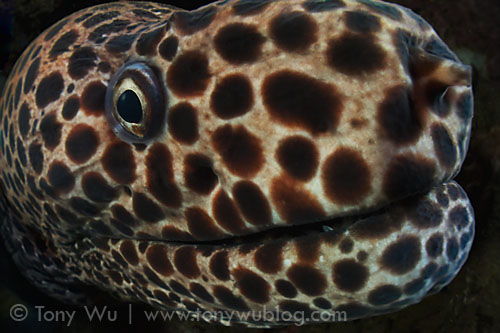
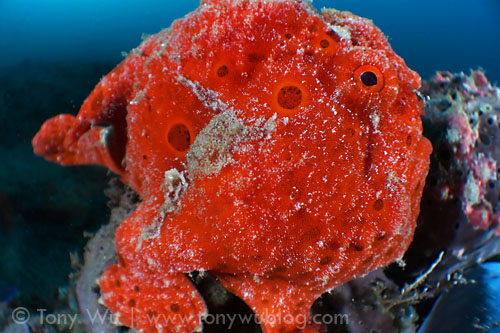
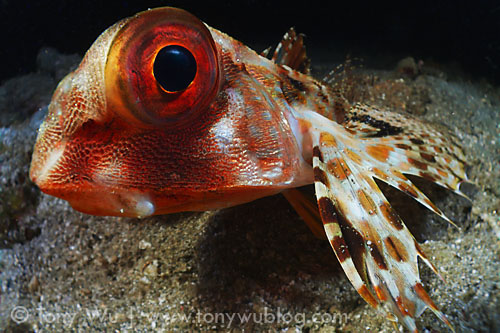
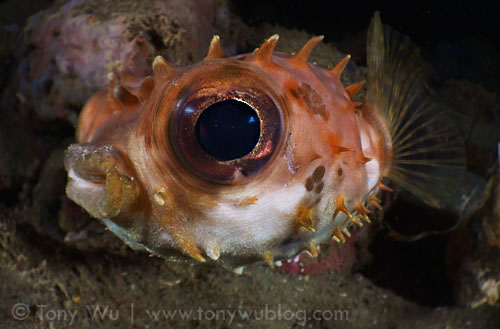
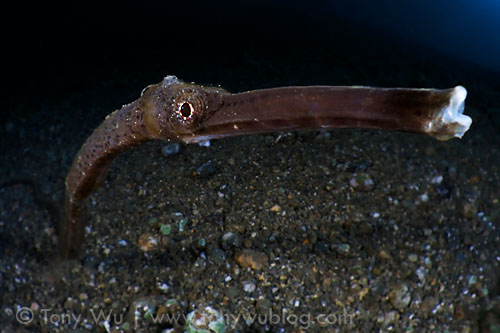
wow tony those pics are out of this world. i love how that lense really makes the eyes pop and looks so big. a really interesting and unique perspective.
Tony .
Pic #1, 3 and 5 - are they new species?
I almost can't recognize this very common lembeh critters.
Pic #1, 3 and 5 - are they new species?
Ha ha! That was the challenge of using this lens. Not to find unusual animals per se, but depict normal animals in an unusual way. Incredibly frustrating, but fun when it works
Cheers,
Tony
Thanks for the pics and the blog, Tony. Those pictures are fantastic and made me laugh. I love the perspective - it is so unique and special.
I just posted a video of some of the photos and video clips I've taken in Ambon.
[vimeo]
[/vimeo]
Not all the images are from this most recent trip, but all the video clips are, and all the wide-angle macro shots as well.
The music is a local song called Panggayo, which Michael performed for me. Michael picks up guests at the airport for Maluku Divers
I have to say Michael really does sing like a pro. His voice is certainly as good as Jack Johnson!
He's definitely a talented singer. Really nice guy too. A copy of the video is on its way over to him, so I hope he's happy with the result
Hello, guys. Here is the group slideshow from the Wetpixel Ambon Night Safari. Enjoy!