Help me out here is couple question.
Video Gear and Technique / Archived topic
Monitor mounting GH5 502 Nauticam
Started by gearbow_36218 ·
- 17Posts
- 17Replies
Read-only discussion
Monitor mounting GH5 502 Nauticam
17 posts
-
-
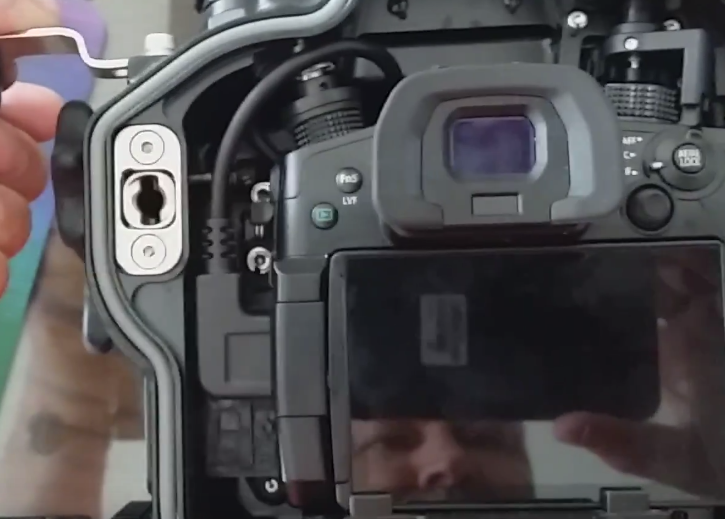
Ok let me get home and show you a couple of picture how i seat the inner hdmi cable but here is how i set mine up basically just flip the monitor i find it better this way and less drag in the water for the outside cable i just roll it around the long clamp and both housing ball head

Sent from my SM-N960F using Tapatalk
-
Ok let me get home and show you a couple of picture how i seat the inner hdmi cable but here is how i set mine up basically just flip the monitor i find it better this way and less drag in the water for the outside cable i just roll it around the long clamp and both housing ball head
Sent from my SM-N960F using Tapatalk
That’s good ergonomics especially as the GH5 mirrors the LCD on the monitor unless you have clean HDMI out
A few things that would bother me:
1. Only the LCD has the level gauge this for me is key
2. How about access to manual focus and the buttons on top of the wheel?
Sent from my iPhone using Tapatalk
-
That’s good ergonomics especially as the GH5 mirrors the LCD on the monitor unless you have clean HDMI out
A few things that would bother me:
1. Only the LCD has the level gauge this for me is key
2. How about access to manual focus and the buttons on top of the wheel?
Sent from my iPhone using Tapatalk
1) I am not sure about that wont the monitor also mirror the level gauge if you have it turn on? for me personally i hardly use that but will test it out for you
2) I am doing video mostly so i have the camera set to manual focus and then use the thumb lever whenever i want to refocus on anything this is accessible without anything in it way and for button on top of the wheel the only button that is kind of hard to access is the dial that use to change single shot/burst shot/4k/6k all other button is easily accessible
-
1) I am not sure about that wont the monitor also mirror the level gauge if you have it turn on? for me personally i hardly use that but will test it out for you
2) I am doing video mostly so i have the camera set to manual focus and then use the thumb lever whenever i want to refocus on anything this is accessible without anything in it way and for button on top of the wheel the only button that is kind of hard to access is the dial that use to change single shot/burst shot/4k/6k all other button is easily accessible
The gauge is on if you mirror if you have clean HDMI (that allows you to switch the LCD to settings and dark screen) you don't have the gauge sorry for the confusion
So you can access AFON? I guess the picture from the top does not help. I found that the 502B housing is wider than the GH5 on the right side now with the way you mount it how is access to the left handle now?
Edit I see now you have it on the cold shoe not the M10 so probably is simmetric. Looks good
Do you use any of the 502 exposure or focus functions?
-
Here is the picture of the top view i changed out the cold shoe to the strobe mounting ball SKU#25111 it is much more secure in my opinion all left control knob and right control knob is acessible it feel just like using it without monitor for me.

Sent from my SM-N960F using Tapatalk
-
Better than top mount for wide angle. Do you use it with hdmi out clean and the monitor tools or just duplicate the camera lcd?Here is the picture of the top view i changed out the cold shoe to the strobe mounting ball SKU#25111 it is much more secure in my opinion all left control knob and right control knob is acessible it feel just like using it without monitor for me.
Sent from my SM-N960F using Tapatalk
Sent from my iPhone using Tapatalk
-
Sorry missed your question there i am using it just like the camera lcd screen with all the info on it. For exposure i use in camera zebra however for focus i prefer the monitor focus peaking or assist i cant remember but it is the one that sharpen image instead of having it highlight in certain color which i find quite distracting trying to film anything.
-
Thanks for the pictures. Do use another light for the dead spot in center?
-
Thanks for the pictures. Do use another light for the dead spot in center?
I am thinking about that but at the moment i am not using any filter so unless i move really close to the subject and are lazy to rearrange the light otherwise it would not do much i guess.
-
Thanks for the pictures. Do use another light for the dead spot in center?
?????
Sent from my iPhone using Tapatalk
-
I was referring to Supawoots pictures. when I have the two lights on either side of the housing when i get close to a subject right in front i use another light to illuminate directly in front.
-
I was referring to Supawoots pictures. when I have the two lights on either side of the housing when i get close to a subject right in front i use another light to illuminate directly in front.
His lights are 120 degrees when the arms are close to the handles there is not really a black spot
-
Help me out here is couple question.
From the video i see that the hdmi connector has a tight fit. I remember someone had some problem with those cables.
Any solution?
-
From the video i see that the hdmi connector has a tight fit. I remember someone had some problem with those cables.
Any solution?
Yeah , I have not had a answer on this yet. Mor me it is not a tight fit. I have a ton of extra cable that i just loop around like in the picture there. But the included instruction with the cable specifically mentions that the cable should not be twisted at all.
Seems to be working just fine though.
-
This is thread I was speaking of: http://wetpixel.com/forums/index.php?showtopic=62979
BTW looking at current GH5 rigs reminds me when i chose M43 system for its small size

-
I have gone through 3 of those internal cables, two bulkhead and one external cable.From the video i see that the hdmi connector has a tight fit. I remember someone had some problem with those cables.
Any solution?
One of the bulkheads and external cable was user error. Somehow the screw down connector loosened on a dive and a tiny bit of salt water got in. A barely perceptible amount of moisture, but combining salt water with electronics is never good.
The internal cable is another issue altogether. Terrible design as the cable is stressed any way you install it.
Went through a couple internal cables and ended up ordering a spare external cable and bulkhead to troubleshoot the entire kit. Turns out the bulkhead was faulty and after some negotiation was replaced under warranty.
Now I have spares for everything. I highly recommend others keep spares as well.
Looping like shown in the photo can cause rubbing on the zoom gear and eventual failure. Either the cable is damaged / pinched by the contact, or the connector goes due to stress on the side of cable and jostling of the delicate joint at bulkhead.
The little info card that comes with the internal connector (camera housing) shows the extra length of cable looping along the left side of camera, NOT up and over / around the mode dial.
My current cable is routed on the left side and has lasted 6+ months. I hope I have not jinxed myself by saying that.
Treat it gently and it should last longer.
Regards
Adam
Sent from my SM-G903W using Tapatalk