-
Update I can confirm that Extension #48462 (39.5mm) is the correct extension for the Nikon Z 14-30mm f/4 using Port #18414 on an Aquatica AZ8. The sharpness was as expected at the edges at f4 and f8 with no vignette.
-
I’ll have to look at their chart. I did measure the distance from the lens front element to the housing bayonet flan and that was 35mm. Curious what the distance is on a Nauticam. Thanks
-
No way I’m going to risk that. I did design and print a zoom gear for this lens since no one had one in stock
-
Thanks, That’s the conclusion we came up with. I did order the 39.5mm since have a trip scheduled in 2 weeks. I provide the measurement numbers that Aquatica would need to calculate what extension to use yesterday. Since it’s the weekend I figured I just reproduced a 39.5mm extension in Fusion and that is printing now. I’ll also print a 42mm version that you just pointed out. It’s a crude test to see which one will not vignette but I don't have the numbers of the dome port to find the Nodal point of this dome.
-
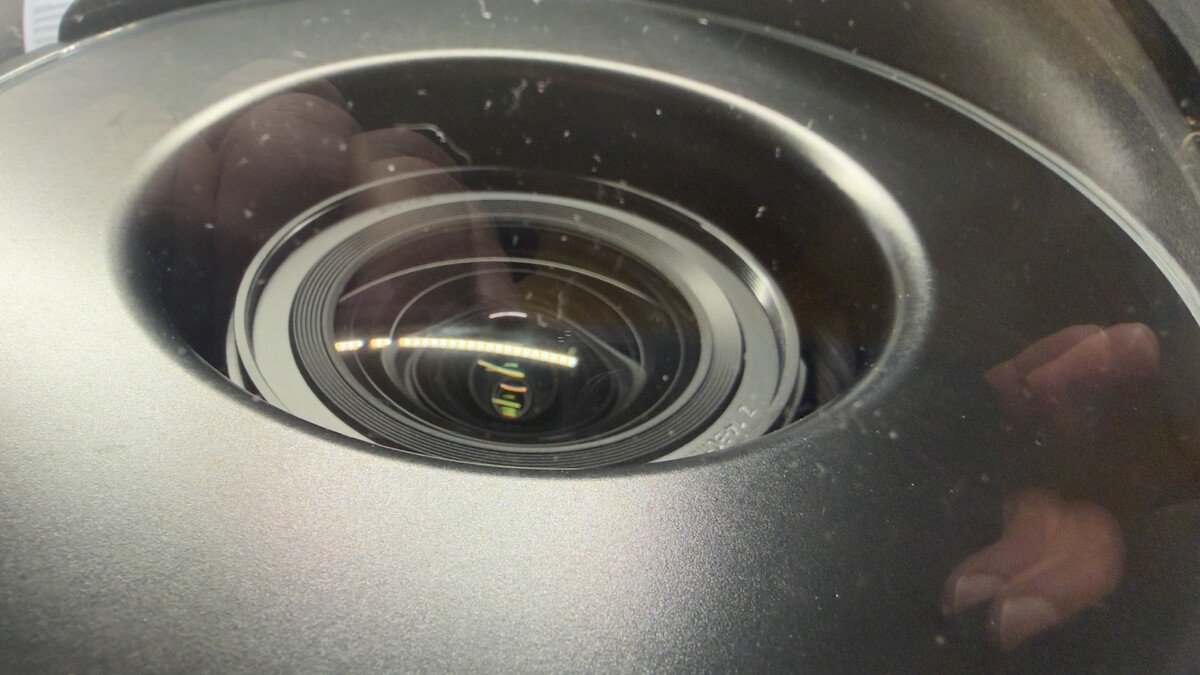
I just got this lens to use with the Dome Port #18414. I have the recommended extension #48457 (54.5mm). Something is off the lens at 14mm with about 1/4 inside the dome port opening causing serious vignetting not seen with other wide angles lens with this port. Coourious what extension to you use with this lens/dome port combo. FYI I have contacted Aquatica and they are are working on a solution but I figured I check here if any one else uses this lens with this housing Thanks!
-
Long time northeast diver but now I'm strictly a warm water vacation diver (dry suite shrunk). Started with underwater photography back in the 80's with a Nikonos but never transitioned to a UW SLR/DSLR housing until this year when I switch to mirrorless. I now use a Aquatica Z8 housing and Ikelite strobes. I've been testing it over the last month and have a trip planed for the 1 week in May to the Keys. Looking forward to using full size camera in the water.