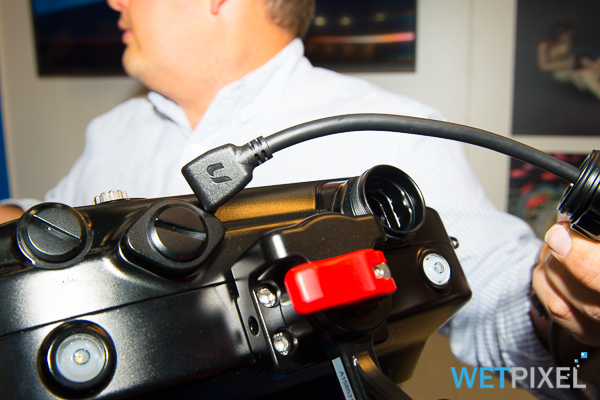
I wonder if it's the cables so much as them shifting slightly from where they're plugged into the camera? The micro/mini HDMI plugs can so easily shift out of place to the point that you lose signal.
I thought this too, so I hot glued the micro hdmi cable into the bulkhead receiver - alas it still went faulty.
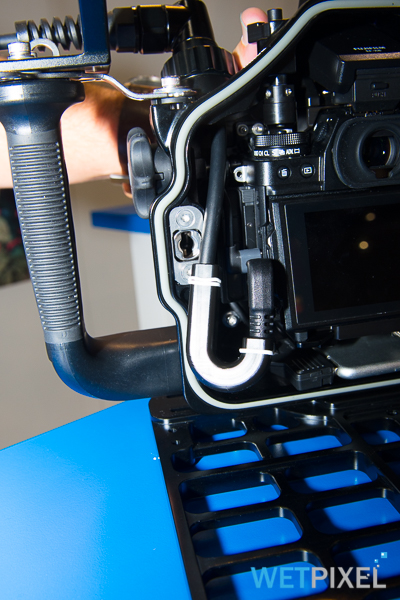
Dave loops his differently to me, I have my going about the drive dial and then down - will have a look at how Dave has done his.
I "trained" the cable to loop that way and it seems happy enough. Its close, but doesn't interfere with any buttons or twiddly bits.
Let me know if you need more pics.
Another way how to eliminate extra HDMI connection inside the housing and use Full-size HDMI connector
Custom made, low profile HDMI 90 degrees Fool size HDMI connector (Type A) pass through the 16mm threaded port of Nauticam GH5
That looks extremely interesting. Is it available for purchase yet?
Yes, you can purchase the bulkhead connector. Please remember - the bulkhead connector compatible only with any external HDMI monitors and 4K HDMI external cables by Dive And See. Because we are using our own pinout connection system.
Yes, you can purchase the bulkhead connector. Please remember - the bulkhead connector compatible only with any external HDMI monitors and 4K HDMI external cables by Dive And See. Because we are using our own pinout connection system.
Are you able to make custom cabling to work with Nauticam Monitors? Interested...
Hi Richard,
I can not make cabling for Nauticam monitor. Pinout and inserts are totally different from our configuration.
Regards,
Alex iachkov
At BOOT, I was told that Nauticam has invested in the tooling etc. to now produce and test their own HDMI cables in house.
Of course, this does not help those with existing cables...
For the new Fuji XT housing, and probably others going forward like the Nikon Z housing, Nauticam has added an M24 sized port that will allow a pass-through for an HDMI cable. I understand that HDMI 2.0 requires a continuous cable.
It's good to see them moving forward and going M24 for cabling - and going with a straight through cable is the only solution for providing the 4k@60p 10bit. 18Gbps for HDMI2.0.
It seems any breaks for bulkhead connections, causes big drops in performance.
Sadly for the NA-Z7 housing - they will probably have to re-release that, as that is only M18.
Hi,
Any quick source in Europe for a HDMI internal cable for GH5? (not Nauticam)
90° full hdmi male to straight micro hdmi male
It seems that Amazon and Ebay have all sort of connectors combination except what I'm looking for...
Thanks in advance
Buy from Dive and See, never had issues with their cables, they are so much more lasting than OEM form most companies
Hello everybody,
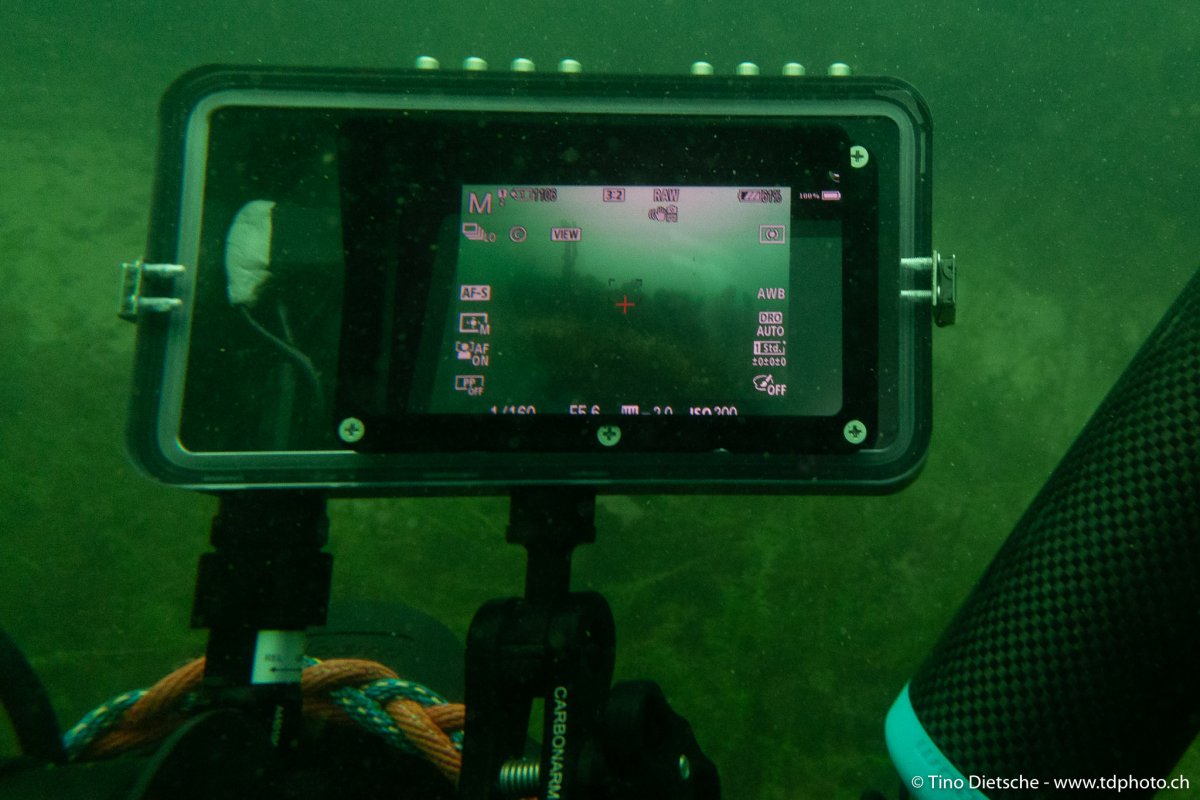
I'm currently having problems with an HDMI bulkhead instead of the HDMI cable from Nauticam. That's why I'm considering developing my own cable solution for the monitor housing I built together with a colleague. I know there is a solution with Dive and See, but I find the variant extremely expensive, even if it is absolutely good. The main problem for the own solution is to find suitable plugs and sockets.
Possibly does any of you have a tip?
Greetings from Switzerland and sorry for my bad english,