



Skip to content

Shooting Technique, Workflow and Editing / Archived topic

Update on Backups when travelling without a laptop?

Started by TimG ·

  • 26Posts
  • 26Replies

Read-only discussion

Update on Backups when travelling without a laptop?

26 posts
  1. Hey guys

    I'm trying to get an update on how folks are dealing with backups when travelling without a laptop. I'm thinking especially for the "newer" type cards: CFexpress especially.

    Going back what now seems like a lifetime, I had the excellent Nexto unit which packed up CF and SD without a fuss. I see Nexto have packed up; as has it seems, Gnarbox. Most things I can find on the internet are out of date or mainly apply to SD cards.

    So what the latest backup-without-a-laptop techniques and tools? I'd like to be able to backup a day's worth of images - say about 4-5 GB at a go - from an XQD or CFexpress card.
  2. 39 minutes ago, TimG said:

    Hey guys

    I'm trying to get an update on how folks are dealing with backups when travelling without a laptop. I'm thinking especially for the "newer" type cards: CFexpress especially.

    Going back what now seems like a lifetime, I had the excellent Nexto unit which packed up CF and SD without a fuss. I see Nexto have packed up; as has it seems, Gnarbox. Most things I can find on the internet are out of date or mainly apply to SD cards.

    So what the latest backup-without-a-laptop techniques and tools? I'd like to be able to backup a day's worth of images - say about 4-5 GB at a go - from an XQD or CFexpress card.

    I'm sure there are plenty of solutions here's one that requires a Raspberry Pi, card reader and a portable hard drive and download the app suggested in the article:

    https://petapixel.com/2016/06/16/turn-raspberry-pi-auto-photo-backup-device/

    I haven't confirmed but I'm assuming you could plug it into a monitor/keyboard at your destination to view files as well

  3. Thanks, Chris. I'm trying to find a real standalone solution - similar to the way the Nexto worked or the Epson x000 range. Essentially unplug a card from the camera, plug it into a device - and presto.....

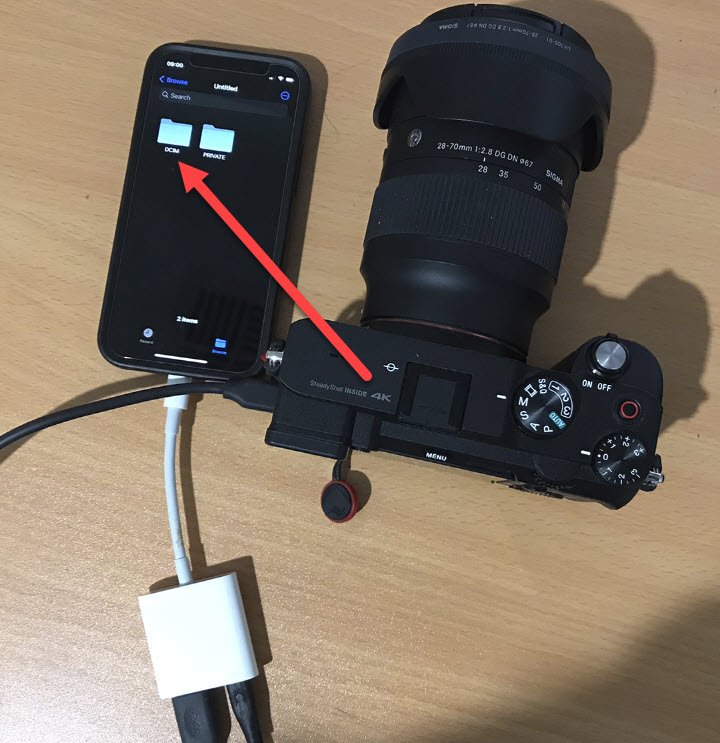
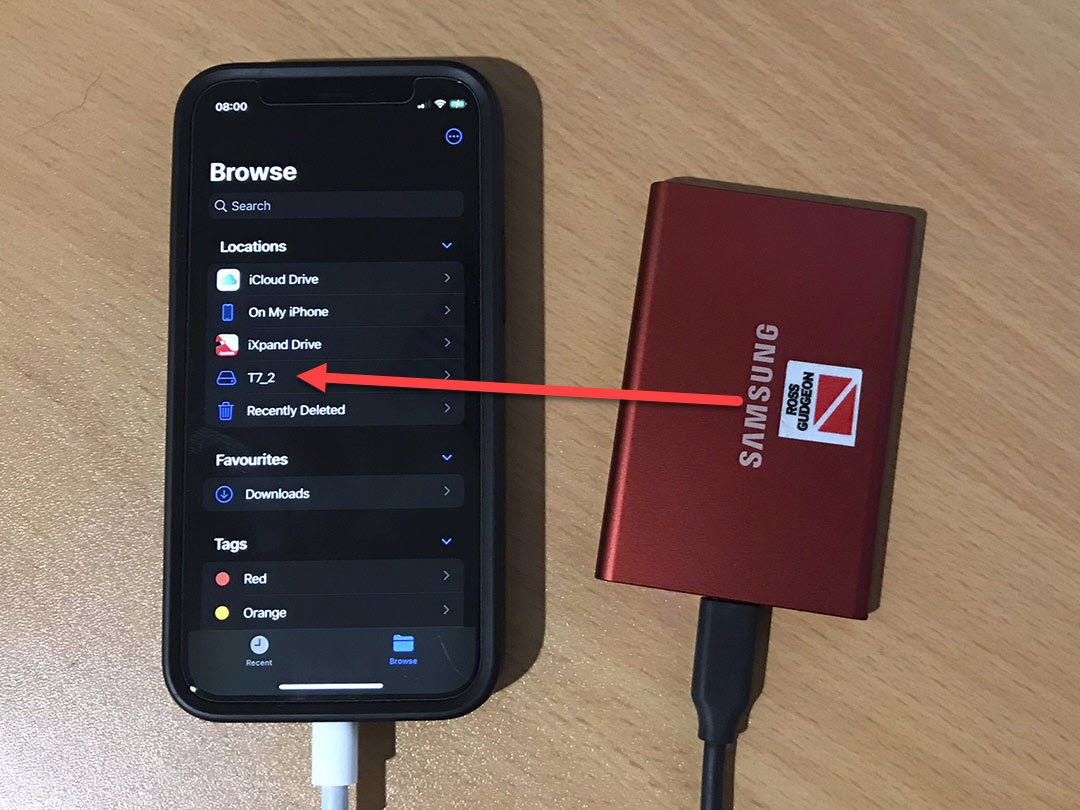
  4. If you're travelling with an iPhone/iPad the Apple LIghtning to USB 3 Camera Adapter allows you to move files from your camera to your iPad/iPhone a number of ways:

    1. If you use it unpowered and connect your camera to your phone it will automatically download your photos to the Photos app.  This has a few problems as you have no control over what folder they end up in and your device will try and upload them to the cloud.
    2. If you power it up with a USB power adapter you have much more flexibility.  You can use USB peripherals with your iPad/iPhone.  Photos can be downloaded to your device using the Files app which allows you to put them in a folder of your choice and images won't automatically be uploaded to the cloud.

    Option 2 is the way I use it:

    • I either connect a card reader or my camera to download my photos onto my iPhone/iPad
    • If I want to backup to a second location or don't want to leave the images on my iPhone/iPad I will then connect a USB storage device and copy/move the images on to that.  I've successfully used USB memory sticks, Samsung T7 portable SSD drives and WD My Passport drives for this purpose
    • You can also review your images on either your iPhone/iPad or external storage device using the Files app.  


    Camera to Phone.jpg

    1661706617_PhonetoSSD.thumb.jpg.eb0d4302f7043ebdd972bdafbdedb372.jpg

    Edited by Gudge — Added images
  5. Gearbox seems to still be available on Amazon at least, but at $500 a cheap laptop might be better. One buddy has the RAV travel router that can download from a card to a HD but I haven't tried it.

    Cheers

    Bill

  6. 1 hour ago, bvanant said:

    Gearbox seems to still be available on Amazon at least, but at $500 a cheap laptop might be better. One buddy has the RAV travel router that can download from a card to a HD but I haven't tried it.

    Cheers

    Bill

    Thanks Bill

    Buyer beware I think on the Gnarbox: https://petapixel.com/2021/12/29/gnarbox-may-be-dead-so-buyer-beware/

    The RAV looks interesting. Downloading SDs looks easy with the built in SD reader but I wonder how it’d work with other cards with only seemingly one USB port which you need for the external hard drive?

  7. 2 hours ago, Gudge said:

    If you're travelling with an iPhone/iPad the Apple LIghtning to USB 3 Camera Adapter allows you to move files from your camera to your iPad/iPhone a number of ways:

    1. If you use it unpowered and connect your camera to your phone it will automatically download your photos to the Photos app.  This has a few problems as you have no control over what folder they end up in and your device will try and upload them to the cloud.
    2. If you power it up with a USB power adapter you have much more flexibility.  You can use USB peripherals with your iPad/iPhone.  Photos can be downloaded to your device using the Files app which allows you to put them in a folder of your choice and images won't automatically be uploaded to the cloud.

    Option 2 is the way I use it:

    • I either connect a card reader or my camera to download my photos onto my iPhone/iPad
    • If I want to backup to a second location or don't want to leave the images on my iPhone/iPad I will then connect a USB storage device and copy/move the images on to that.  I've successfully used USB memory sticks, Samsung T7 portable SSD drives and WD My Passport drives for this purpose
    • You can also review your images on either your iPhone/iPad or external storage device using the Files app.  


    Camera to Phone.jpg

    1661706617_PhonetoSSD.thumb.jpg.eb0d4302f7043ebdd972bdafbdedb372.jpg

    Thanks Gudge. What’s option 2 like in terms of speed? I’d want to move from the card via the iPhone to an external hard drive. 

  8.  

    Quote

    What’s option 2 like in terms of speed? I’d want to move from the card via the iPhone to an external hard drive.

    Depends on the speed of the USB devices you're attaching via the adapter.   The adapter itself has USB 3 speed but transfer will be slower if you use USB 2 devices.   I'm able to download a days shooting from my camera and then upload it again to my Samsung T7 (both of which have USB 3 connections) in about 10 minutes.  A lot that time is spent navigating to the relevant folders and selecting the files to be transferred, the actual transfer time is only a few minutes.

    I just did a quick test from my Samsung T7 to my iPhone 12 mini, it took about 1 minute to transfer 1.2GB of photos.

    Edited by Gudge
  9. Hey there, I just got back from a 2 week vacation (no diving though) and I used the NewQ Travel Router (linked below). I was able to back up my SD cards every night to a USB SSD (Samsung T5).  This worked for me as I use SD cards on my Olympus cameras, I'm not too sure if you can hook up a USB hub into the the USB port to have a USB card reader and external SSD drive both connected to transfer files.


    I could try this week and provide an update.

    Item Link: https://www.amazon.com/dp/B09T9QKQH7?psc=1&ref=ppx_yo2ov_dt_b_product_details

  10. Thanks, Dan-Oh. If it’s not too much trouble it’d be great if you could give it a try. I’ve had a look at several travel routers and, yes, running a card reader and a HDD/SDD simultaneously doesn’t seem possible on the ones I’ve seen so far. 

  11. I travel with a laptop normally, but when I don't bring one, I typically just don't worry about data loss. 

    That said, I can think a of a couple of simple methods to do a backup within the camera.  This assumes you have a camera with two card slots.  Otherwise, one of the previous ideas in other posts.

    1. simply set the camera to mirror slot 1 to slot 2

    2. once you have a card in slot 1 you want to back up, put another card in slot 2 and use camera functions to copy images in 1 to 2.  This depends on camera and could be tedious.

  12. 2 hours ago, phxazcraig said:

    I travel with a laptop normally, but when I don't bring one, I typically just don't worry about data loss. 

    That said, I can think a of a couple of simple methods to do a backup within the camera.  This assumes you have a camera with two card slots.  Otherwise, one of the previous ideas in other posts.

    1. simply set the camera to mirror slot 1 to slot 2

    2. once you have a card in slot 1 you want to back up, put another card in slot 2 and use camera functions to copy images in 1 to 2.  This depends on camera and could be tedious.

    Thanks for this, Craig.

    I don't know if my camera (Nikons) will let you, effectively, back up 1 to 2 (rather than simply mirroring) - but I'll check. Interesting idea although you still really only end up with one copy. I'd like to devise a way that I always have two copies - one out of camera.

  13. On 8/8/2022 at 12:48 PM, TimG said:

    Thanks, Dan-Oh. If it’s not too much trouble it’d be great if you could give it a try. I’ve had a look at several travel routers and, yes, running a card reader and a HDD/SDD simultaneously doesn’t seem possible on the ones I’ve seen so far. 

    Hey @TimG sorry for the delay in getting back to you.  I tried out my travel router by plugging in a hub with both SSD and SD card, the travel router could not copy the files.  I kept getting the error "drive not mounted".   I do not get this error when I plug the SSD right into the router.

    Edited by Dann-Oh
  14. Oh right - thanks for that Dann-Oh. Good to know. Sort of -_-

  15. On 8/12/2022 at 11:50 AM, TimG said:

    Thanks for this, Craig.

    I don't know if my camera (Nikons) will let you, effectively, back up 1 to 2 (rather than simply mirroring) - but I'll check. Interesting idea although you still really only end up with one copy. I'd like to devise a way that I always have two copies - one out of camera.

    Nikons can at least copy file-by-file.

    Remember too, you might be able to put a lot of data on your phone for backup.   Some smartphones have a lot of memory, and some have easily-removable microsd cards.  (Neither of which applies to my Galaxy S22 unfortunately.).

    I think I would get an external, SSD-based, USB drive that has a card reader (SD) and/or ability to plug in another reader via USB and control from a smartphone.  Like the WD 2TB My Passport Wireless Pro Portable External Hard Drive, Wifi USB 3.0 - WDBP2P0020BBK-NESN.   Or the Gnarbox2 (pricey).

  16. Thanks Craig

    Yeah, I've been looking at both of those.

    The WD one seems to be out of production now and, so far, I've not found something similar which gets good reliability reports. WD don't seem to have produced a successor. 

    A bit buyer-beware, I think, on the Gnarrbox. Lots of reports they have gone out of business and there's no support. They are still obtainable from, eg B&H. I'm wary though of an expensive item with, seemingly, questionable backup.

    Yeah, I'm wondering about using my iPhone. It's CFexpress cards I want to back up from my new (gasp) Z9. I've got one of Nexto's back up gizmos which has been terrific over the last 5-6 years for CF and SD cards. But it can't do CFe (or XQD) and Nexto too seem to have gone out of business.

    Maybe I need to play around with the myriad Z9 export tools (Bluetooth, Ethernet etc) and see if I can get them to talk and export files reasonably speedily to my iPhone (12) and then download them on to an HD/SSD. Should be a fun experience!

    The ideal would be to plug in a CFe card reader into an HD/SSD drive and upload that way. But maybe I'm just old-school thinking.

  17. 5 hours ago, TimG said:

    (...)

    The WD one seems to be out of production now and, so far, I've not found something similar which gets good reliability reports. WD don't seem to have produced a successor. 

    (...)

    ebay is your friend ;)

    https://www.ebay.de/sch/i.html?_from=R40&_trksid=p2380057.m570.l1313&_nkw=WD+My+Passport+Wireless+Pro&_sacat=0

    There is also plenty of 3rd party SSD enclosures with microSD (and other slots), just google around/amazon/aliexpress. Shove any SSD inside (usually m.2 type) and done.. There might be even ones with wifi.

    Also, this might be an interesting reading - how to turn an SSD into CFExpress card with an adapter. So instead of spending half a grand on some tiny card, get and SSD and an adapter for hundreds less, spend rest on beer ;]

    https://www.tomshardware.com/news/adapter-turns-ssds-into-cfexpress

    Edited by makar0n
  18. Wow! Thanks, makar0n.


  19. I may look into this a bit myself.  I have a Samsung Galaxy S22 Ultra, which unfortunately only has fixed internal storage. (512GB in my case).   I have a USB-A card reader, and a USB-A/USB-C adapter.  I'm think of plugging the card reader into the phone and uploading from there.   Mostly as an exercise in possibilities.

    Given I have a Z9 - and you too now - it would seem simpler to just connect a USB-C cable between camera and phone.  Question I have is what software can I use then to easily select and transfer the photos.   The phone option only looks useful as a host for a removable microSD card, which my camera doesn't have.

    Curious as to your intentions with the Z9.

  20. 50 minutes ago, phxazcraig said:

    Given I have a Z9 - and you too now - it would seem simpler to just connect a USB-C cable between camera and phone.  Question I have is what software can I use then to easily select and transfer the photos. 

    Yeah, I was thinking the same thing; and had the same question! I’m using an iPhone 12. I thought I’d just have a play around and see what happens. Or doesn’t. 
     

    52 minutes ago, phxazcraig said:

    Curious as to your intentions with the Z9.

    As for intentions,  very unlikely to shell out $6k to take it underwater - although that in-viewfinder review is kinda nice. I’m really happy with my D500 setup and really don’t want to return to housing FX/FF optics again. So the Z9 plan was/is for topside use. I now need to sell my D5 and “rationalise “ my lens investment portfolio. There could well be Bargains Galore coming on the Classifieds. :crazy:

Account

Navigation

Search

Search

Configure browser push notifications

Chrome (Android)
  1. Tap the lock icon next to the address bar.
  2. Tap Permissions → Notifications.
  3. Adjust your preference.
Chrome (Desktop)
  1. Click the padlock icon in the address bar.
  2. Select Site settings.
  3. Find Notifications and adjust your preference.

