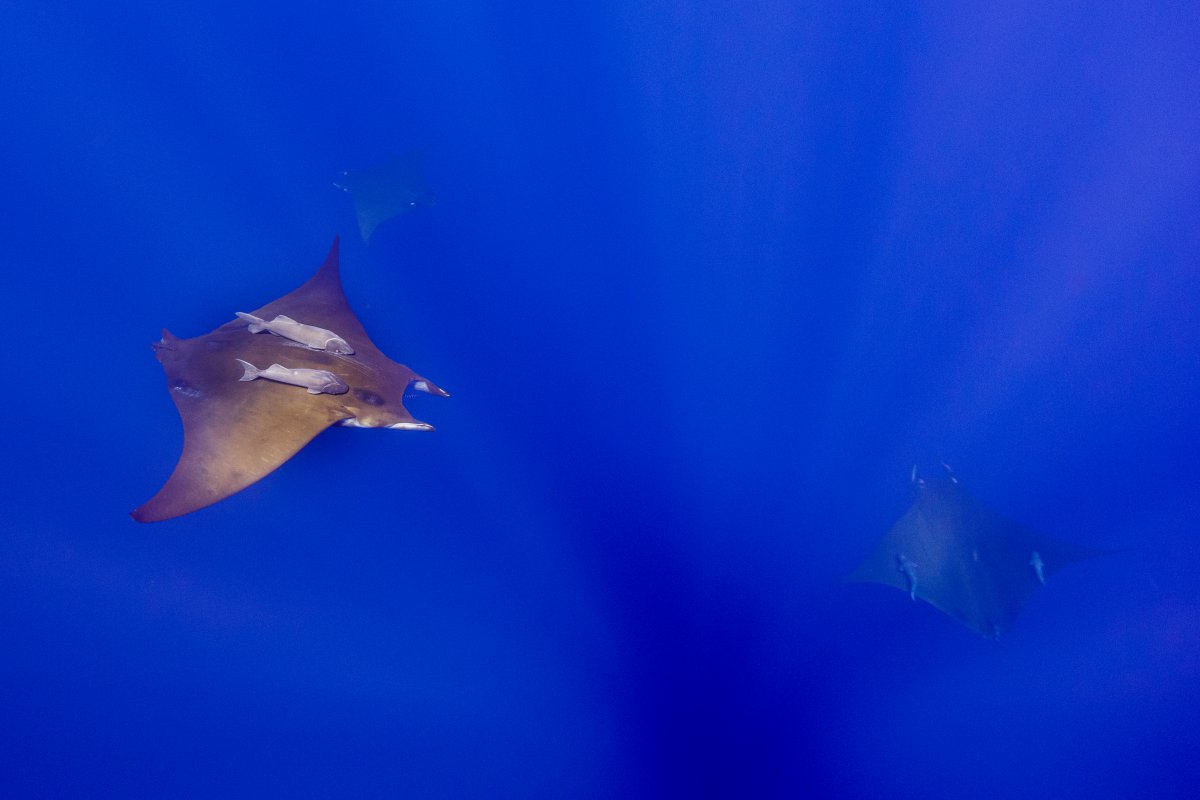
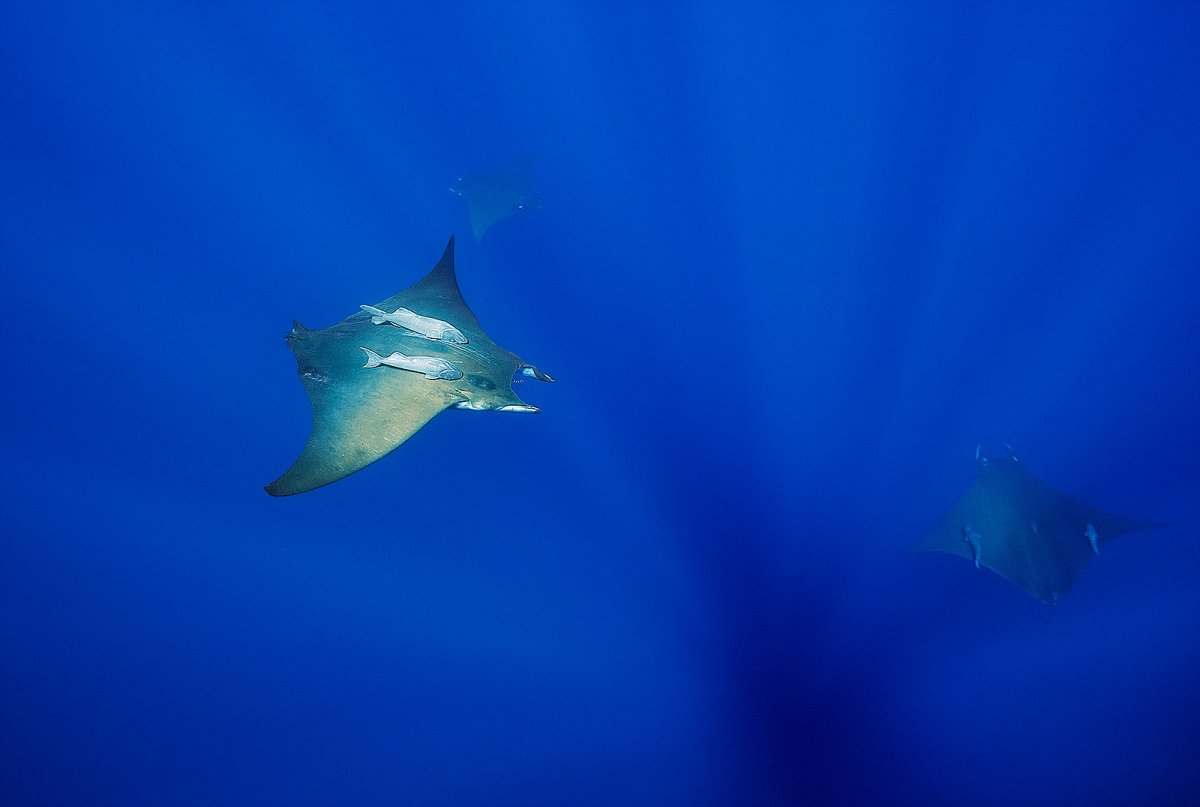
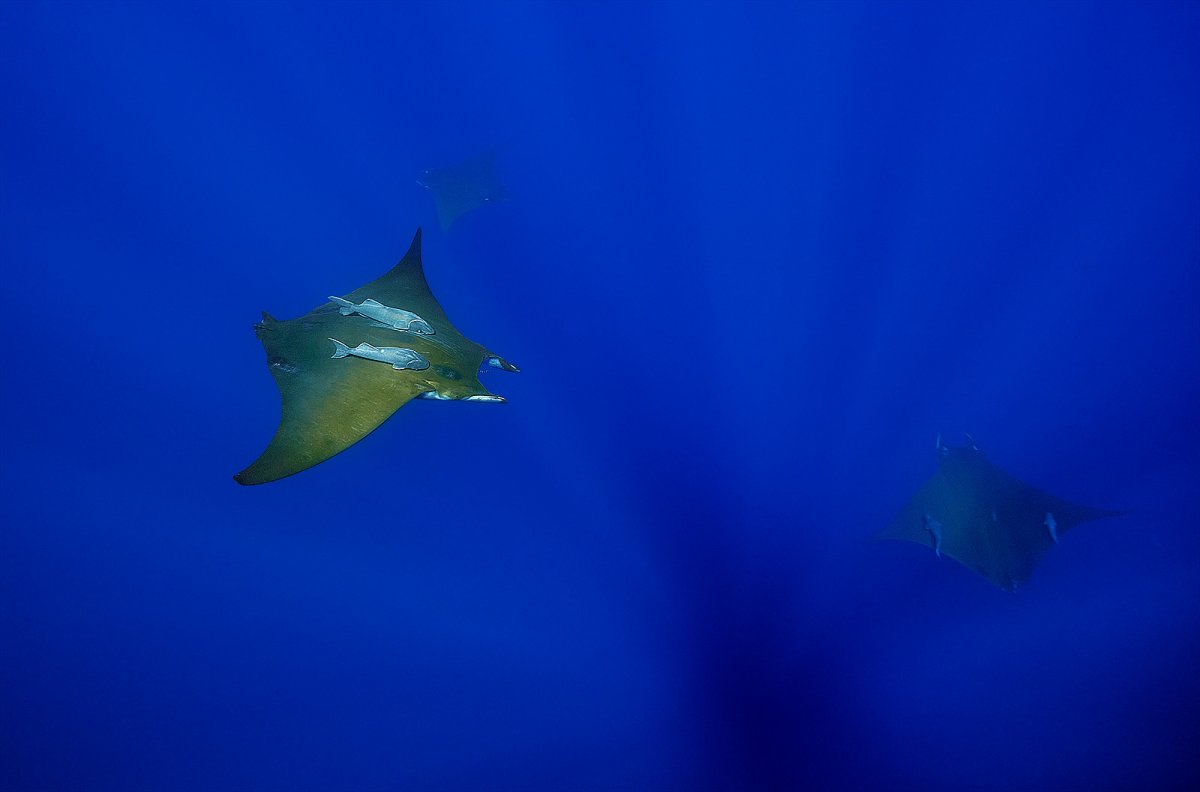
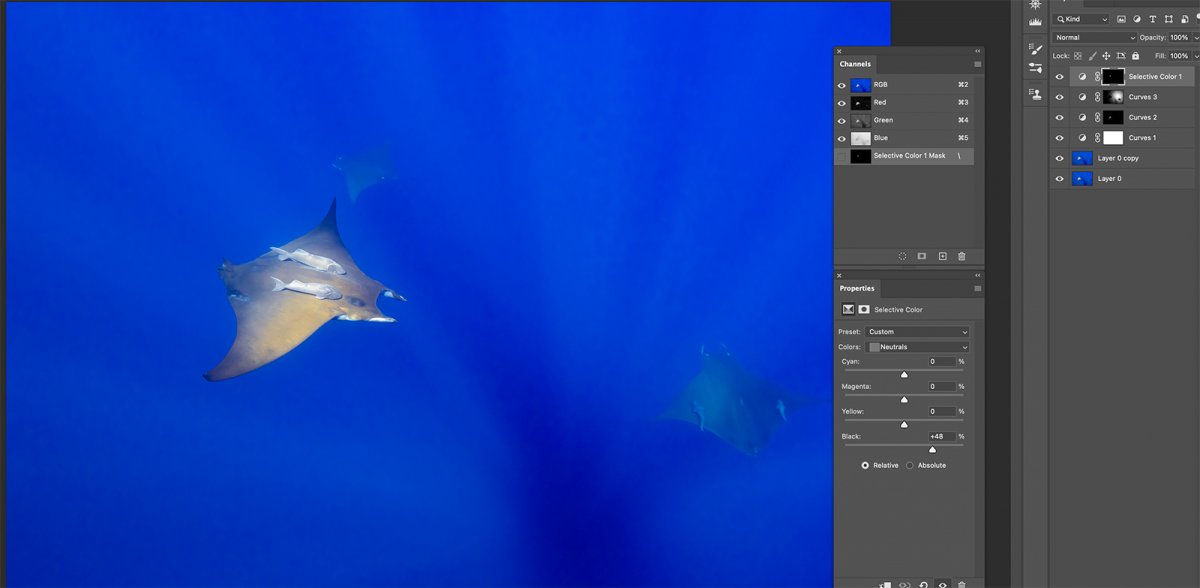
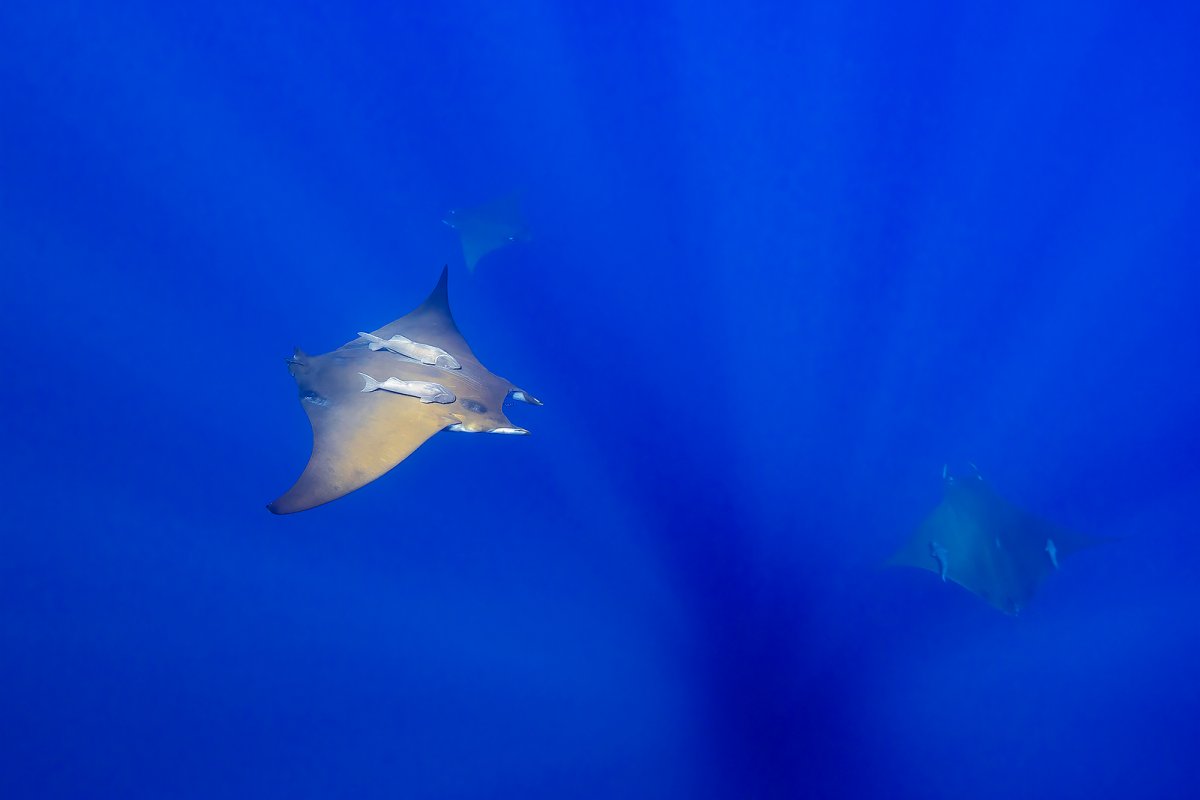
I'll be happy to share some tips. I've been doing underwater image post-processing DLSR images shot in RAW since 2016. It's gotten much easier for me with practice so I tend to know what to do to start with and get results quickly.
First, some examples. A few years ago I put together a quick web page to show my friends that nice underwater shots were not due to 'the camera', but instead were due to the post processing done later. I did this by showing before (out of camera) and after (post-processed) images. You can see them here: https://www.cjcphoto.net/beforeafter/all.html
My workflow starts in-camera, setting base ISO if I am shooting with strobes for maximum dynamic range. If shooting wide angle, I'm often shooting ambient, and there you have all sort of color correction issues. You really do not want to shoot in JPG underwater unless you're also using a preset white balance for the depth. If you mix ambient and strobe, it gets really tough due to mixed lighting - best advice I can give there is to turn your strobes down so as to not overwhelm the ambient so much, or better yet, gel the strobes to match the ambient at the particular depth. Basically, for a beginner, try shooting in bright sunny weather, not too deep, in ambient.
Exposure - here I (shooting cameras like D810, D850 or Z9 with lots of dynamic range) mostly just glance at the histogram to make sure I'm in the ballpark and don't have overexposure (blinkies). I adjust exposure in post all the time, often by a stop or more. If at base ISO. If shooting ambient at ISO 3600, I am much more careful on exposure as you do not have the latitude to shift the histogram around in post.
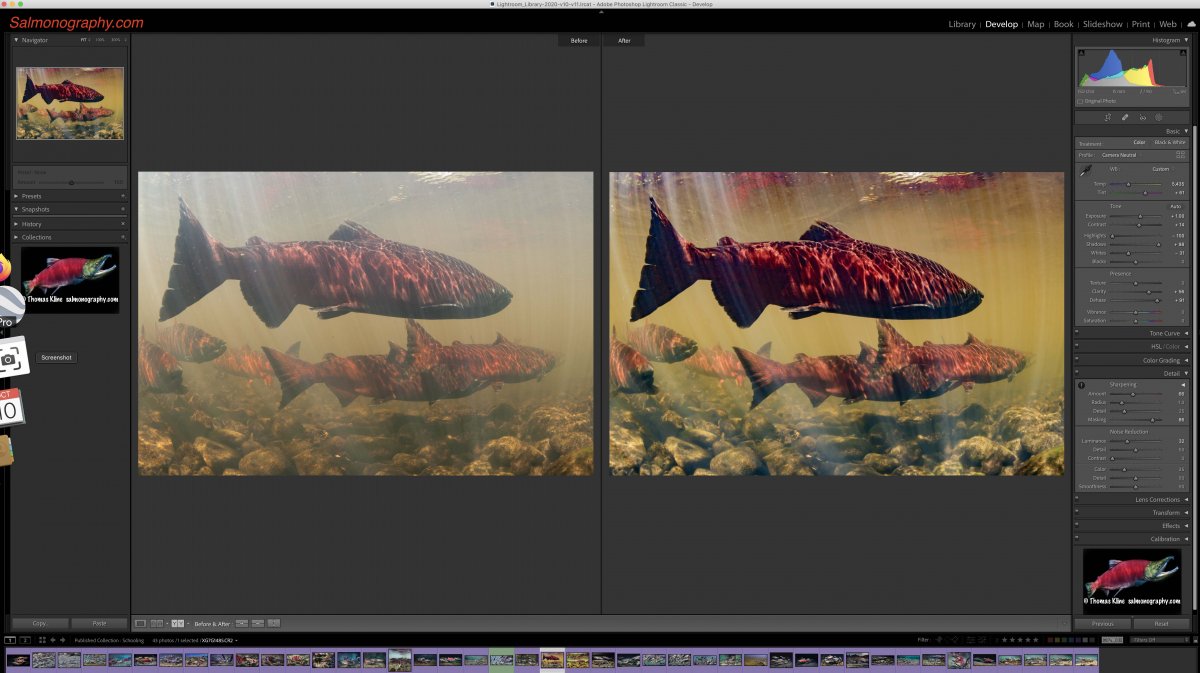
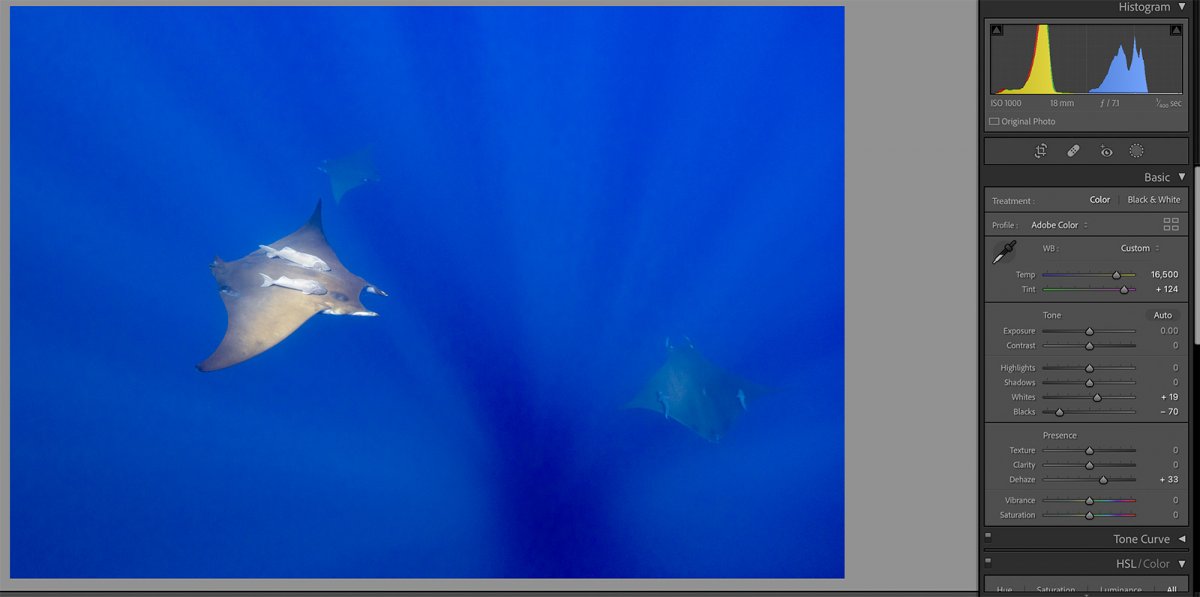
White Balance: The most critical thing you can fix, and it's usually not hard. (Except with mixed strobe/ambient). In your post-processing program (I use Lightroom), you need an eyedropper tool to sample a neutral point. And neutral points are often quite easy to find underwater. First tip here: Always pick the closest possible target to sample. The more distance you have to the subject, the more it is *supposed* to look blueish.
Tip: Look for bits of broken or bleached coral. This is very common and is usually white.
Tip: Beware selecting dark-looking targets for neutral points, like the middle of a fish eye or a deep shadow in a reef. There are often color casts there. Best choice is the black you find on dive gear.
Tip: Lots of neutral points on dive gear. Aluminum tanks are decent if close to you.
Tip: (Probably Lightroom-specific) - at high ISO's and deeper water, you just don't have a lot of color to work with shooting ambient. When there isn't red in the ambient to start with, you can't very well pull down all the other colors to match it. You just get the best look you can. Sometimes you end up with weird results and are not sure what to do with the temperature and tint sliders. I've found that there is a pattern when the sliders are correctly set. That is that the Tint slider is always about a certain distance to the right of the Temperature slider. In Lightroom, the maximum Tint value you can set is +150. When you get to that point, the Temperature still needs to be a bit too the left (if you start looking at your files you'll notice how much). If you don't have enough color in the file, you're done. You can't keep moving the Temperature up more, or it will just look bad.
Tip: Once you've sampled and set white balance, you can (and often should) still adjust the Temperature manually. Adding a bit more Temp makes the shot more colorful, up to a point. Then it becomes garish. You can play with the Tint slider too, finding a happy balance between too much magenta and too much green. You DO need a calibrated monitor...
Removing Underwater Haze: Particularly when your subject is too far away, you often get a low contrast or flat-looking shot that just looks murky. In Lightroom you can use the Black slider to pull the histogram toward the dark end of the range. You must be very careful not to overdue it here, but often if you just about get the histogram to barely touch the left side, it will make the image look like it was shot in much cleaner water. It will also darken your midrange too, so you may need to add a bit of exposure, then maybe pull the black point down a bit more, etc.
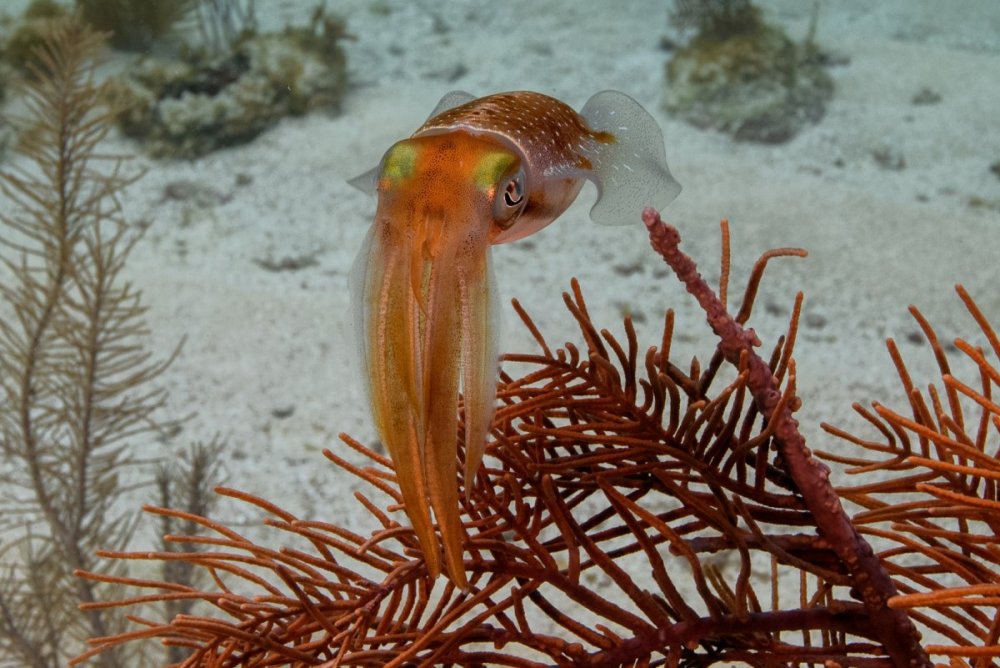
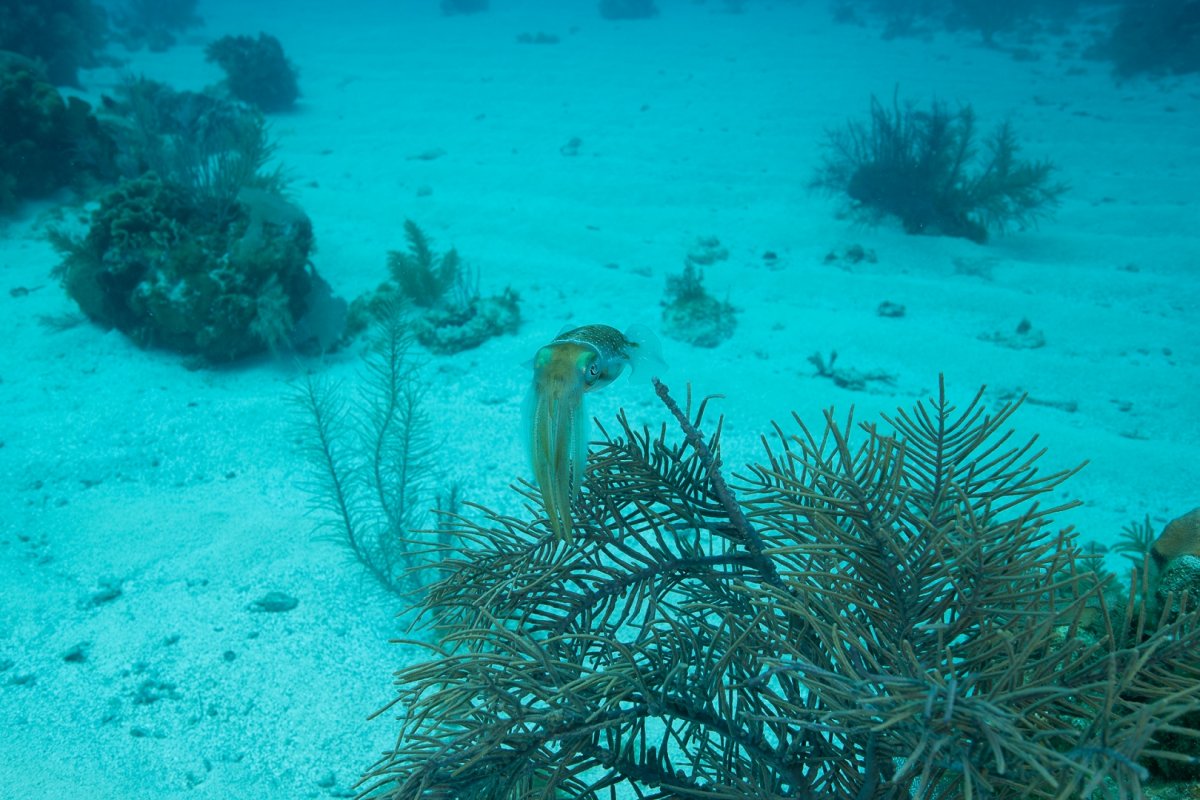
Here is one of the examples in the web page mentioned above. This was a squid that kept hanging around one spot, even though I circled him taking shots with a 16-30 lens in ambient lighting. The main fixes were to crop and set white balance. I used the white sand closest to the camera for an eyedropper sample in Lightroom to set the color.
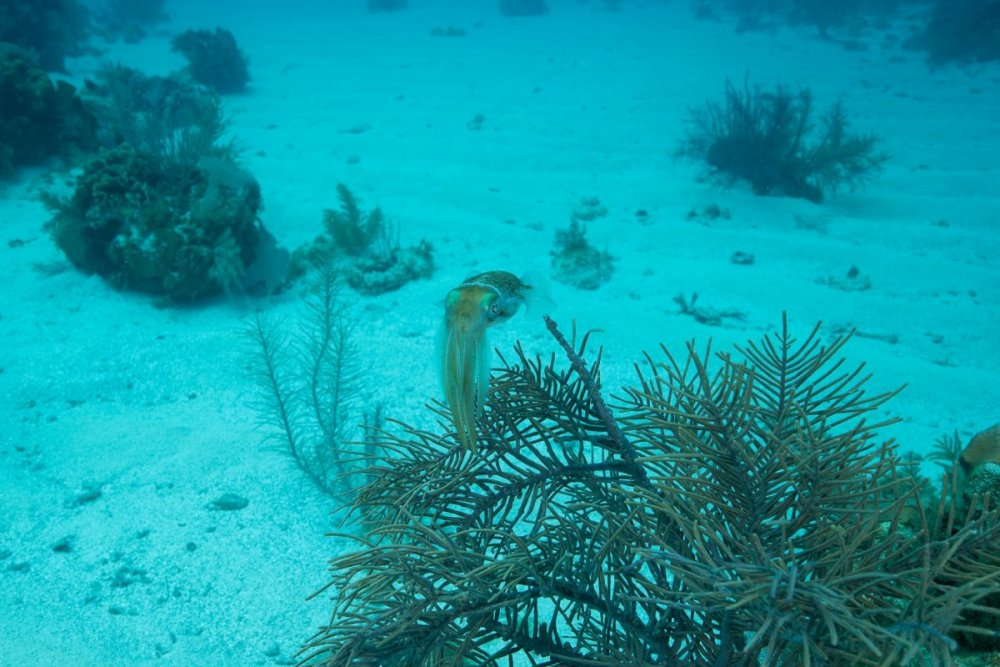
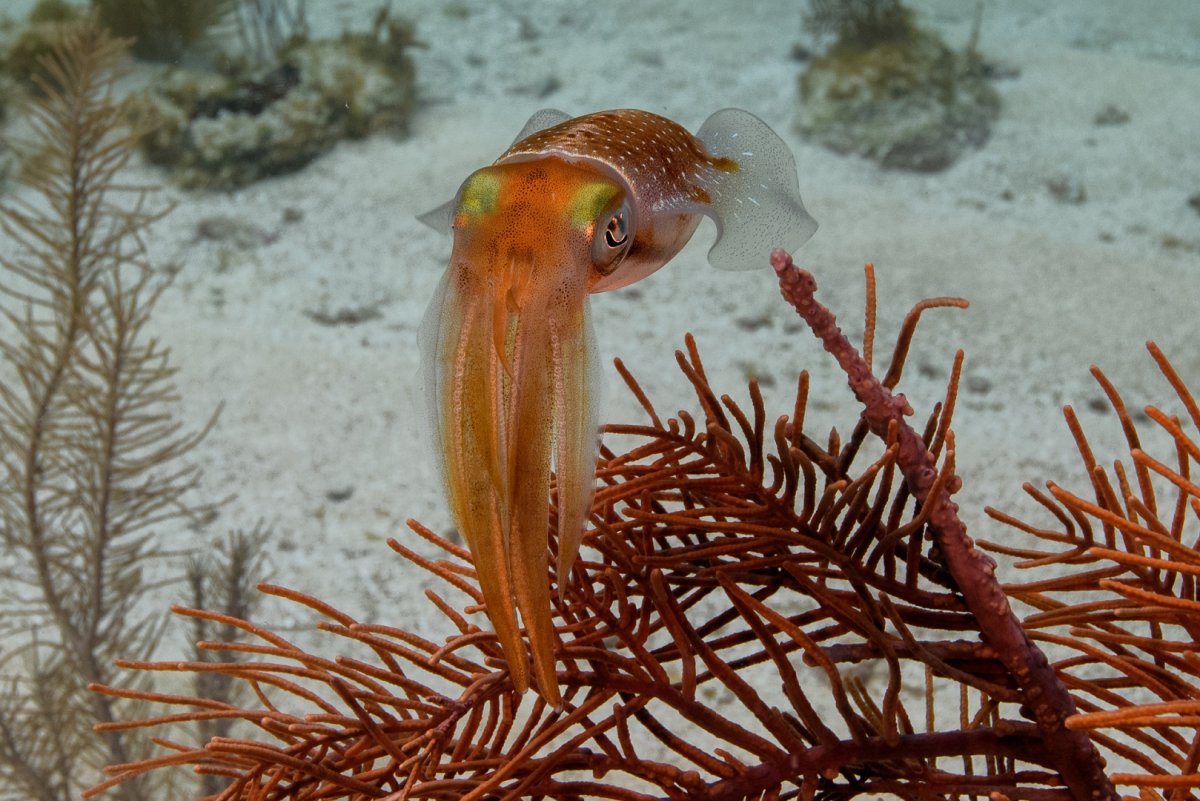
And here is the result after setting the white balance, cropping and using a bit of contrast and saturation.