




From Brett Forsyth
Back in April, I asked people here to help test a Lightroom species-matching plug-in. Marine identification was the part I trusted least, and I needed photographs beyond my own to find out where it was falling over.
A lot of you signed up, sent photos and told me exactly what wasn’t working. Nomen 1.0 is now out, and several of its features came directly from those conversations.
Thanks to Tim for making room for this update. Same disclosure as before: I make Nomen, and it’s a paid Lightroom Classic plug-in. There’s a WaterPixels discount at the end.
Why I built it
I’m a wildlife and underwater photographer in Ontario. When I got back into diving after a long break, I came home with more reef photos to add to a Lightroom catalog that was already well into six figures. Very little of it was properly keyworded.
I could name a lot of what I’d photographed. Getting those names into Lightroom was another matter. Typing them in, sorting out the taxonomy and doing it all again after the next trip was something I kept putting off. Quite a few of you described the same problem in April.
That’s where Nomen started. Select some photos, let it suggest species, check the results and save the names into your catalog as keywords.
But working on it has also sent me back through photographs I haven’t looked at in years. While making the launch video, I got completely sidetracked going through an old Costa Rica trip. I was supposed to be choosing a handful of images. Instead, there I was, scrolling through the whole trip and rediscovering my own catalog.
I hope it does some of that for other people too. Makes the library easier to search, certainly, but also gives you a reason to spend time with the photographs you already have. Remember a dive. Find something you’d forgotten about. Work out what that little animal in the corner was.
Matching runs on your own computer. Your photos aren’t uploaded to an AI service. Once you’ve downloaded the assets and activated Nomen, you can use it offline, including on a liveaboard. The setup and offline licence details are below.
What’s useful for underwater photographs
Nomen’s species library covers more than 1.3 million species across 63 groups. For dive photos, the Underwater preset selects 16 groups at once, including fish, sharks, nudibranchs, corals, sponges and sea squirts. You can add other groups when you need them, such as Mammals for dolphins and seals, or the relevant plant and algae groups for seagrass and kelp.
Location helps narrow the suggestions. You can choose a country or a dive region, such as the Coral Triangle, Red Sea or Caribbean. That’s particularly useful for underwater photos without GPS. Quick setup also understands descriptions: typing “liveaboard in Raja Ampat, lots of muck critters” selects the underwater groups and sets Indonesia for photos without GPS.
For offshore photographs, it’s worth selecting the region even if your camera has GPS. Photos near the coast use their own country; locations more than about 100 km offshore fall back to the countries you selected.
Main subject looks for one subject. Every subject looks for multiple subjects and gives each detected box its own match. There are also two survey modes for estimating counts in schools and reef scenes, although those counts need checking.
One addition I’ve found particularly useful is being able to tell Nomen which subject I meant. In Main subject with Full review, Not the subject you wanted lets you pick another of its boxes or draw your own, choose the group and match that area again. On Windows, some photos currently offer only Nomen’s existing boxes.
There’s also a Leave out people option, prompted by divers turning up in the results. In Every subject, it also filters out fins and strobe arms. It isn’t perfect, but it helps with the sort of busy photographs people here take.
A few actual results
These are the results Nomen gave me, including the ones that need correcting.
1. A toadfish from Belize
This is one of my photographs: a toadfish found almost nowhere outside Belize, looking out of its hole. Main subjectboxed it and suggested Whitespotted Toadfish, marked Clear match, in two seconds on this run.
It also showed three other toadfish in the candidate list. Nomen marked the species as rare in Belize.
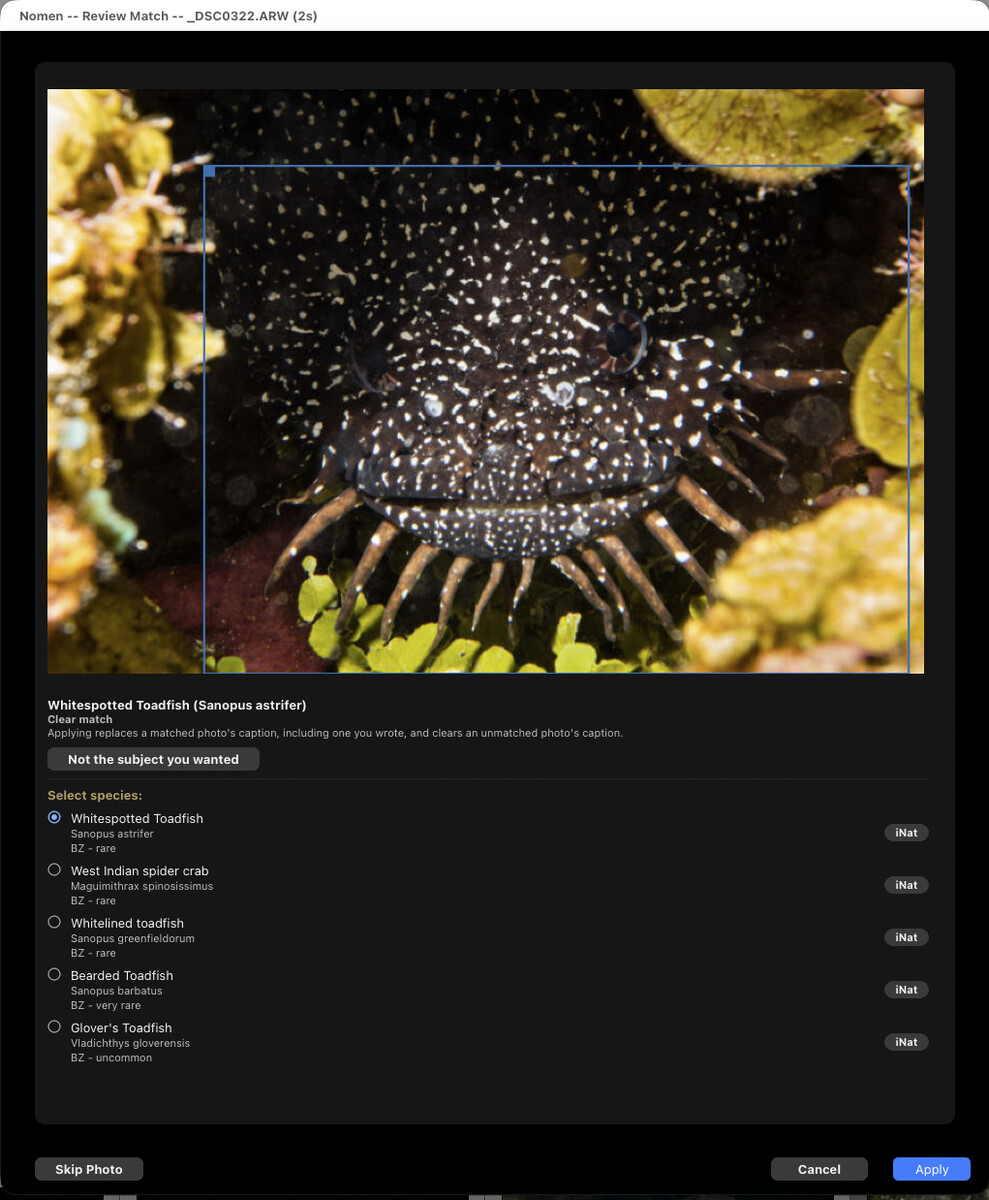
Whitespotted Toadfish (Sanopus astrifer), Belize. Photo: Brett Forsyth.
2. Several subjects on a Belize reef
Every subject found four subjects in this photograph in about a second, with the matching engine already running.
It suggested Bicolor Damselfish as a Clear match. Blue Chromis and Caribbean Christmas Tree Worm were both marked Check this one.
The coral was a different story. Its first suggestion was a frogfish. I mean, it does sort of look like one. Sea Ginger was third in the list. That first result still needs correcting. I’ve left it in because it shows why reviewing the suggestions matters.
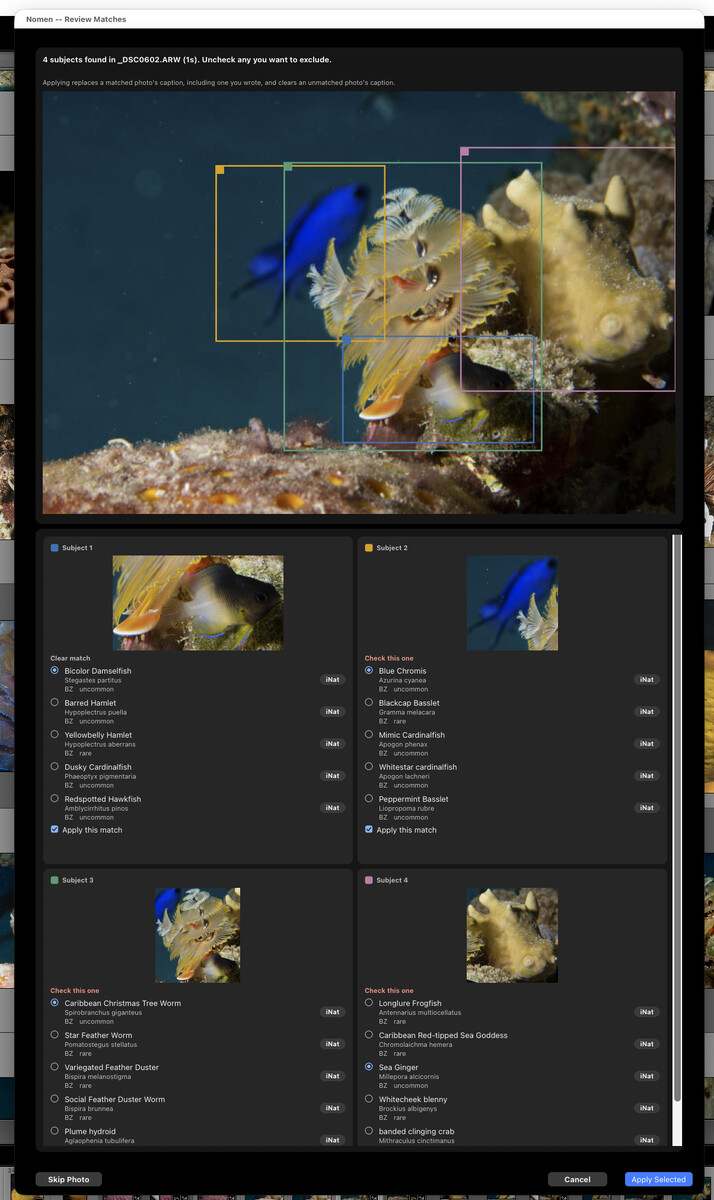
Christmas tree worm and surrounding reef life, Turneffe, Belize. Photo: Brett Forsyth.
3. Drawing a box around the subject
Justin Ormand, one of the April testers, sent this photograph of pink soft coral in the Red Sea. There’s also a diver and a fish in the blue behind it.
I clicked Not the subject you wanted, drew a box around the coral and chose Corals and Anemones. Nomen then matched that area and suggested Dendronephthya hemprichi, marked Check this one, with Broccoli Coral second.
Being able to point at the part of the photograph you actually care about makes this much more useful.
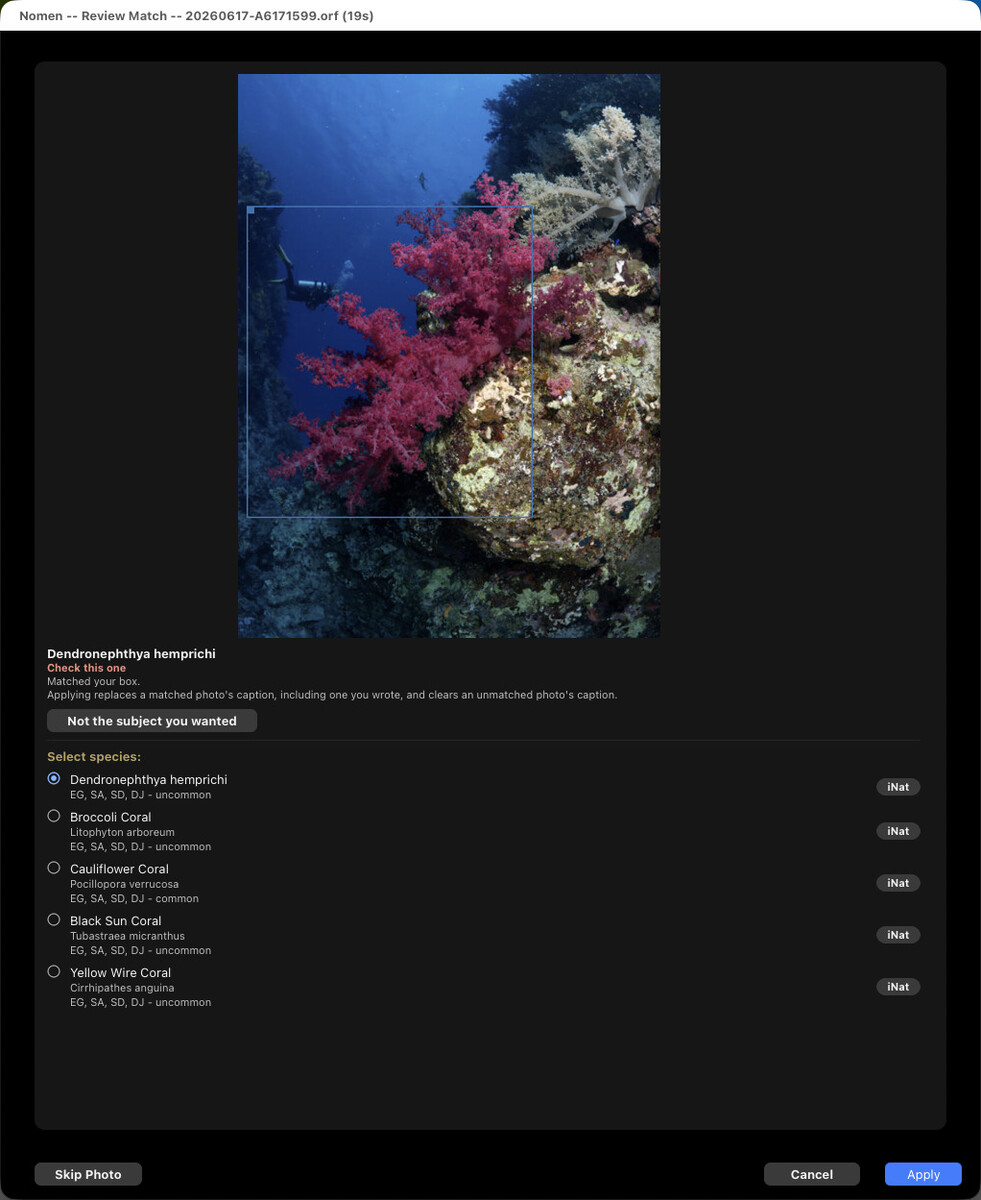
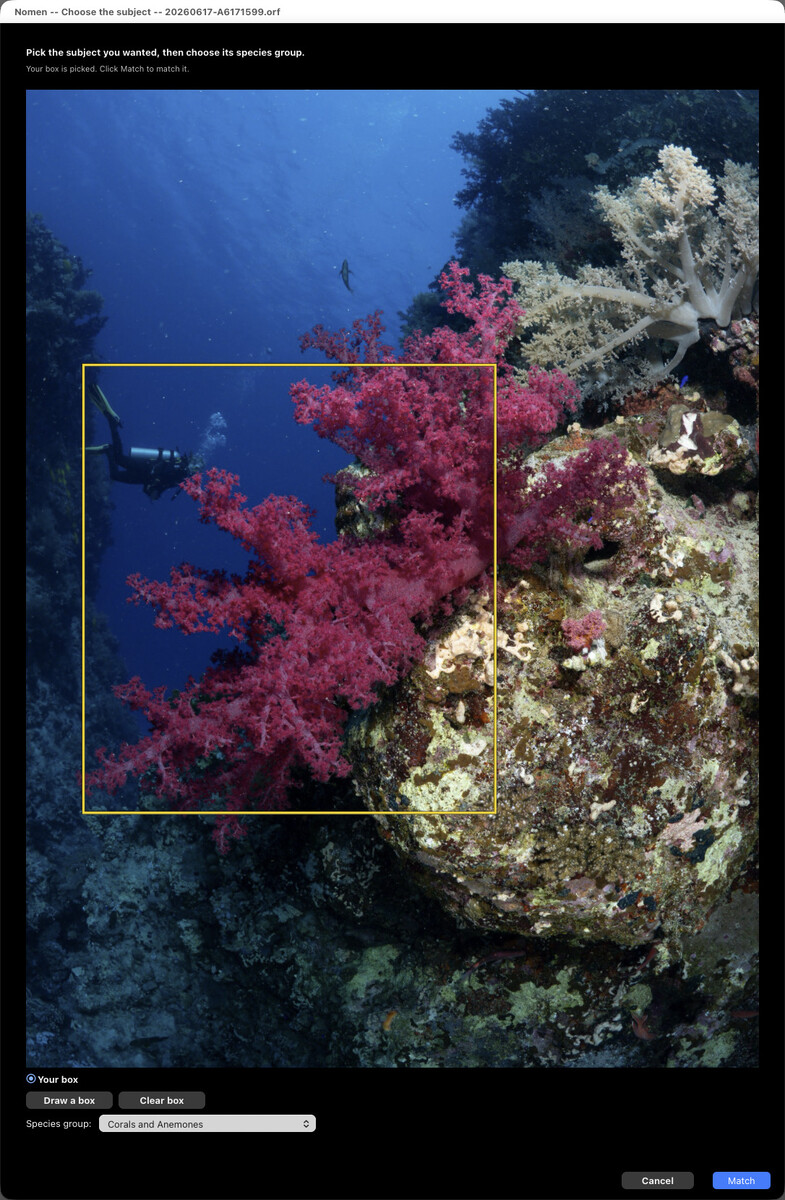
Red Sea, Egypt, June 2026. Photo: Justin Ormand.
4. Finding the stonefish
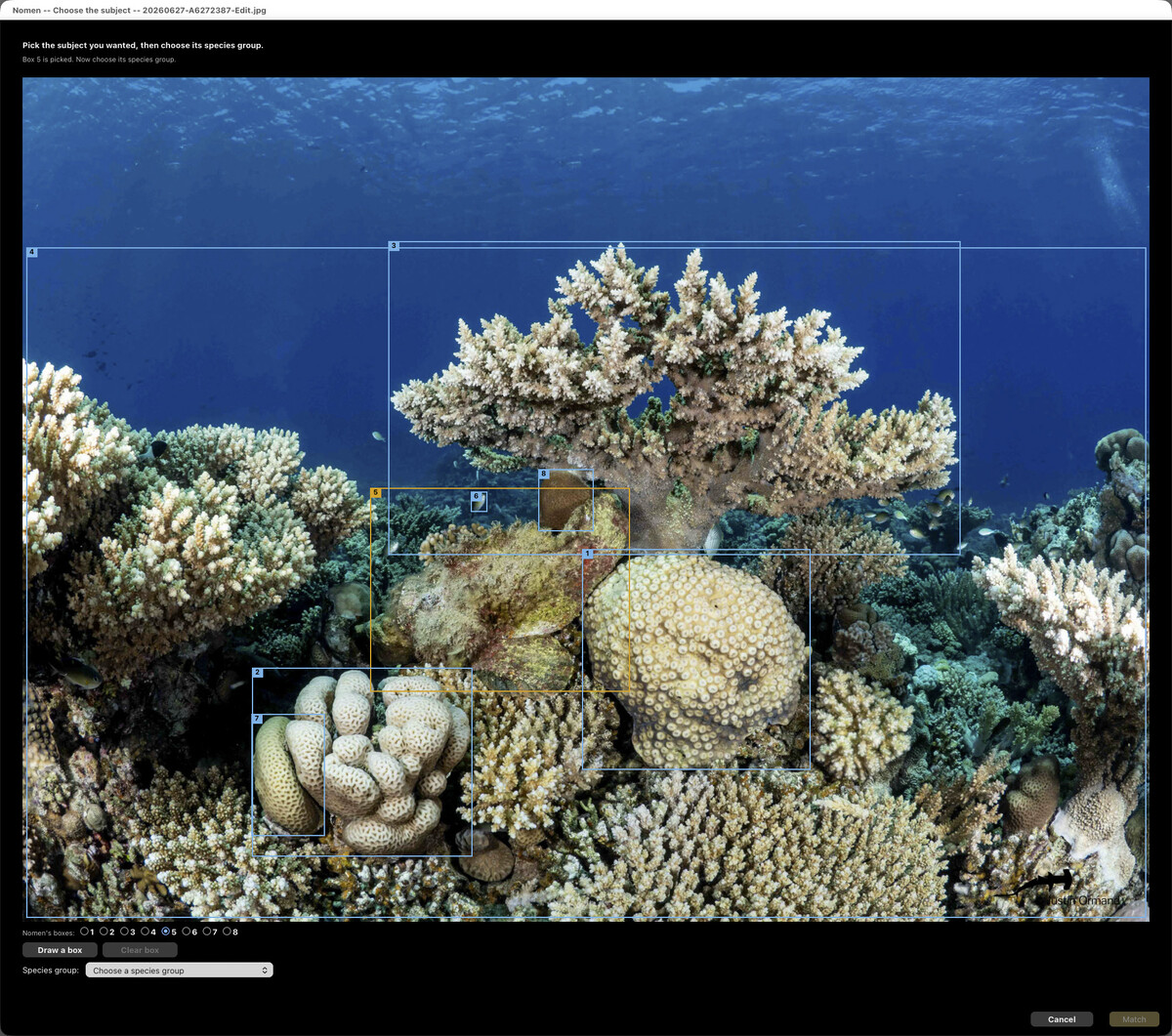
Another of Justin’s photographs. The stonefish is the mottled lump to the left of the large round coral.
Justin said Nomen used to pass it by in this scene. This time, Not the subject you wanted offered eight boxes, and box 5 covered the stonefish.
I selected that box and chose Fish. Nomen put Devil Scorpionfish first and Reef Stonefish second, with Check this onebeside the result. I selected Reef Stonefish before applying it.
It found the subject and gave me a useful shortlist. I still had to make the choice.
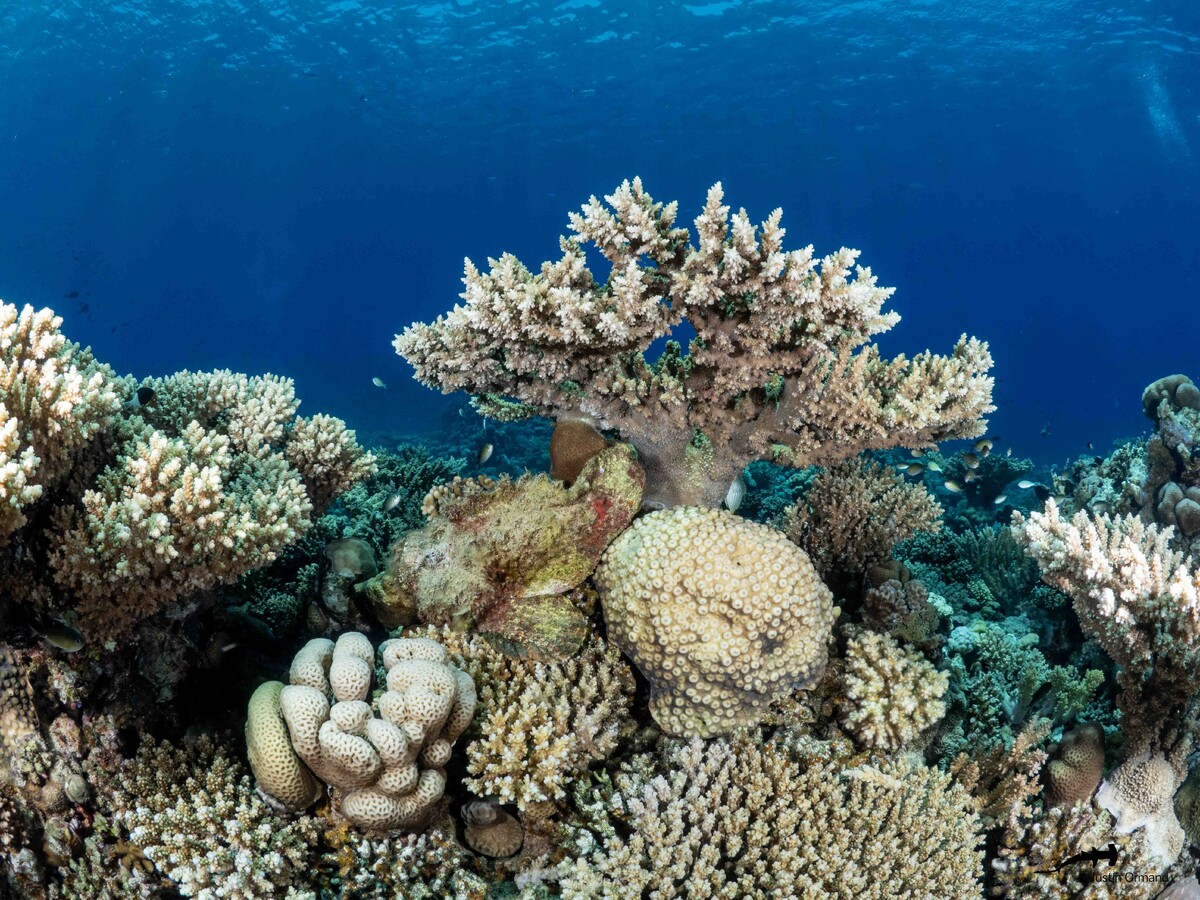
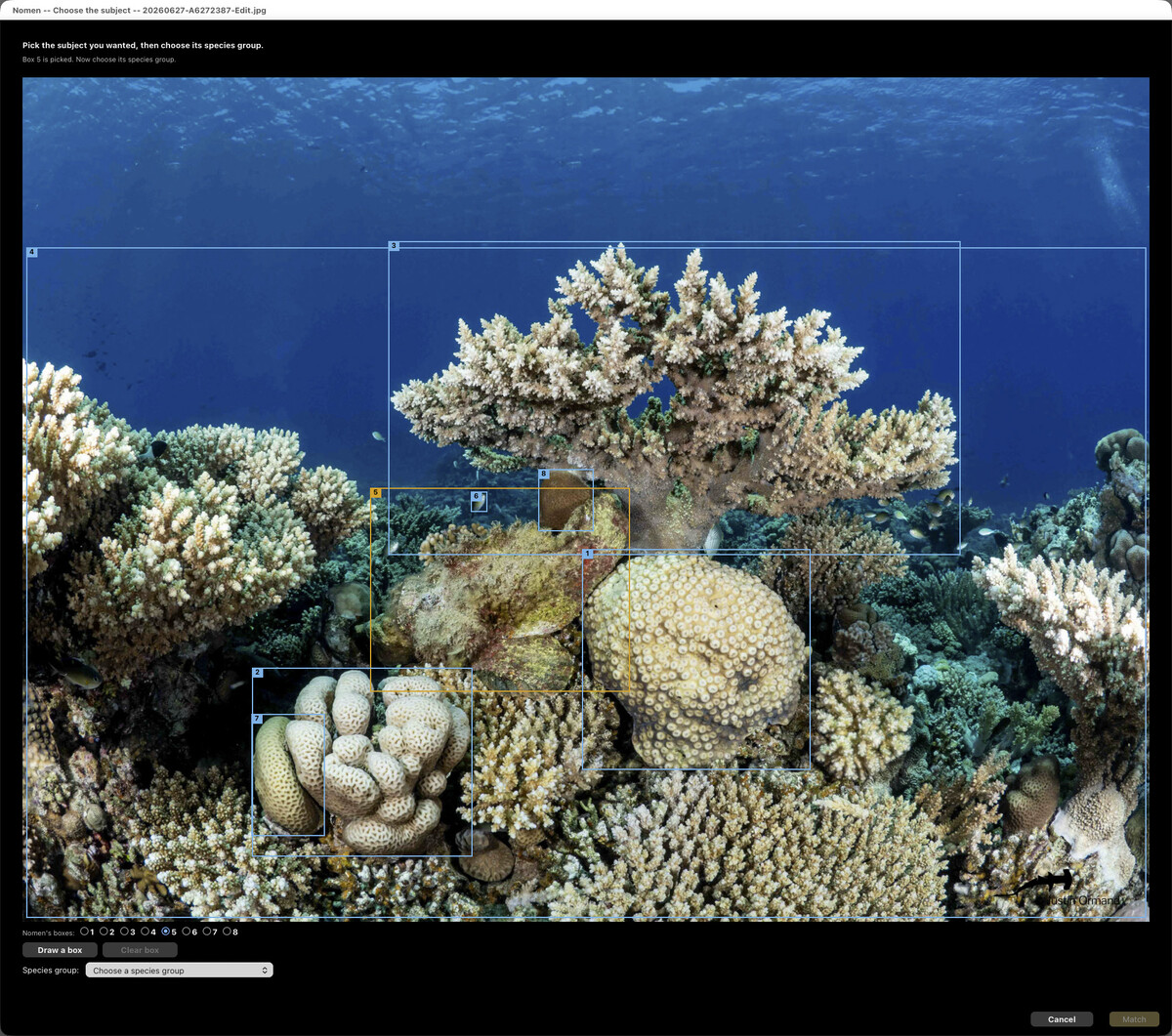
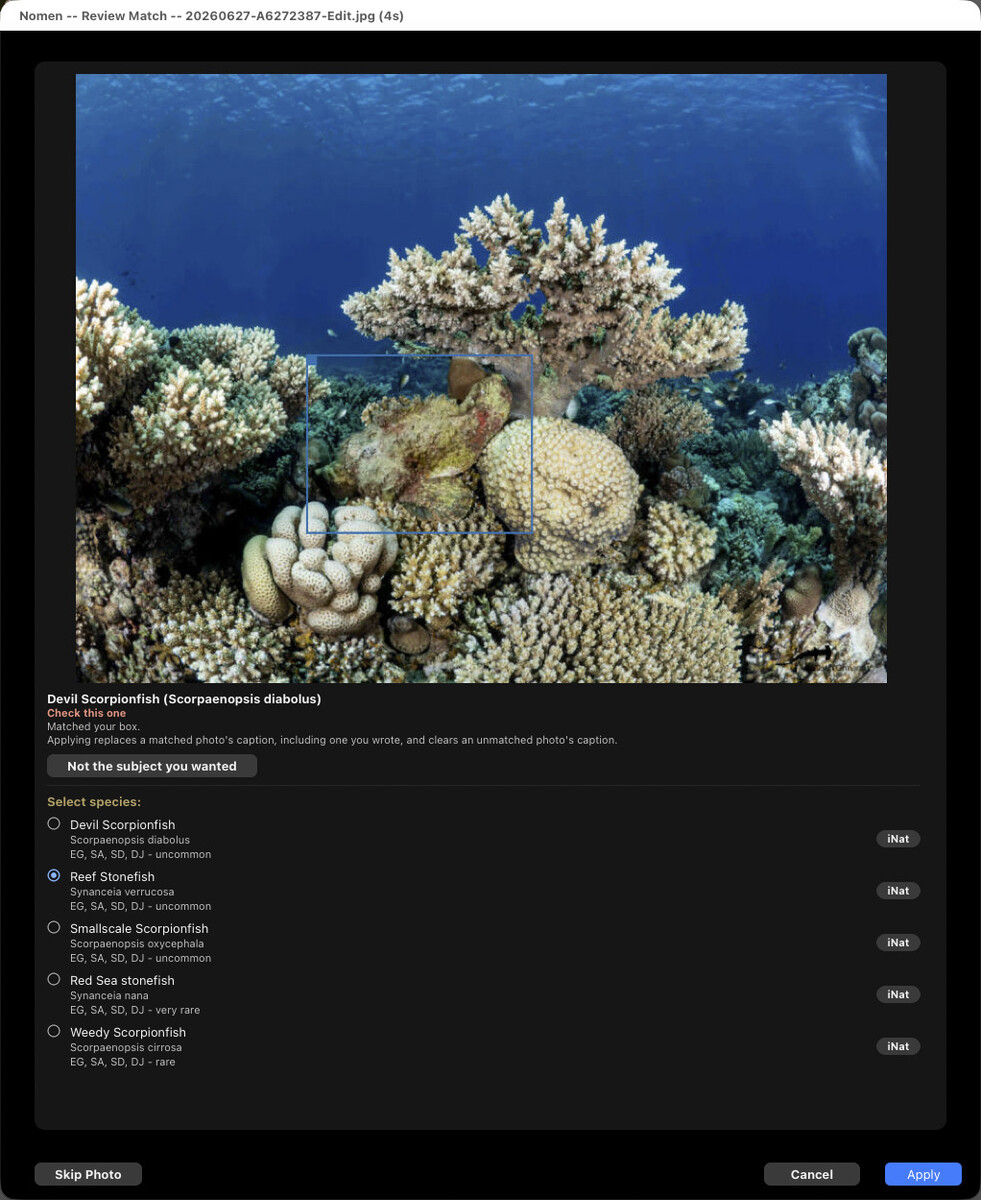
Red Sea, Egypt, June 27, 2026. Photo: Justin Ormand.
What it writes into Lightroom
Applying a match adds the species names and full taxonomy under a separate Nomen keyword branch. Your own keywords are left alone.
It also writes a starter caption for sharing online. This replaces any caption already on the photograph, including one you wrote yourself. Saving a photograph as unmatched clears its caption, so check that before applying a batch.
Changes use Lightroom’s own undo, one step per photo. The separate Undo Nomen Match command I mentioned in April is gone. Keep a current catalog backup before a big run.
Where it still struggles
Nomen is much better than it was in April, but there are still things it has difficulty with.
The matching modes use Clear match, Close call and Check this one to help you decide where to spend more time reviewing. A Close call names the runner-up. These are suggestions, and even a Clear match deserves a look. Each candidate links to iNaturalist so you can compare reference photographs.
Some species with only a scientific name currently rank poorly against better-known lookalikes. Justin’s two Red Sea velvetfish, Ptarmus gallus, came back as soles or stingfish. I’ve traced the cause and am working on a fix.
Small, distant and partly hidden subjects are difficult too. Survey modes can miss fish, so their counts are a guide rather than a census.
Sometimes Nomen pays attention to a fish sitting on a coral when the coral is what you wanted. That’s a good use for drawing your own box.
Leave out people can occasionally exclude something that isn’t a person, particularly in insect close-ups. It also adds some processing time, which is why it’s off by default.
If you have a photo it struggles with, I’d like to see it. Reply here or email support@nomenapp.com. Those examples help me work out whether the problem is finding the subject, suggesting the species or something else.
For a software bug, include a diagnostic report if you can. In File → Plug-in Manager → Nomen, open Maintenance and Credits, then choose Generate report under Tools. It saves a ZIP to your Desktop.
Thanks to the people who tested it
The April thread made a real difference. The matching bugs I mentioned in April, the ones that affected some marine groups more than others, are fixed. Since then, the sharks and rays detector has been retuned, and the dive regions and country suggestions have improved.
Justin’s reef photographs were turning divers and fins into animal matches. His feedback put Leave out people into Quick setup, and his soft coral photograph was one of the first I used to test choosing a different subject.
“Nomen is a game changer, and has saved hours of time keywording in Lightroom. The ability to draw a box round a subject, then review suggested matches is a really powerful feature, especially for underwater photography and cryptic species.”
— Justin Ormand, beta tester, who received his beta licence free
The feedback hasn’t stopped with launch. Version 1.0.1 came out the following day to fix a window that didn’t fit on one Lightroom setup. Justin’s velvetfish report is another example of something I can work on because someone sent the photographs.
If you joined the beta through the April thread, your beta licence keeps working with no end date, as I promised in April. You don’t need to buy anything.
Update through the Plug-in Manager, or, if you’re on a build older than 0.14.2, download Nomen.zip once. Then use Update assets. Moving to 1.0 downloads about 4.5 GB of species data again, so do that at home before a trip.
If you’re revisiting photographs you matched during the beta, enable Skip already-matched photos unless you intend to review them again. Otherwise, applying new results can overwrite corrections you made earlier.
Price and the WaterPixels offer
An Individual licence is $59 USD for the first 100 buyers, then $79. It covers one person on up to two computers. You pay once, all updates within version 1 are included, and there’s a 14-day money-back guarantee. Prices are plus applicable taxes.
WaterPixels members can use WATERPIXELS10 for 10% off. That brings Individual to $53.10 USD while the introductory price lasts. The code works once per customer, applies to Individual licences and runs until January 31, 2027.
Checkout isn’t open to UK or Isle of Man addresses yet while I finish UK VAT registration. There’s an email signup on the pricing page if you’d like to know when it opens. The code will still work if checkout opens before it expires.
You’ll need Lightroom Classic 13 or later, running on an Apple Silicon Mac with macOS 14 or later, or 64-bit Windows 10 (22H2) or Windows 11. Intel Macs aren’t supported.
The matching engine and species data take about 5.8 GB on Mac or 6.6 GB on Windows and download from inside Lightroom. Download and activate at home before travelling. Nomen works offline for 60 days after its last successful licence check; the licence details are here.
For anyone using Capture One or another editor, I’m also working on a standalone version. You can leave your email on the pricing page for one notification when it’s ready.
I’m excited to finally have this out, and grateful for the help people here have given me along the way. I hope it saves you some keywording and gives you a reason to dig through a few old dives.
Happy to answer questions here, or DM me (Brettjforsyth) if you’d rather talk privately.
Brett



Recommended Comments