



Jump to content

CINEMATIC Underwater Videos with ANY Action Camera? Is it possible or we just lower our standards?
Featured Replies

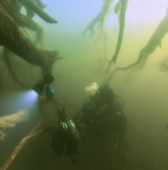
I've recently came across a video on youtube about tips and tricks to shoot cinematic footage by any action camera. The YT channel is run by a couple creating mainly travel videos with lots of underwater sequences. The recommendations (use tray, add lights, get closer etc.) are totally appropriate but the underwater video sequences are just not OK and IMHO, and they are far from cinematic, or I just haven't seen that movie. My main problem is that they forced hyperview and the corners are somehow stretched and not sharp. Actually, only the middle segment is usable according to my standard. I left a comment, but in general other comments are positive. So the people are happy with those results. Most of the people will watch YT videos on smartphone, so maybe trying to reach cinematic quality is just overrated or the people's quality expectations are lowered drastically. I'm curious about your opinion. Please, don't leave negative comments on the video on YT, I don't want to bash their channels, so lets rather discuss here, and more as a phenomenon (with this particular example) general.

By the way I think it's possible to achieve cinematic quality with action cameras as many footage in big blue chip productions were taken by action cameras. So here is the video I mentioned:

Twenty years on YouTube and I still don't have a clue what 'cinematic' is supposed to mean. I'd wipe that word from the face of the earth if I could. To your typical underwater YouTuber, "cinematic" is just 50 fps slow-motion that looks like the ocean is on Valium. On land if it isn't true 24 fps with anamorphic flares, it doesn't count. It’s ridiculous.

The rest of the video is just clickbait. Title and thumbnail are clearly designed to feed the algorithm

Important Information

Terms of Use Privacy Policy Guidelines We have placed cookies on your device to help make this website better. You can adjust your cookie settings, otherwise we'll assume you're okay to continue.

Account

Navigation

Search

Configure browser push notifications

Chrome (Android)
  1. Tap the lock icon next to the address bar.
  2. Tap Permissions → Notifications.
  3. Adjust your preference.
Chrome (Desktop)
  1. Click the padlock icon in the address bar.
  2. Select Site settings.
  3. Find Notifications and adjust your preference.
